





M365 Security Best Practices for SMBs

Most small and medium businesses run on Microsoft 365, and M365 security best practices are what separate a hardened tenant from an exposed one. Email, files, identity, collaboration. The default configuration leaves critical gaps that attackers exploit daily. According to Microsoft, over 99.9% of compromised accounts lack multi-factor authentication. That is not a technology problem. It is a configuration problem.
What follows is the controls that actually matter for SMBs running Microsoft 365. No theory. No fluff. Just the settings, tools, and practices that reduce your attack surface, based on what we see in real Nordic tenants week after week.
- Defaults are a starting point, not a destination. Security Defaults skip Conditional Access, email authentication (SPF, DKIM, DMARC), data loss prevention, and endpoint protection entirely.
- MFA everywhere, phishing-resistant for admins. Over 99.9% of compromised accounts lack MFA; eliminate every exception, including service accounts, and move admins to FIDO2 keys or Windows Hello.
- Two Global Admins maximum. Use role-specific admin accounts for daily work, enable PIM with Entra ID P2, and never browse email or the web with a privileged identity.
- Business Premium is the right SMB plan. It bundles Conditional Access, Defender for Office 365 Plan 1, Defender for Business, and Intune; E5 only earns its keep past 300 users or heavy regulation.
- Backup is your job, not Microsoft’s. The shared responsibility model covers service availability only, and native retention policies are not a backup solution.
Why default Microsoft 365 settings are not enough
Microsoft 365 ships with security defaults that give you a baseline: mandatory MFA for admins, blocking legacy authentication, and requiring Azure AD Security Defaults. For many SMBs, this is where security configuration stops. For more detail on the specific exposures this creates, see our guide on security defaults that quietly expose your company.
The problem is that Security Defaults are designed as a starting point, not a destination. They don’t cover conditional access policies, email authentication (SPF, DKIM, DMARC), data loss prevention, or endpoint protection. Organizations that rely solely on Security Defaults leave significant gaps in identity protection, email security, and data governance, and those gaps are exactly what phishing kits and initial access brokers are optimised to exploit.
Microsoft’s own Security Defaults documentation is explicit. These controls are intended for organizations that have not yet implemented Conditional Access. Once you move beyond the basics, you need a deliberate security configuration strategy, not a collection of screen-saved best-practice tips from whoever set the tenant up originally.
Enforce multi-factor authentication for every account
MFA is the single most effective control you can implement. Microsoft research shows MFA blocks over 99% of account compromise attacks. Yet many SMBs still have exceptions. Service accounts without MFA. Executives who find it inconvenient. Legacy apps that don’t support modern authentication. Each exception is a door you’ve propped open on purpose.
What to do first. Turn off Security Defaults and implement Conditional Access policies instead, because that’s where you get granular control over when and how MFA is enforced. Move admin accounts to phishing-resistant MFA (FIDO2 security keys or Windows Hello for Business) since SMS and authenticator push can be bypassed by MFA fatigue attacks. Eliminate every MFA exception you currently have. Every account without MFA is a potential entry point, and service accounts belong on managed identities or certificate-based authentication instead. Require Microsoft Authenticator with number matching as a minimum for standard users, which prevents the simple approve-button fatigue tricks attackers lean on when they can’t bypass MFA directly.
A practical first step: run the Microsoft Entra admin center sign-in logs filtered for “single-factor authentication” to identify which accounts still lack MFA. That list is usually more surprising than admins expect, especially in tenants that have grown through acquisitions or role changes.
Lock down admin accounts
Global Administrator accounts are the highest-value targets in any Microsoft 365 tenant. A compromised Global Admin can export all email, reset any password, disable security controls, and exfiltrate data from SharePoint and OneDrive. In every incident we work on that reaches tenant-wide impact, the attacker is holding a Global Admin credential by the time the real damage happens.
Limit Global Admins to two accounts maximum. Microsoft recommends no more than five. Two is plenty for most SMBs, especially when you use role-specific admin accounts (Exchange Admin, Security Admin, User Admin) for day-to-day work instead of handing out Global Admin like it’s a permission level. Those admin accounts should be separate from daily-use accounts, and admins should never browse email or the web with their privileged identity signed in.
If you hold Azure AD P2 licenses, turn on Privileged Identity Management. PIM gives you just-in-time admin access that expires automatically, which cuts the window of exposure dramatically. Require phishing-resistant MFA for every admin sign-in, without exceptions. Block admin accounts from non-compliant devices with Conditional Access. None of this is expensive to configure. All of it is expensive not to.
Configure email authentication: SPF, DKIM, and DMARC
Email remains the primary attack vector for SMBs. Business email compromise caused over $2.9 billion in losses in 2023 according to the FBI’s Internet Crime Report. Properly configured email authentication prevents attackers from spoofing your domain to target your employees, customers, and suppliers.
Three protocols work together to protect your email domain. SPF (Sender Policy Framework) specifies which mail servers are authorized to send on behalf of your domain, published as a DNS record that includes Microsoft 365 servers and any third-party senders you rely on. DKIM (DomainKeys Identified Mail) adds a cryptographic signature to outgoing messages to prove they haven’t been tampered with in flight. You enable DKIM signing in the Microsoft 365 Defender portal for each domain you send mail from. DMARC (Domain-based Message Authentication, Reporting and Conformance) tells receiving mail servers what to do when SPF or DKIM checks fail. Start with a monitoring-only policy (p=none) per CISA M365 baseline guidance, read the aggregate reports for a few weeks, then move to quarantine and eventually reject once you’re confident your legitimate mail flows are signed correctly.
Without DMARC enforcement, anyone can send mail that appears to come from your domain. This is not a theoretical risk. We regularly find Nordic SMBs whose domains are being spoofed in phishing campaigns targeting their own customers, usually discovered only when one of those customers emails asking to verify a suspicious invoice.
Implement conditional access policies
Conditional Access is the policy engine that controls how and when users can reach Microsoft 365 resources. It replaces the all-or-nothing approach of Security Defaults with context-aware decisions based on user, location, device, application, and sign-in risk.
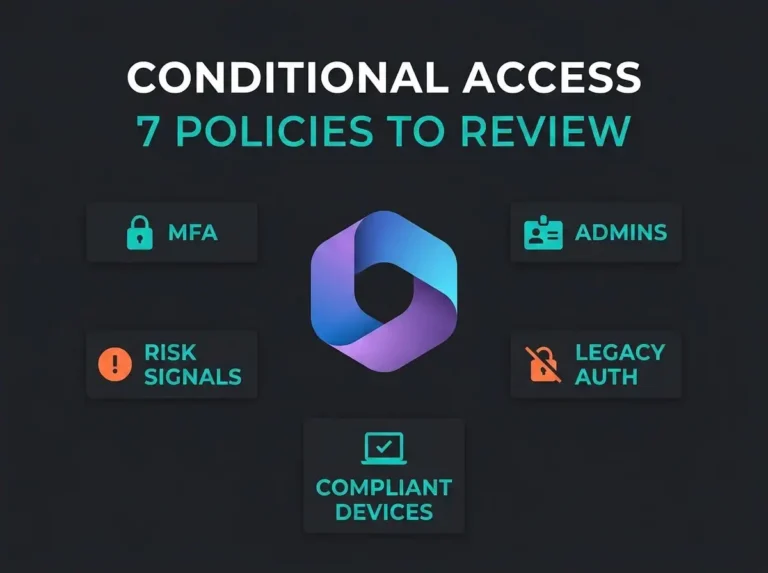
The essential policies for an SMB tenant. First, require MFA for all users across all cloud apps as your baseline policy. Second, block legacy authentication protocols, because IMAP, POP3, and SMTP AUTH don’t support MFA and are a favorite of password-spray campaigns. Third, require compliant or hybrid Azure AD joined devices for sensitive applications like SharePoint and Exchange Online, so that stolen credentials without a managed device go nowhere. Fourth, block sign-ins from countries where you have no operations. Named locations in Conditional Access make this a five-minute policy with outsize impact. Fifth, require MFA for risky sign-ins using Azure AD P2 risk-based Conditional Access, so that anomalous sign-in behavior triggers extra verification instead of quietly succeeding.
Conditional Access needs at least Microsoft Entra ID P1 licenses, which are included in Microsoft 365 Business Premium. For SMBs, Business Premium is the most cost-effective plan that covers the full security stack rather than selling each control separately.
Enable Microsoft Defender for Office 365
Exchange Online Protection comes with every Microsoft 365 plan and handles basic spam and malware filtering. EOP alone doesn’t protect against sophisticated phishing, zero-day malware in attachments, or malicious URLs that pass initial scanning and weaponize after delivery.
Microsoft Defender for Office 365 adds the layers that matter. Safe Attachments detonates suspicious attachments in a sandbox before they reach the inbox. Safe Links rewrites and scans URLs at time-of-click, so links that become malicious after delivery get caught at the last mile. Anti-phishing policies use machine learning to detect impersonation attempts against your executives and domains, which is how most modern BEC campaigns start. Attack simulation training lets you run controlled phishing exercises to measure and improve employee awareness instead of guessing at it. For a more product-specific breakdown of where Plan 1 and Plan 2 actually matter, see our guide to Microsoft Defender for Office 365 for SMBs.
Defender for Office 365 Plan 1 is included in Microsoft 365 Business Premium. Plan 2 adds automated investigation and response, threat trackers, and advanced hunting. For most Nordic SMBs, Plan 1 is the right baseline. Plan 2 earns its keep when you have a security team or a managed partner who will actually use the extra telemetry.
Deploy endpoint protection with Defender for Endpoint
Antivirus alone is no longer sufficient. Modern attacks use fileless malware, living-off-the-land techniques, and legitimate system tools to evade signature-based detection. Microsoft Defender for Endpoint provides endpoint detection and response that catches what traditional antivirus misses, and it’s the control that most often flips an incident from contained to catastrophic when it’s missing.
The configuration work that actually matters. Onboard every device to Defender for Endpoint through Microsoft Intune, which covers Windows, macOS, iOS, and Android, not only the Windows fleet. Turn on attack surface reduction (ASR) rules to block common techniques like Office macros spawning child processes, credential theft from LSASS, and executable content from email attachments. Configure automated investigation and remediation so that confirmed threats are contained without waiting for a human to wake up. Enable web content filtering to block malicious and inappropriate categories at the network level.
For SMBs on Microsoft 365 Business Premium, Defender for Business delivers a simplified version of Defender for Endpoint with the most important EDR capabilities included. It’s a sensible starting point that you can grow into as your environment matures.
Use Microsoft Secure Score to prioritize improvements
Microsoft Secure Score measures your tenant’s security posture on a point scale and provides specific recommendations for improvement. It is not a perfect metric. It is a useful tool for identifying gaps and tracking progress over time, which is more than most tenants have today.
Review Secure Score monthly. New recommendations appear as Microsoft adds checks and as your environment changes, so a monthly cadence keeps you ahead of drift. Focus on high-impact, low-effort items first. Enabling MFA for all users, blocking legacy auth, and configuring email authentication typically deliver the biggest score jumps for the least work. Don’t chase the number blindly, because some recommendations won’t apply to your environment or may conflict with how your business actually operates. Prioritize on real risk, not points. And use Secure Score as a reporting tool with leadership. A trend line is one of the easiest ways to demonstrate security improvements to a board that doesn’t read technical reports.
For a deeper evaluation beyond Secure Score’s scope, a Microsoft 365 security audit systematically reviews identity, email, endpoint, data protection, and logging configurations against baselines like the CIS M365 Benchmark. Secure Score gives you direction. An audit gives you a measured state.
Configure data loss prevention (DLP)
Data Loss Prevention policies prevent sensitive information from leaving your organization through email, Teams, SharePoint, and OneDrive. For SMBs handling financial data, personal information, protected health information, or Swedish regulated data, DLP is non-negotiable.
Start with the built-in sensitive information types. Microsoft 365 ships detectors for credit card numbers, national ID numbers (including Swedish personnummer), bank account numbers, and health records, so you don’t have to build them from scratch. Build policies around your highest-risk data first, meaning whatever would cause the most commercial or regulatory damage if it leaked. Use policy tips to educate users, because DLP can show inline warnings when someone tries to share sensitive data, giving them a chance to self-correct before the action is blocked. And run policies in test mode before flipping them to enforcement. That lets you see the real impact and tune false positives while users still have normal access, instead of breaking a legitimate workflow on a Monday morning.
Back up your Microsoft 365 data
Microsoft provides service availability, not data backup. The shared responsibility model is explicit about this. Microsoft keeps the platform running. Protecting your data against accidental deletion, malicious insiders, and ransomware is your responsibility.
Microsoft’s native retention policies and litigation hold offer some protection. They are not a backup solution. Native retention can be modified by admins, including compromised admin accounts, and recovering individual items from retention can be slow and complex at exactly the moment you need speed. A proper third-party backup for Exchange Online, SharePoint, OneDrive, and Teams gives you independent copies stored outside your Microsoft 365 tenant, granular recovery down to a single email or file, protection against ransomware that encrypts cloud-synced files through the desktop OneDrive agent, and immutable copies that meet data retention regulations where they apply. For most Nordic SMBs, backup is the cheapest insurance policy they’re not already buying.
Monitor and respond with audit logging
Without logging, you cannot detect breaches, investigate incidents, or prove compliance. Microsoft 365 provides unified audit logging. It needs to be configured correctly before it’s useful.
Verify that unified audit logging is enabled. It’s on by default for most tenants, but a quick check in the Microsoft Purview compliance portal is worth the two minutes. For more on how this sits inside the wider compliance surface, see our guide on where Microsoft 365 security and compliance tools moved. Extend log retention beyond the default 180 days if your compliance requirements demand it. Microsoft 365 E5 or the compliance add-on extends retention to one year with searchable logs and up to ten years with audit log retention policies.
Set up alert policies for events that actually matter: admin role changes, mail forwarding rule creation, mass file downloads, and sign-ins from unusual locations. Feed the logs into a SIEM such as Microsoft Sentinel for correlation, automated detection, and incident response. For SMBs without an internal security team, a managed SIEM service provides 24/7 monitoring without the staffing overhead of hiring analysts who don’t exist in the Nordic job market anyway.
Frequently asked questions
What Microsoft 365 plan do SMBs need for proper security?
Microsoft 365 Business Premium is the recommended plan for SMBs that take security seriously. It includes Conditional Access, Defender for Office 365 Plan 1, Defender for Business (endpoint protection), Intune for device management, and Azure Information Protection. Business Basic and Standard lack important security features like Conditional Access and endpoint protection.
How often should we review our Microsoft 365 security settings?
Review your security configuration at least quarterly. Check Microsoft Secure Score monthly for new recommendations. Review Conditional Access policies and admin role assignments quarterly. Run a full security audit annually or after any significant change such as adding new applications or changing licensing.
Is Microsoft 365 secure enough without third-party tools?
Microsoft 365 Business Premium provides strong built-in security for SMBs. The main gaps are third-party backup (Microsoft does not provide true backup), advanced SIEM and 24/7 monitoring (Microsoft Sentinel requires expertise to operate), and security awareness training beyond basic attack simulation. These controls also align closely with what cyber insurers require for coverage. Most SMBs benefit from adding a backup solution and considering managed security services for monitoring and incident response. If you’re evaluating providers, understanding the difference between MSPs and MSSPs will help you choose the right partner.
What is the biggest security mistake SMBs make with Microsoft 365?
Leaving the default configuration unchanged. The most common issues we see are: MFA not enforced for all users, no Conditional Access policies, legacy authentication still enabled, email authentication (DMARC) not configured, and no admin account separation. These gaps exist in the majority of SMB tenants we assess.
Do we need Microsoft 365 E5 or is Business Premium sufficient?
Business Premium is sufficient for most SMBs with up to 300 users. E5 adds advanced features like Microsoft Sentinel (cloud SIEM), Defender for Office 365 Plan 2 with automated investigation, advanced eDiscovery, and extended audit log retention. Consider E5 if you need built-in SIEM capabilities, operate in a heavily regulated industry, or have more than 300 users.