





Why Office 365 Email Security Fails (And How to Fix It)

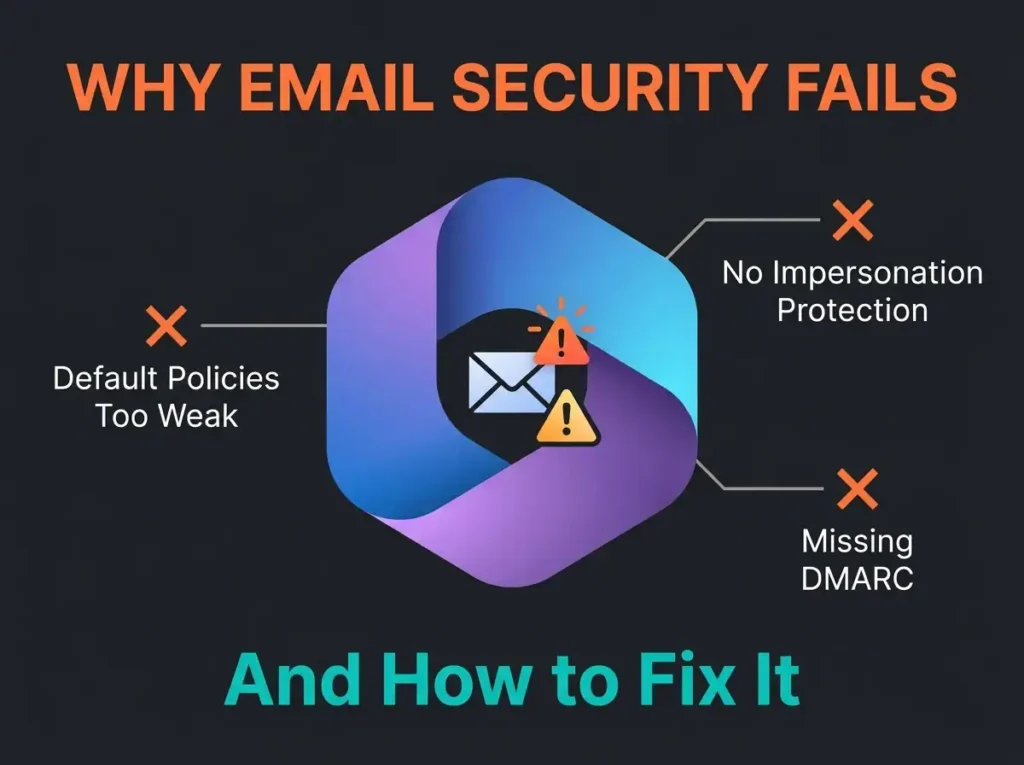
Walk into any Microsoft 365 assessment and Office 365 email security is where the holes show up first. Nearly every time.
CISA puts over 90% of cyberattacks as starting in someone’s inbox: credential phishing, business email compromise, the slow-burn account takeover that stages ransomware weeks later. Exchange Online Protection blocks the noisy stuff. The targeted mail that matters keeps slipping through default tenants daily, and those end up on breach reports.
A hundred to three hundred attempts per user per month is a normal range on tenants I see. A couple of thousand chances a year for one person to click once. One click, stolen session, hijacked mailbox, attacker staging inside the tenant by Tuesday afternoon.
What follows is the list of Office 365 email security gaps we keep finding, and where the actual leverage is.
300M+ Phishing attempts targeting Microsoft 365 users daily
- EOP alone is not enough. Exchange Online Protection stops commodity spam and known malware, but targeted phishing, BEC, and zero-day attachments walk past default settings.
- BEC drives the losses. The FBI puts the average CEO-fraud incident above $130,000, and it needs no malware, just a spoofed or compromised account and a plausible Friday wire request.
- DMARC at p=none blocks nothing. Enforcement at p=quarantine or p=reject is what stops spoofing, typically cutting domain spoofing attempts by 95 percent, yet only about 35 percent of organizations run it.
- Defender beats bolt-on gateways. For pure M365 tenants, properly configured Defender for Office 365 plus DMARC at reject delivers enterprise-grade protection without MX changes, an extra console, or gateway delivery delays.
- Training and audits pay off. Quarterly phishing simulations cut successful clicks by around 70 percent over 12 months, and a weekly mailbox-rules audit catches the persistence tricks attackers install first.
Why default O365 protection keeps falling short in 2026
Microsoft is quietly running one of the largest mail filters on the planet. Roughly 5 billion messages a day, hundreds of millions of phishing attempts blocked before they reach a mailbox. Exchange Online Protection (EOP) is fine at the commodity end of the spectrum: spam, signature-matched malware, repeat-offender infrastructure. The place it struggles is the same place every signature-based system struggles, which is the brand-new campaign that has not been seen anywhere else yet.
Four email threats that walk past default O365 settings
1. Credential phishing
You know the shape of this one. A fake Microsoft sign-in portal, an urgent password expiration notice, a user who types their credentials into the wrong page and goes about their day.
Nothing here triggers a malware filter. No attachment, no file, no hash. The infrastructure often stands up an hour before the campaign and comes down before the sandbox rates it. By the time the filter catches on, the attacker has tested the credentials, found the user had no MFA, and started reading their mail.
Key Insight
Modern phishing sites run on HTTPS, use plausible domains like “microsoftonline-verify.com”, and read like a real IT notice. Expecting users to spot them by eye is not a defense.
2. Business email compromise (BEC)
BEC is where the losses live. The FBI IC3 report puts the average CEO-fraud incident north of $130,000, a mean hiding a long tail. The cases that hurt clear seven figures and end up in board minutes.
Mechanically, BEC is unglamorous. Attacker has either spoofed the CEO’s domain (if you do not run DMARC at reject) or compromised the account outright. Either way, a short text email lands in finance on a Friday afternoon asking for a quick wire to a vendor that is not a vendor. No attachment to scan, no link to rewrite. Just a plausible sentence on plausible timing.
Critical Security Gap
BEC does not need technical sophistication. Without DMARC enforcement, spoofing your domain takes minutes.
3. Email spoofing and domain impersonation
There are two flavors of spoofing and they need separate controls. Display-name spoofing is the cheap one: header says “John Smith, CEO” and the actual sender is some disposable Gmail address the user is never going to open the headers on. Then you have lookalike domains, which is where it gets uglier. Characters like micr0soft.com (with a zero instead of the letter), homoglyph attacks with Cyrillic lookalikes, and typosquatted customer-facing domains that send your customers to a page looking exactly like your login.
Default O365 shows the external-sender banner, which is fine in theory and useless in practice after about a week, at which point every user in the company has banner blindness. The thing that actually stops spoofed mail is DMARC at p=reject, enforced at the receiving server’s end. The uptake on that is still depressing. About 35% of organizations run DMARC with enforcement on, a figure that has barely moved in three years.
4. Malware delivered by email
Weaponized Office documents with macros. Password-protected ZIPs that sandboxes cannot open without the password sitting in the email body. Links behind URL shorteners that resolve to a benign page for your sandbox and a malicious one for your users.
Speed is the shift here. Ransomware affiliates are sending thousands of phishing emails a day across a campaign, and once they get an email foothold the lateral movement is hours, not days. Dwell time has collapsed: 21 days in 2020 is now under 4 days in 2024. That used to be a working week of incident response runway. It is now one afternoon.
What email breaches actually cost
A successful email attack does not stop being expensive once the lawyers leave. It shows up as a line item on next year’s budget.
On the money side, the BEC average is the $130,000 figure above; ransomware payments sit in a wider range, commonly between $200,000 and $2 million depending on victim size and sector. For more on what tenant defaults make all this worse, see our piece on M365 security defaults that create risk. Downtime is where the invisible money goes: Gartner’s old $5,600-per-minute figure is conservative by 2026 standards. Insurance compounds quietly too, with post-claim premiums running 25 to 50% higher, assuming the carrier renews.
Operationally the damage is less dramatic but lasts longer. Three to four weeks of recovery is a common ransomware window, during which GDPR notifications are firing, customer data is possibly on a paste site, mail systems are being rebuilt because the old ones are forensic evidence, and a team has not slept properly in a fortnight. Reputation lags everything. About 65% of customers say their trust in a brand drops after a publicly disclosed breach, which turns into slower sales cycles and a competitor with an easier time during your next tender.
Regulatory exposure is the quiet compounder. GDPR maxes out at €20 million or 4% of global revenue. The post-incident regulatory work is where the consulting bill really goes: one email breach routinely triggers 18 to 24 months of follow-on, which is almost always more expensive than the incident itself.
How to actually harden Office 365 email security
Default tenant settings leave gaps, and gaps compound. Tenants that stay out of trouble tend to run their email stack in a particular way, and it is worth being specific about what that looks like in practice.
1. Defender for Office 365, not just EOP
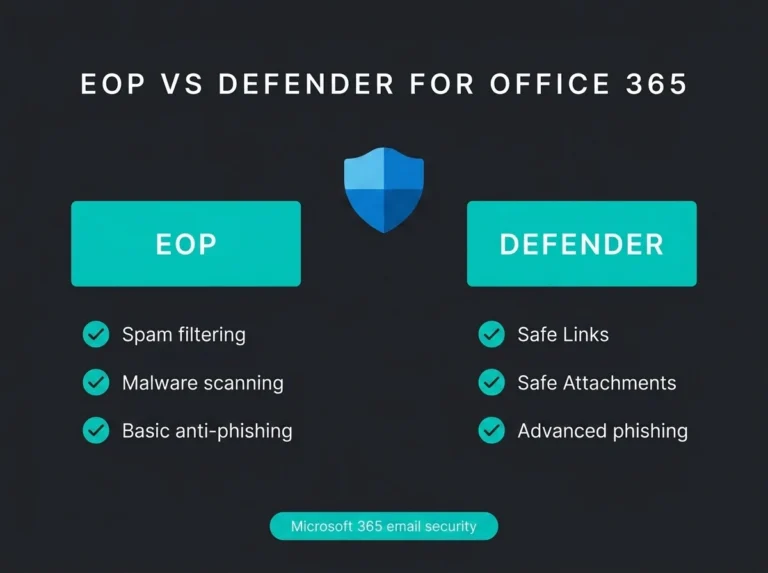
EOP is the floor, not the ceiling. It catches commodity mail, and that is about where its remit ends. Defender for Office 365 is where the meaningful protections live.
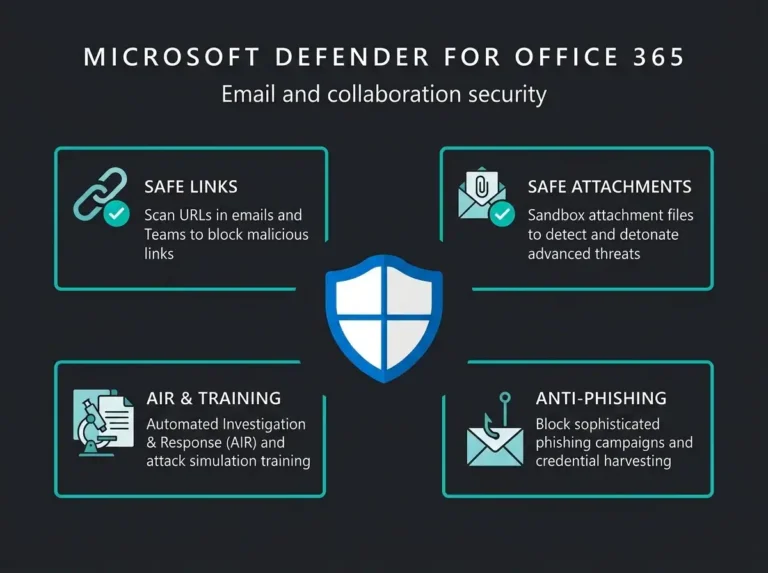
Safe Links is the one most organizations underweight. It rewrites URLs at delivery and re-scans them the moment the user clicks, which is the only way to handle the case where a link is clean at delivery and weaponized an hour later (which is a thing campaigns deliberately do to beat on-delivery scanners). Safe Attachments does detonation in an isolated sandbox, so password-protected macros and clever container formats do not get a free pass into the inbox. Anti-phishing on the Defender tier adds impersonation protection for your executives and mailbox intelligence, which learns the communication pattern of each user over time and flags the outliers. This stack is a standard part of the M365 security best practices we recommend for any tenant above about 20 seats.
Proven Results
Tenants running Defender for Office 365 see far fewer phishing emails reaching inboxes than EOP-only tenants, thanks to Safe Links click-time scanning, Safe Attachments sandboxing, and machine-learning anti-phishing policies.
2. DMARC enforcement, not just monitoring
Email authentication is the set of DNS records that tells the rest of the internet which servers are allowed to send on your behalf. Three records, tied together, doing one job.
SPF is the list of authorized sending infrastructure, published as a TXT record. DKIM is a cryptographic signature attached to outbound mail, verifiable against a public key you publish in DNS. DMARC ties both together and, more importantly, tells receiving servers what to do when SPF or DKIM fails.
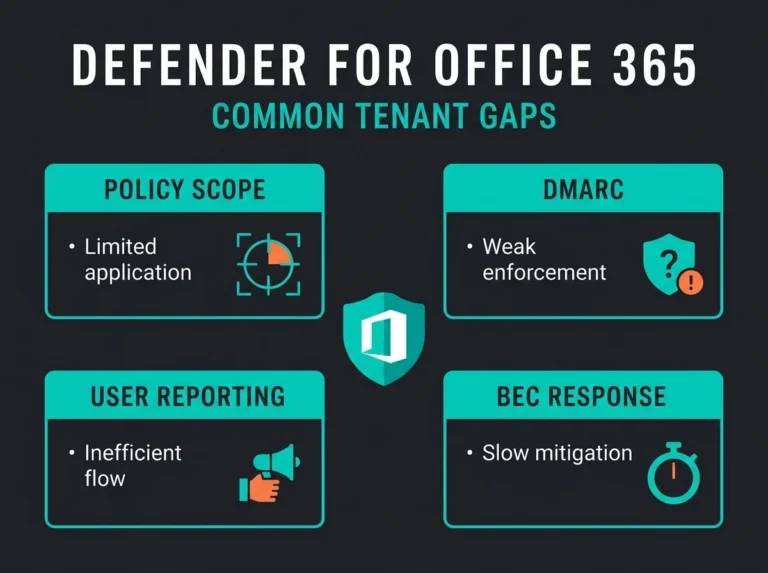
The trap most tenants fall into is DMARC at p=none, which is monitoring mode. You get the aggregate reports in your inbox, you feel like you have deployed DMARC, and zero spoofed mail is getting blocked anywhere on the internet. The enforcement only kicks in at p=quarantine or p=reject. Until you make that move, nothing stops someone from forging your domain.
The goal is p=reject, but you do not go there in one step. You deploy at p=none, you read the reports for a month or so, you find the legitimate senders you forgot about (marketing automation, HR system, that old bulk-mail tool nobody owns), you fix the auth for each of them, then you move to quarantine, sit there long enough to see the complaints come in, and finally move to reject.
DMARC enforcement typically cuts domain spoofing attempts by 95% and improves legitimate deliverability, because authenticated senders are trusted more by receiving servers.
Email Security Best Practice
3. Conditional Access tied to email signals
In most tenants I look at, the identity team and the email team have never spoken. The Conditional Access policies sit in one blade, the Defender for Office 365 alerts sit in another, and nothing cross-triggers.
That is a miss, because the most useful identity signal you have is often an email security event. When Defender flags a credential phishing attempt against Alice, the very next Alice sign-in is the highest-risk sign-in of her week. Conditional Access can take that signal, force a session-level MFA challenge, and kill the takeover even though Alice already typed her password into a fake page. The password is burnt, yes. The session still needs MFA to be useful to the attacker.
Same logic for auto-forwarding rules. The moment a suspicious rule appears in a mailbox, that is a live compromise indicator, and the SOC should have it within minutes and not next quarter’s report. Link the email signals to the identity engine. Defense in depth stops being a slogan and becomes a wiring diagram you can actually audit.
4. A user-reported message pipeline
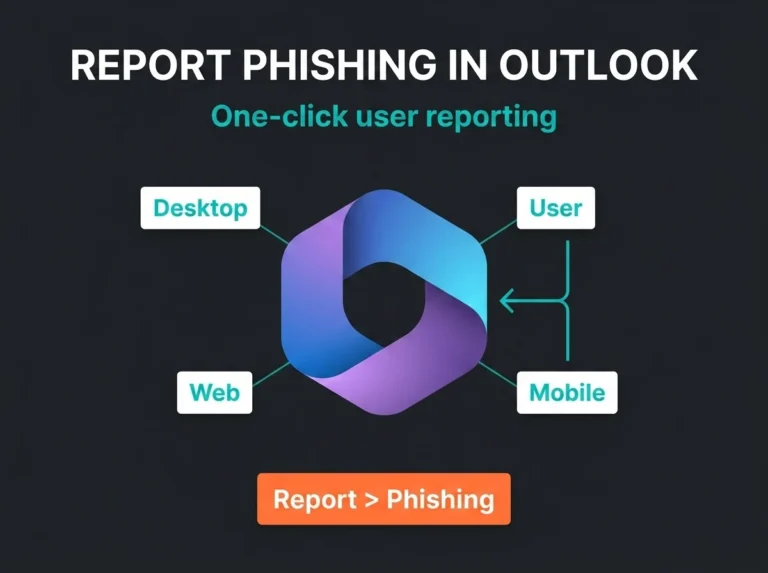
Users see new campaigns before your filter stack does. The catch is you have to make reporting frictionless and then do something with what comes back. Enable the built-in report button in Defender for Office 365 and treat the reported queue like an actual data source.
Here is what falls out of a working pipeline: the SOC gets ground-truth samples of campaigns targeting your organization specifically, the detection engineers can tune on real traffic, you can identify the users who keep clicking and give them a bit more training, and you build a feedback loop where reporting rates go up because users can see that reporting matters. Tenants running this properly tend to spot new campaigns days ahead of tenants running on automated detection alone, which is the difference between a contained incident and a disclosed one.
5. Attack simulation training
I am not a believer in most “security awareness” programs. Videos do not change behavior. What does change behavior is repetition on realistic scenarios with fast feedback, and that is what the attack simulation training in Defender for Office 365 gives you for free.
Run a real phishing campaign against your own users once a quarter, in shapes that mirror what attackers are actually sending this month. Auto-enroll the clickers in short targeted training, not a sixty-minute corporate module. Track click rate quarter over quarter, expect it to drop, keep going. Published case studies put the reduction in the 70% range over 12 months, which matches what I see in client tenants.
6. Mailbox rules audit
This is the one that nobody does and everybody should. Attackers who land in a mailbox almost always install forwarding and filter rules first, because rules are how you get persistence and cover tracks in Exchange Online. Forward all incoming finance mail to an external address, file anything from the security team into “RSS Subscriptions” (where nobody looks), auto-delete replies from the CFO so the compromise stays quiet. These are real rules from real incidents and they are invisible unless you go looking.
A simple weekly job scanning Exchange Online for rule anomalies (external forwards, rules targeting security-sender addresses, rules created outside business hours, rules with characters that make them hard to spot in the UI) catches most of this early. Cheap to implement. Disproportionately useful. Most tenants do not run it.
Large reduction in successful phishing with Defender for O365. 95% drop in domain spoofing with DMARC enforcement. 70% fewer successful phishing clicks with quarterly training.
Built-in Microsoft tools vs third-party email security
| Feature | Third-Party Gateways | Defender for Office 365 (Recommended) |
|---|---|---|
| Additional filtering layers | Yes | YesNative M365 integration |
| Advanced threat detection | Yes | YesWorks with all M365 services |
| MX record changes required | Yes | No |
| Email routing through external gateway | Yes | No |
| Additional tool to manage | Yes | NoSingle management console |
| Potential delivery delays | Yes | No |
| Included in many M365 licenses | No | Yes |
Choosing between Defender and a third-party gateway
The question most tenants eventually ask is whether to run Defender for Office 365 or bolt a third-party secure email gateway (Proofpoint, Mimecast, Barracuda) on top. The honest answer for most M365 organizations is that properly configured Defender plus DMARC at reject gives you enterprise-grade protection without the overhead of an extra vendor.
Third-party gateways are not wrong. They add another filtering layer, sometimes with capabilities Microsoft does not match (particularly on archiving and complex multi-platform environments). The cost is MX-record surgery, mail routing through an external provider, another admin console, and occasionally odd delivery delays when the gateway hiccups. In a pure M365 shop, the overhead usually outweighs the marginal protection gain.
A few things to weigh when the question comes up. Native tools tend to reduce operational complexity, particularly as Microsoft keeps shipping detection capabilities that only apply to native mail flow. Aggressive filtering from an external gateway creates productivity friction, users start white-listing things they should not, and the security team spends its week handling false-positive tickets. Running a second email security product well takes real headcount, which most SMBs do not have. Cost is the last question given Defender is already bundled into Business Premium and many E-plans.
What actually moves the needle in practice
If you only take one thing from this post, take the ordering. Email security controls are not equally valuable, and tenants that treat the list as a checkbox exercise tend to miss the high-leverage stuff while fiddling with the low-leverage stuff. The order below is what I deploy in client environments (and matches our 30-point M365 security checklist).
First move: turn on Defender for Office 365 and configure Safe Links, Safe Attachments, and anti-phishing properly. Not defaults. Walk through the policies and raise the thresholds. Second move: the DMARC work. Inventory your legitimate senders (this takes longer than you think), fix the authentication on each, move the record to p=reject. Third move: wire Conditional Access to react to email security events, so a credential phishing flag triggers MFA challenges on the user’s next sessions. Fourth move: enable the one-click phishing report button in Outlook, hook it into an actual SOC queue, and close the loop by feeding back to users whose reports led to a block. If you want the Microsoft-native control stack spelled out in more detail, see our guides to Microsoft Defender for Office 365 for SMBs, spear phishing prevention, and spoofing vs phishing.
Ongoing after that: quarterly phishing simulation with auto-enrolled remedial training for clickers, weekly mailbox rules audit against Exchange Online, monthly review of user-reported threats with detection engineering. None of this is glamorous. All of it is the work that drops incidents.
The audit we run checks the current configuration, hunts for Defender policy gaps, validates DMARC end-to-end, and hands back a prioritized hardening roadmap that fits your team’s capacity.
What improves when this gets done properly: far fewer phishing emails reaching inboxes, near-total elimination of domain spoofing once DMARC is enforced, and a measurable drop in successful credential compromise across the tenant.
The email audit is a piece of our larger Microsoft 365 security assessment, which goes across email, identity, data protection, and compliance. For the fuller scope, see what we cover in a full M365 security audit.
Stop email attacks before they become breaches. Book your email security review today.
Frequently Asked Questions
Is Office 365 email security enough to stop phishing?
Exchange Online Protection ships with every Office 365 plan and handles commodity spam and signature-matched malware reasonably well. It does not handle targeted spear phishing, BEC, or zero-day attachments, which routinely slip past EOP’s default configuration. Microsoft Defender for Office 365 (bundled with Business Premium) adds Safe Attachments, Safe Links, and anti-impersonation policies that materially improve phishing protection. For any tenant above a small size, the Defender tier is the realistic baseline.
What are SPF, DKIM, and DMARC and why do they matter?
These three DNS records are the mechanism that stops other people from forging your domain. SPF lists which servers are allowed to send mail on your behalf. DKIM attaches a cryptographic signature to outbound messages so any tampering on the way is visible. DMARC ties the first two together and tells receiving servers what to do when either check fails. Without DMARC at enforcement, anyone on the internet can impersonate your domain in a matter of minutes.
How do I set up DMARC for Office 365?
Start with SPF and DKIM, both correctly configured and aligned for your domain. Publish a DMARC record in monitoring mode (p=none) so you get aggregate reports without affecting mail delivery. Spend 2 to 4 weeks reading those reports and listing every legitimate sender you find, including services you forgot you used. Move the record to p=quarantine once every legitimate sender is authenticating cleanly, sit there for a couple of weeks, then move to p=reject. End to end, the process usually takes 4 to 8 weeks depending on how many sending services your organization accumulated over the years.
What is business email compromise (BEC)?
BEC is the targeted attack where criminals impersonate executives, vendors, or trusted partners to get employees to wire money or share sensitive data. It is social engineering, not malware, which is what makes it invisible to traditional email filters. The FBI’s 2023 IC3 report put BEC losses at over $2.9 billion, and the 2024 figure is comparable. Prevention is a mix: anti-impersonation policies on the mail side, mailbox intelligence, and consistent awareness training for the people who handle payments.
Should we use a third-party email security gateway with Office 365?
For most SMBs on Microsoft 365, no. Defender for Office 365 (included with Business Premium) is enough, and adding a gateway brings its own operational complexity: mail routing changes, another console, the occasional delivery delay, and sometimes interference with Microsoft’s native detection features. A third-party gateway can still make sense if you have specific compliance requirements, a multi-platform email environment that does not fit neatly into M365, or advanced archival needs the native tools do not cover.