





10 Microsoft 365 Security Defaults That Are Quietly Exposing Your Company

Microsoft 365 security defaults are built for a smooth first day, not a safe one. Every assessment we run at Falconer Security turns up the same handful of out-of-box settings quietly widening the attack surface: anonymous sharing links, unrestricted mail forwarding, audit retention capped at 180 days, user-granted OAuth consent, and so on. None of these require a breach to go wrong. They go wrong by themselves.
Microsoft’s own data says MFA blocks more than 99.2% of account compromise attacks. The catch: several defaults in a fresh tenant leave MFA bypassable, oversharing enabled, and attacker activity unlogged. Below are the 10 Microsoft 365 defaults we fix first on client tenants, with the exact steps to fix them in yours.
- Defaults favor onboarding, not safety. In our assessments, 9 out of 10 tenants still have at least 5 of these 10 risky out-of-box settings untouched in production.
- MFA alone is not enough. MFA blocks over 99.2% of account compromise attacks, but unblocked legacy protocols like IMAP and POP3 let password sprays bypass it entirely.
- Forwarding rules feed BEC. Default outbound anti-spam policy allows automatic external forwarding, the classic business email compromise move behind roughly $2.8 billion of the FBI’s $16.6 billion in reported 2024 cybercrime losses.
- Five fixes, three hours. Blocking forwarding and legacy auth, restricting anonymous links, cutting global admins, and locking OAuth consent take under three hours combined and close the most exploited paths.
- 180-day logs end investigations. E3 audit retention defaults to 180 days, shorter than typical attacker dwell time, so export logs to a SIEM such as Microsoft Sentinel.
Why Microsoft 365 Security Defaults Create Risk
Microsoft tunes defaults so onboarding is painless. A brand new tenant lets users share files, forward mail, install apps, and invite external partners without calling IT. That is a product decision, and it makes sense for Microsoft. It does not make sense for you.
“Works out of the box” and “safe out of the box” are not the same goal. Microsoft has tightened the baseline over time. Tenants created after October 2019 have Entra ID security defaults enabled automatically, which is a real improvement. Dozens of other settings are still wide open. Attackers know exactly which ones, and they target the gap between Microsoft’s default and a hardened tenant.
Key finding: In our assessments, 9 out of 10 tenants have at least 5 of these 10 defaults untouched. That is preventable attack surface sitting in production.
Identity and Access Risks
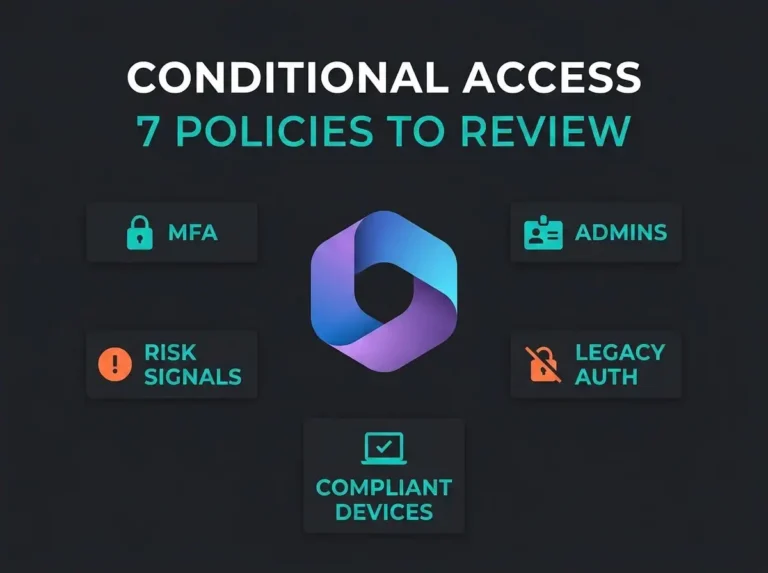
3. No Conditional Access Policies
The Default
New Microsoft 365 tenants created after October 2019 ship with Entra ID security defaults on, which enforces basic MFA. Security defaults are blunt by design. One rule, everyone, no granularity. Organizations with Entra ID P1 or P2 licenses are supposed to graduate to Conditional Access, and many simply never do.
The Risk
Without Conditional Access, you cannot restrict by location, block unmanaged devices, require a compliant device for sensitive apps, or apply risk-based MFA. You also cannot require phishing-resistant MFA for admins or block sign-ins from high-risk countries. Those are not fringe controls. They are the ones that stop the attacks we investigate.
The Fix
- Go to Microsoft Entra admin center > Protection > Conditional Access
- Disable security defaults first (you cannot have both at the same time)
- Create policies for: MFA for all users, block legacy authentication, require compliant devices, block sign-ins from high-risk locations
- Use Microsoft’s Conditional Access policy templates as a starting point
- Always create emergency access (break-glass) accounts excluded from all policies
4. Too Many Global Administrators
The Default
Microsoft hands Global Administrator to whoever creates the tenant. Over a few years the list grows: the IT manager, the external consultant, the finance lead who “needs access to everything”, the guy who left in 2022 but never got removed. Nothing in the product tells you the count is a problem.
The Risk
A Global Administrator can change any setting, open any mailbox, wipe any data, and grant themselves access to anything else in the tenant. Every one of those accounts is a high-value target. Compromise one through phishing or a reused password, and the attacker owns the entire Microsoft 365 environment. No audit trail of their own actions will save you.
The Fix
- Reduce global admins to 2-4 (Microsoft recommends fewer than 5)
- Assign scoped roles instead: Exchange Administrator, SharePoint Administrator, User Administrator
- Use dedicated admin accounts separate from daily-use accounts (no mailbox, no browsing)
- Enable Privileged Identity Management (PIM) so admin rights are temporary and logged
- Require phishing-resistant MFA (FIDO2 keys or certificate-based auth) for every admin account
6. Legacy Authentication Not Blocked
The Default
Microsoft has been phasing out legacy protocols like POP3, IMAP, and SMTP AUTH for years, but the job is not finished across every tenant. Older tenants, and any tenant where someone turned security defaults off, may still accept them. Legacy authentication does not support MFA at all.
The Risk
Legacy protocols are the main road for password spray attacks. Attackers throw common passwords at a long list of accounts over IMAP or POP3, and MFA never enters the picture. The Microsoft Digital Defense Report 2025 puts MFA at over 99% effectiveness against identity-based attacks, but only when legacy authentication is also blocked. Without that second half, you locked the front door and left a window open.
The Fix
- If you use security defaults: legacy auth is already blocked
- If you use Conditional Access: add a policy to block legacy authentication for all users
- In Exchange Online: disable POP3 and IMAP per mailbox or for the whole organization
- Audit sign-in logs for legacy auth before blocking (Entra ID > Sign-in logs > filter by “Client app”)
- Move any apps still using SMTP AUTH to OAuth 2.0
Data Exposure and Loss Prevention
1. Anonymous Sharing Links in SharePoint and OneDrive
The Default
SharePoint Online and OneDrive default to “Anyone” sharing links. A user can paste a file URL into an email and the recipient opens it with no sign-in, no questions asked. The default external sharing level for SharePoint is “Anyone”, and the default link type usually lands on the most permissive option on the menu.
The Risk
Anonymous links get forwarded. They get pasted into Teams chats, Slack channels, other people’s OneDrives. Nothing ties the link to an identity, so there is no audit trail and no way to revoke access from one specific person. I have seen contracts, salary data, and draft financials sitting on links that had been forwarded three times before anyone noticed.
The Fix
- Go to SharePoint Admin Center > Policies > Sharing
- Set external sharing to “New and existing guests” (authentication required)
- Change the default link type to “Specific people”
- Set a 30-day maximum expiration on external share links
2. Unrestricted External Email Forwarding
The Default
By default, users in Microsoft 365 can create inbox rules that forward every message to any external address. The outbound anti-spam policy does not block automatic forwarding unless you configure it to.
The Risk
This is the classic business email compromise (BEC) move. An attacker gets into a mailbox, drops in a forwarding rule, and quietly receives copies of every incoming email. The user changes the password later, but the rule keeps running. The FBI IC3 2024 Report logged $16.6 billion in reported cybercrime losses, with about $2.8 billion of it tied to BEC. A forwarding rule is often how the data keeps flowing out after the initial access is already stale.
The Fix
- In Microsoft Defender portal > Email & Collaboration > Policies & Rules > Threat policies > Anti-spam
- Edit the outbound anti-spam policy
- Set “Automatic forwarding” to “Off” (forwarding disabled)
- Add transport rules to alert on any existing forwarding rules pointing to external domains
9. No Data Loss Prevention (DLP) Policies
The Default
A new Microsoft 365 tenant has zero DLP policies. Personal identification numbers, credit card data, health records, financial data, you name it, all flow through Exchange, Teams, SharePoint, and OneDrive without a single alert or block.
The Risk
Nothing stops an employee from emailing a customer export to their personal Gmail “to finish at home”, dropping it into a Teams chat with an outside contact, or uploading it to a personal cloud account. For organizations under GDPR or NIS2, that absence shows up as a compliance gap the minute a regulator asks for evidence.
The Fix
- Go to Microsoft Purview > Data Loss Prevention > Policies
- Start from Microsoft’s built-in templates for your region (EU GDPR, financial data, health records)
- Apply policies across Exchange, SharePoint, OneDrive, and Teams
- Begin in “test mode” and tune false positives before enforcing
- Turn on policy tips so users get a clear reason when a share is blocked
Email and Application Threats
7. Default Anti-Phishing Policies Left Untouched
The Default
Exchange Online Protection (EOP) gives every Microsoft 365 tenant baseline anti-spam and anti-phishing filtering. The default policy settings are conservative on purpose. Impersonation protection is off. Safe Links and Safe Attachments only exist if you have Defender for Office 365. Phishing thresholds sit at standard.
The Risk
Default EOP catches obvious junk and known phishing kits. Targeted attacks slip past. A classic example: an attacker spoofs the CEO’s display name to ask finance for a wire transfer. Default policies will not flag it because impersonation protection has to be configured explicitly. The Verizon DBIR 2025 reported that 88% of system intrusion breaches involved stolen credentials, many harvested by phishing that a stock filter will never catch.
The Fix
- Configure impersonation protection for executives and your top external partners in anti-phishing policies
- If licensed for Defender for Office 365: enable Safe Links, Safe Attachments, and push the phishing threshold to “Aggressive” (level 3 or 4)
- Enable “First contact safety tip” so users see a banner on mail from new senders
- Configure DMARC, DKIM, and SPF for every sending domain you own
- Review quarantine data quarterly and tune policies from what you actually see
8. Unrestricted App Consent (OAuth App Permissions)
The Default
By default, any user in Microsoft 365 can grant third-party apps access to their data through OAuth consent. Click “Accept” on a consent prompt and the app can read the mailbox, read the files, or act on the user’s behalf. No admin sign-off.
The Risk
Consent phishing is a quiet way in. A user gets tricked into approving a malicious app, and now the attacker has an OAuth token. The token keeps working even after the user changes their password. MFA does not block it either, because the user authorized the access themselves. These attacks are rising fast and they look legitimate in logs, which is the point.
The Fix
- Go to Microsoft Entra admin center > Applications > Consent and permissions
- Set user consent to “Do not allow user consent” or limit it to verified publishers only
- Turn on an admin consent workflow so users can still request app access through a review step
- Audit consented apps regularly: Entra admin center > Applications > Enterprise applications > filter by consent type
- Revoke anything suspicious the moment you find it
Detection and Endpoint Gaps
5. Audit Log Retention at 180 Days
The Default
Microsoft 365 audit logging is on by default for enterprise tenants. Retention is where it gets thin. The default retention period is 180 days on E3 and 365 days on E5. For most compliance frameworks, 180 days is not enough.
The Risk
Real attackers sit inside environments for months. By the time someone notices, the early-stage logs (the phish, the first sign-in, the consent grant, the inbox rule) may already be gone. Without those entries, incident responders cannot tell you what was accessed, which accounts were touched, or how the attacker got in originally. That is not a theoretical gap. It is the gap that ends investigations.
The Fix
- Verify audit logging is on: Microsoft Purview portal > Audit
- For E3 tenants: export audit logs to a SIEM (for example Microsoft Sentinel) for long-term retention
- For E5 tenants: configure 365-day retention policies in Microsoft Purview
- For NIS2: check that your retention window meets the directive’s expectations for incident investigation and reporting
10. Mobile Device Access Without Management
The Default
Any phone can log into Microsoft 365 mail, Teams, SharePoint, and OneDrive with no management and no compliance checks. A user installs Outlook on a personal Android and now corporate mail is on a device nobody at the company has ever seen. No PIN requirement. No encryption check. No way to wipe just the corporate data.
The Risk
Lose the phone and corporate email is readable to whoever picks it up. Quit the company and your work inbox stays on your personal device indefinitely unless someone remembers to cut it off. You also cannot block jailbroken or rooted devices, prevent screenshots of sensitive content, or check the OS version before allowing access.
The Fix
- Deploy Microsoft Intune App Protection Policies (MAM) for BYOD scenarios
- Require a PIN or biometric to open corporate apps
- Enable selective wipe to remove corporate data without touching personal data
- Block access from jailbroken or rooted devices
- Use Conditional Access to require managed or compliant devices for sensitive apps
How to Prioritize These Fixes
Nobody fixes 10 settings in one afternoon. Use risk and effort to pick an order. The table below is the order we hand clients when we cannot stay to do it all ourselves.
| Priority | Setting | Risk Level | Effort |
|---|---|---|---|
| 1 | Block external email forwarding | Critical | 15 minutes |
| 2 | Block legacy authentication | Critical | 30 minutes |
| 3 | Restrict anonymous sharing links | High | 15 minutes |
| 4 | Reduce global administrators | High | 1 hour |
| 5 | Restrict OAuth app consent | High | 30 minutes |
| 6 | Configure Conditional Access | High | 2-4 hours |
| 7 | Harden anti-phishing policies | Medium | 1-2 hours |
| 8 | Extend audit log retention | Medium | 30 minutes |
| 9 | Deploy DLP policies | Medium | 4-8 hours |
| 10 | Implement mobile device management | Medium | 4-8 hours |
Quick win: The first five items on this list take under three hours combined and close the attack paths we see exploited most often in Microsoft 365 tenants.
What About Microsoft Secure Score?
Microsoft Secure Score gives you a number and a list of recommended improvements. It is a useful tool. It is not a security assessment. Secure Score measures what Microsoft can check programmatically, which means it skips context: whether your global admins actually use dedicated accounts, whether your DLP policies protect the data that matters, whether the person holding the Exchange Administrator role still works there.
We use Secure Score as the first five minutes of our Microsoft 365 security assessments and then go further into configuration detail, business context, and compliance requirements an automated score cannot see. A longer breakdown lives in Microsoft Secure Score: Beyond the Number.
NIS2 and Microsoft 365 Security Defaults
If your organization falls under the NIS2 Directive, these defaults are also a compliance story. NIS2 Article 21 asks for “appropriate and proportionate” cybersecurity risk management measures, covering access control, incident handling, and supply chain security among others. Several of the defaults above run straight into those requirements:
- Anonymous sharing links clash with access control and data protection obligations
- Unrestricted email forwarding weakens incident detection and data-leak prevention
- 180-day audit retention can fall short of the window you need for investigation and reporting
- No DLP policies conflict with requirements for protecting information in network and information systems
Fixing these Microsoft 365 defaults is a practical early step toward NIS2 compliance, and it pays off in security terms even if NIS2 never applied to you.
Frequently Asked Questions
Are Microsoft 365 security defaults the same as Entra ID security defaults?
No. “Security defaults” in Microsoft Entra ID is a specific feature that enforces basic MFA and blocks legacy authentication. “Microsoft 365 security defaults” in this article refers to the wider set of out-of-box settings across the whole Microsoft 365 platform (SharePoint, Exchange, Entra ID, Purview, Intune) that open gaps when left alone.
Should small businesses keep Entra ID security defaults enabled?
If you do not have Entra ID P1 or P2 licenses, yes. Security defaults give a real baseline for organizations that cannot run Conditional Access. They only cover identity though. The other nine settings in this article (sharing, forwarding, DLP, mobile access, and the rest) still need manual configuration.
How long does a Microsoft 365 security assessment take?
A thorough Microsoft 365 security assessment usually runs 1-2 weeks and covers tenant configuration, identity security, email security, and compliance gap analysis. The output is a prioritized remediation plan tied to your environment and your compliance obligations.
Do these settings apply to Microsoft 365 Business Basic and Business Standard?
Most of them do. A few features (Conditional Access, Privileged Identity Management, advanced DLP, Defender for Office 365) need premium licenses such as Business Premium, E3, E5, or add-ons. Teams on Business Basic or Business Standard should prioritize the fixes their license already covers, and look at Business Premium if they want Conditional Access and Intune.
How does NIS2 affect Microsoft 365 security requirements?
NIS2 does not spell out Microsoft 365 settings. Its Article 21 requirements for access control, incident handling, and risk management map straight onto the configuration changes in this article. Organizations in essential and important sectors have to show “appropriate and proportionate” measures, and a tenant left on its defaults is hard to defend as meeting that bar.