





Microsoft 365 Security Checklist: 30 Critical Controls

Most M365 tenants I see for the first time have the same shape. Expensive licenses, decent tools, security gaps an attacker could drive a bus through. The gap isn’t money. It’s configuration.
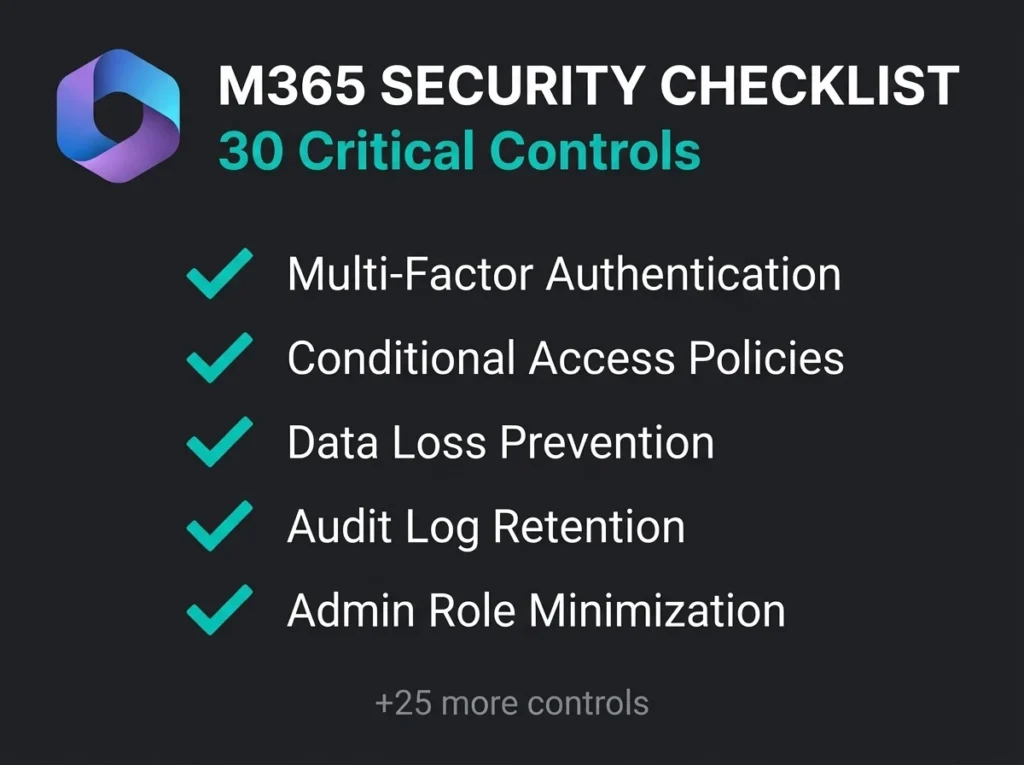
What follows is a Microsoft 365 security checklist: 30 controls I actually use as a baseline on assessments, grouped into five domains. Each one is specific enough to hand to an IT team with a deadline. According to Microsoft’s own data, organizations that turn these on reduce their risk of account compromise by over 99%. That figure is boring from repetition, but it’s still the single best argument for doing the work.
- 30 controls across five domains. Identity, email, endpoint, data protection, and monitoring, phased over four weeks rather than attempted in one sprint.
- MFA via Conditional Access comes first. Microsoft’s data shows MFA blocks over 99.9% of automated account compromise, and Conditional Access beats both per-user MFA and Security Defaults.
- Trim privilege hard. Two Global Administrator accounts (not Microsoft’s ceiling of five), dedicated admin accounts, PIM with Entra ID P2, and legacy authentication blocked tenant-wide.
- Email authentication must reach enforcement. SPF at hard-fail, DKIM on every domain, DMARC ramped from p=none to p=reject over two to four weeks, and external auto-forwarding blocked.
- Business Premium covers controls 1 through 26. For most SMBs under 300 users it is the right balance; Entra ID P2 adds PIM and risk-based Conditional Access, and E5 adds extended audit retention.
Identity and Access Controls
Identity is the perimeter now. Stolen credentials show up in almost a third of all breaches over the past decade (Verizon DBIR 2025). The first ten controls exist because if someone can log in as one of your users, most of the rest of this post stops mattering.
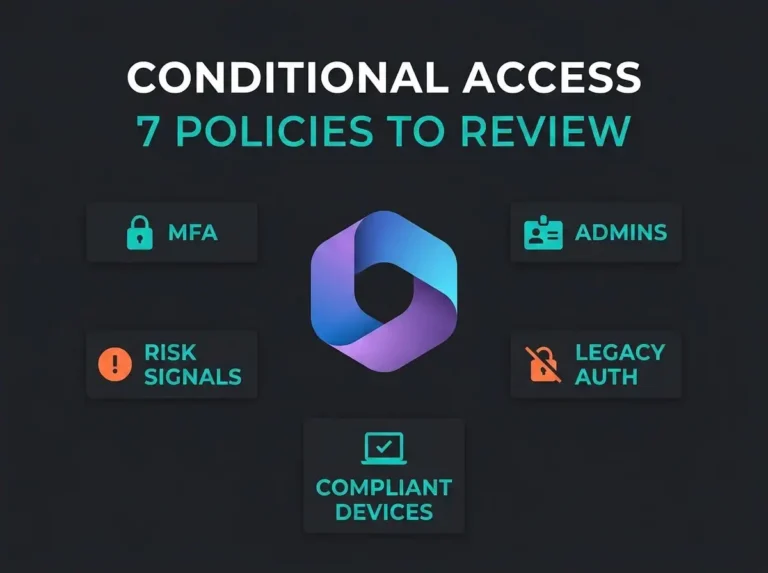
- Enforce MFA for all users across all cloud apps. Use Conditional Access, not per-user MFA, not Security Defaults. Conditional Access gives you granular control and no exceptions. Security Defaults is the “good enough” option that Microsoft shows small-tenant admins; it is not good enough. See our guide on Microsoft 365 security defaults that create risk for the full argument.
- Require phishing-resistant MFA for admin accounts. FIDO2 security keys or Windows Hello for Business. Push notifications and SMS both fail against MFA fatigue and SIM-swapping.
- Enable Microsoft Authenticator number matching. Blocks the simple approve-button fatigue attack for standard users who still rely on push.
- Block legacy authentication protocols. IMAP, POP3, SMTP AUTH. None of them support MFA. Block them all, tenant-wide, through Conditional Access. I find at least one legacy protocol still enabled on most assessments, almost always for a mailbox that somebody set up in 2019 and forgot about.
- Limit Global Administrator accounts to two. Microsoft’s ceiling is five. Two is enough for most SMBs. Use role-specific admins (Exchange Admin, Security Admin, User Admin) for day-to-day tasks.
- Create dedicated admin accounts separate from daily-use accounts. Admins should never browse email or the web with a privileged account. Separate accounts cut the blast radius of a single phishing click.
- Enable Privileged Identity Management (PIM). With Entra ID P2 licenses, PIM gives you just-in-time admin access that expires automatically. No standing privileges. No standing risk. This one pays for the P2 upgrade on its own.
- Block sign-ins from countries where you do no business. Named locations in Conditional Access. Knocks out most brute-force and credential-stuffing attempts outright. If your company is Swedish and has never had a user in North Korea, block North Korea.
- Require compliant devices for sensitive application access. Conditional Access plus Intune enrollment. Personal laptops that have never seen your MDM stop being able to touch Exchange Online or SharePoint data.
- Disable self-service password reset without MFA verification. SSPR is great for reducing help desk tickets, and actively dangerous if you don’t require MFA as one of the verification methods. Without it, an attacker with enough LinkedIn information can reset passwords through social engineering alone.
Quick win: Filter Entra admin center sign-in logs on “single-factor authentication”. Whatever shows up is your list of accounts still missing MFA. Cheapest, fastest way to find your biggest identity gaps.
Email Security Controls
Email is still the front door for SMB attackers. Business email compromise caused over $2.9 billion in reported losses in 2023, per the FBI’s IC3 Internet Crime Report. The next eight controls stop the phishing, spoofing, and malware that gets in through inboxes.
- Configure SPF records for all sending domains. Publish SPF in DNS that authorizes M365 servers and every third-party sender you use. Marketing platforms, CRM, invoicing tools, ticketing systems, all of them. Once you’re confident every legitimate sender is in the record, move to
-all(hard fail). - Enable DKIM signing for every domain. Turn DKIM on in the Defender portal for every custom domain. DKIM attaches a cryptographic signature that proves the message hasn’t been tampered with in transit.
- Deploy DMARC with enforcement. Start at
p=noneto monitor. After two or three weeks of watching the DMARC reports (and probably discovering some marketing automation you’d forgotten about), move top=quarantine, then eventuallyp=reject. Anything short of enforcement means anyone can still send email that looks like it came from your domain. - Enable Safe Attachments in Defender for Office 365. Sandboxes suspicious files before delivery. Catches zero-day malware that signature scanning misses by definition. If you need the product and licensing distinctions spelled out, our Defender for Office 365 guide covers them.
- Enable Safe Links with time-of-click URL scanning. URLs get rewritten and re-scanned at the moment someone clicks, not at delivery. That matters because attackers routinely flip a URL from benign to malicious after it’s already landed in inboxes.
- Configure anti-phishing policies for executive impersonation. Set up impersonation protection for your C-suite and finance team. The finance team hits this on Fridays, specifically: a fake “urgent wire transfer” from the CEO that arrives at 3pm when nobody wants to call and verify.
- Block auto-forwarding rules to external domains. An attacker lands in a mailbox and the first thing they do, nine times out of ten, is set up an auto-forward to a Gmail address to exfiltrate everything going forward. A simple transport rule kills that pattern.
- Enable attack simulation training. Monthly phishing simulations with proper reporting. Defender for Office 365 Plan 2 includes the tooling. People learn faster when the simulation catches them than when they sit through a training video.
Endpoint Protection Controls
Traditional AV catches known threats. Modern attacks use fileless malware, living-off-the-land binaries, and legitimate admin tools that signature-based AV cannot detect. The next five controls close that gap.
- Onboard all devices to Defender for Endpoint via Intune. Windows, macOS, iOS, Android. If a device isn’t enrolled, your security team can’t see it. Unenrolled devices are the blind spots that turn into the breach story.
- Enable attack surface reduction (ASR) rules. ASR rules block specific attack techniques: Office macros spawning child processes, credential theft from LSASS, executable content from email attachments, untrusted processes on USB. Turn them on in audit mode first for a week, then switch to block. Skipping the audit step is how you take down a business-critical app and trash the team’s willingness to turn ASR back on later.
- Configure automated investigation and remediation. Confirmed threats get contained without waiting for a human to click. If you don’t have a 24/7 SOC (and most SMBs don’t), automation isn’t a nice-to-have, it’s the only thing standing between “alert fired at 2am” and “ransomware at 7am”.
- Enable web content filtering. Block malicious, high-risk, and inappropriate categories. Reduces drive-by downloads and fake login-page credential harvesting.
- Enforce device encryption on all endpoints. Intune compliance policies to require BitLocker on Windows and FileVault on macOS. Lost laptops stop being a breach.
Data Protection Controls
Protecting data at rest and in transit is how you keep a bad day from becoming a catastrophic one. If an account is compromised, the controls below decide whether the attacker walks out with a mailbox full of financials or with nothing.
- Deploy Data Loss Prevention (DLP) policies for sensitive data types. Start with the built-in detectors: credit card numbers, national ID numbers (including Swedish personnummer), and health records. Run policies in test mode first. Test-mode findings tell you what you’d have been blocking if you’d enforced from day one. Almost always, the first week of test-mode surfaces one or two legitimate business processes you need to carve out before you enforce.
- Enable sensitivity labels for confidential documents. Microsoft Purview Information Protection labels let users classify and encrypt documents. Configured correctly, a labeled document stays encrypted even after it’s been forwarded outside your tenant.
- Back up Microsoft 365 data with a third-party solution. Microsoft’s SLA is service availability, not data backup. That distinction shows up in every ransomware conversation I’ve had. A third-party backup that stores copies outside your tenant protects against accidental deletion, ransomware, and insiders with delete permissions.
Monitoring and Audit Controls
Without logging and alerting, breaches sit undiscovered for months. The 2024 IBM Cost of a Data Breach Report found that organizations using security AI and automation significantly reduced their mean time to detect and contain. The last four controls are about making sure something, or someone, is watching.
- Verify unified audit logging is enabled. Check the Microsoft Purview compliance portal. Audit logging is on by default for most tenants, but verify it hasn’t been disabled by someone trying to debug something and then forgotten. Without audit logs, incident investigation is impossible. For more context on where Microsoft moved the compliance tools recently, see our guide on where Microsoft 365 security and compliance tools moved.
- Set up alert policies for critical events. Alert on admin role changes, mail forwarding rule creation, mass file downloads, sign-ins from unusual locations, and impossible-travel detections. These five alerts catch the early stages of most attacks. If one of them fires and your team can’t explain it within the hour, you’ve got a problem.
- Extend audit log retention beyond 180 days. Default is 180 days. If your compliance regime or your IR playbook needs longer, M365 E5 or the compliance add-on extends retention up to 10 years. NIS2 is pushing a lot of Swedish organizations in that direction already.
- Feed logs into a SIEM for correlation and automated detection. Microsoft Sentinel correlates identity, email, endpoint, and cloud app signals into single incidents. Individual alerts show fragments. A SIEM shows attacks. For SMBs without an internal security team, a managed SIEM service puts 24/7 monitoring in place without the staffing line.
How to Use This Microsoft 365 Security Checklist
Don’t try to do all 30 at once. You’ll get tired, break something, lose political capital, and leave the last ten undone. Phase it.
- Week 1: Identity controls (1-10). Block the most common attack vectors. No extra licensing beyond Business Premium needed for most of them.
- Week 2: Email controls (11-18). Email authentication takes monitoring time before enforcement. Start SPF, DKIM, and DMARC monitoring day one, enforce over 2-4 weeks.
- Week 3: Endpoint and data controls (19-26). Device enrollment and DLP both need testing before enforcement, otherwise you disrupt real business workflows and get asked to turn everything off.
- Week 4: Monitoring controls (27-30). Once the protections are in place, make sure you can see what still gets through.
Microsoft Secure Score is a fine progress tracker. Don’t chase the number blindly. Some Secure Score recommendations don’t apply to your environment, and a few recommend features you don’t have licensed. Prioritize based on actual risk. Not points.
Need help? A Microsoft 365 security assessment runs your tenant against these controls and more, identifies the gaps, and produces a prioritized remediation plan calibrated to your environment.
What Microsoft 365 Plan Do You Need?
Licensing determines what’s on the table. Not every control needs the same SKU.
- Microsoft 365 Business Premium covers controls 1-26 for most SMBs. Conditional Access, Defender for Office 365 P1, Defender for Business, Intune, and Purview Information Protection are all in the box.
- Entra ID P2 add-on enables PIM (control 7) and risk-based Conditional Access. Bundled into E5, available as a standalone add-on on top of Business Premium.
- Microsoft 365 E5 adds advanced audit log retention (control 29), Defender for Office 365 P2 with automated investigation, and native Sentinel integration.
For most SMBs under 300 users, Business Premium is the right balance. For a more in-depth comparison, see our guide on M365 security best practices for SMBs.
Frequently Asked Questions
How long does it take to implement the full M365 security checklist?
A phased rollout typically runs four to six weeks for an SMB with 50-200 users. Identity and MFA controls can be deployed in week one. Email authentication needs two to four weeks of DMARC monitoring before enforcement. Endpoint enrollment and DLP need one or two weeks of testing. Organizations with existing Intune and Conditional Access deployments move noticeably faster, because the infrastructure is already in place.
Do we need a dedicated security team to maintain these controls?
No. Most of them are configure-once-and-monitor. Conditional Access policies and admin roles get a quarterly review. Secure Score gets a monthly check for new recommendations. For ongoing monitoring and incident response, a lot of SMBs partner with a managed security service provider rather than hiring a full-time security engineer, because the fully-loaded cost of that hire usually dwarfs the service fee.
What is the most critical control on this checklist?
Enforcing MFA for all users with Conditional Access. Microsoft’s own data says MFA blocks over 99.9% of automated account compromise attacks. If you only implement one control from this list, make it that one.
How does this checklist relate to the CIS Microsoft 365 Benchmark?
This list covers the highest-impact controls from the CIS Microsoft 365 Foundations Benchmark, prioritized for SMBs. The full CIS benchmark carries over 100 recommendations across identity, email, SharePoint, Teams, and Entra ID. I distilled this list down to the 30 that close the biggest gaps I actually see in real SMB tenants, rather than the ones that matter most in a Fortune 500.
Can we automate compliance checking against this checklist?
Yes, partially. Microsoft Secure Score checks a lot of these automatically and gives you a posture score. For a deeper read, the CIS M365 Foundations Benchmark assessment tool and Microsoft Defender for Cloud Apps both offer compliance automation. A periodic manual audit still matters, because automation can confirm DLP is enabled but cannot tell you the rules are tuned badly or that your help desk is rubber-stamping quarantine releases without reading them.