





The Defender for Office 365 Settings Most SMBs Get Wrong

Microsoft Defender for Office 365 can catch phishing, malware, and business email compromise before they land in a user’s inbox. It can also sit in a half-configured state for months while admins assume Microsoft has everything covered. That’s the trap. The product is strong, but the default Defender for Office 365 baseline in many SMB tenants still leaves obvious gaps.
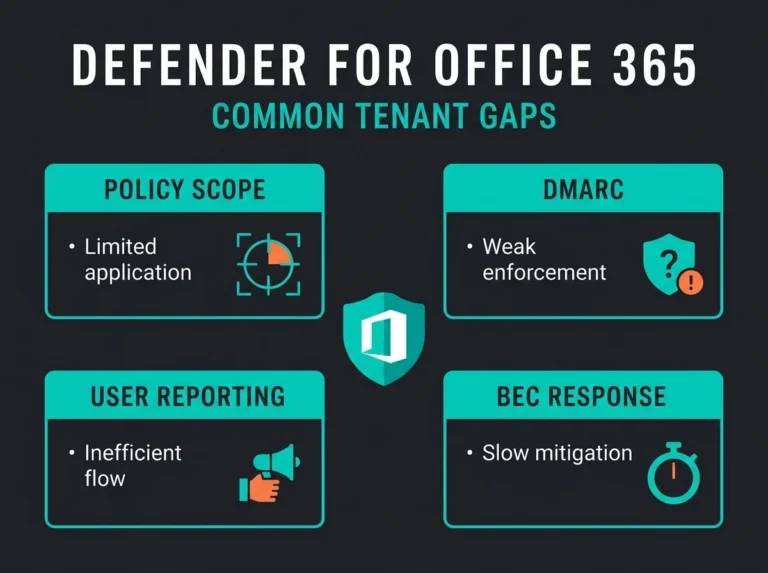
Falconer Security usually finds the same pattern during Microsoft 365 reviews: Defender for Office 365 is licensed, preset policies are only partly assigned, user reporting is inconsistent, and quarantine is set up in ways that make release mistakes too easy. The result is predictable. The tenant has security tooling on paper, but the day-to-day controls are weaker than the buyer expected.
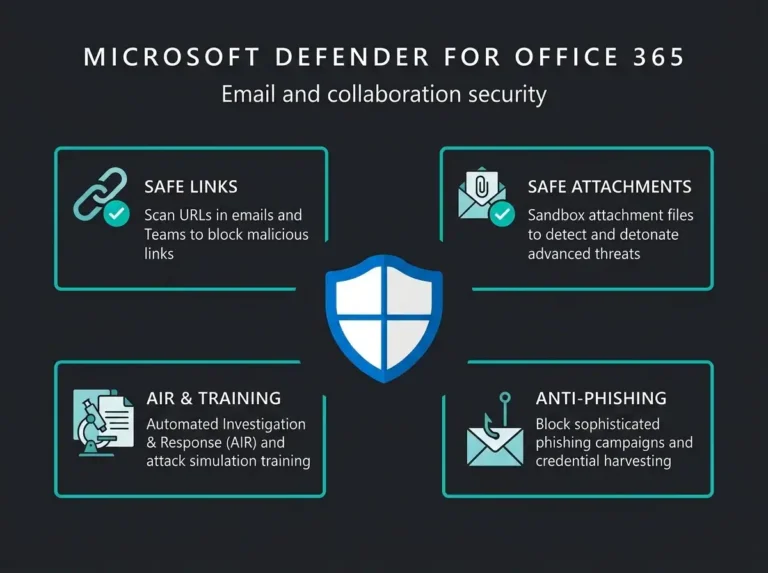
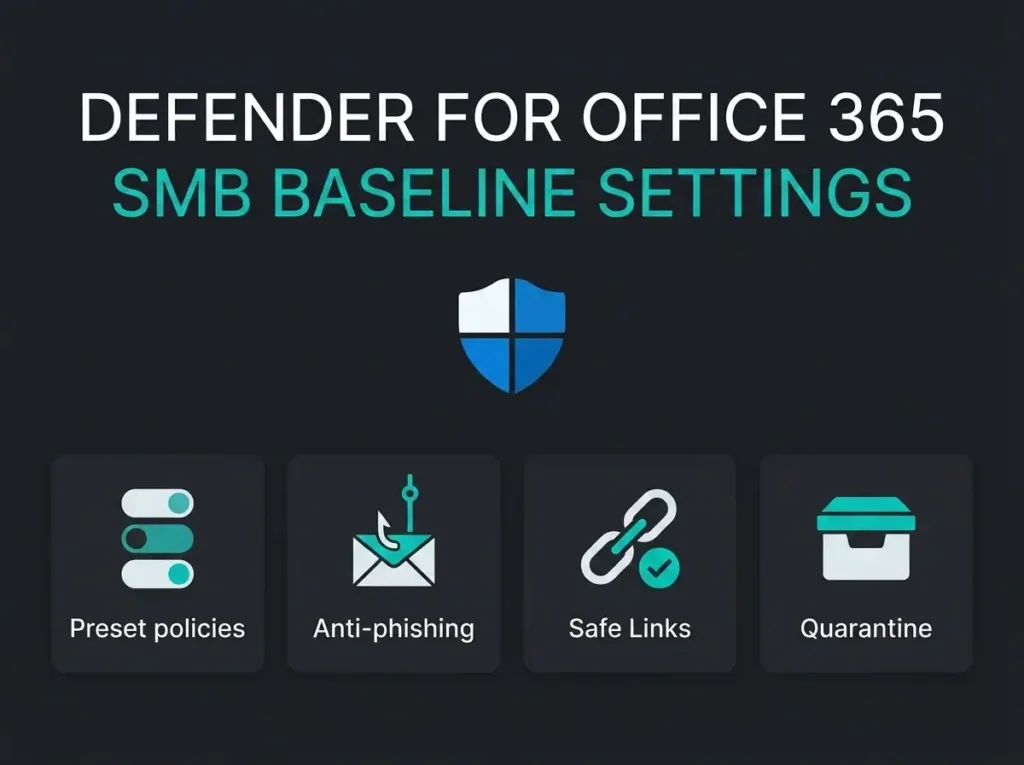
If you want a usable baseline, start with Microsoft’s own recommended settings and then tighten the areas SMBs most often leave loose: preset security policies, anti-phishing protection, Safe Links, Safe Attachments, user reporting, and quarantine handling. Microsoft documents each of those controls in its recommended email and collaboration threat policy settings, but translating that into a clean operating baseline is where most teams stall.
- A license is not a baseline. Many SMB tenants have Defender for Office 365 Plan 1 or 2 licensed while preset policies are only partly assigned and exclusions grow quietly.
- Start from Microsoft presets. Apply the Standard preset security policy broadly and reserve Strict for executives, finance approvers, and other high-risk mailboxes instead of building custom policy sprawl.
- Tune impersonation coverage. Anti-phishing policies must explicitly protect leadership, finance, payroll, HR, and procurement. The FBI’s 2024 IC3 report puts cybercrime losses at 16.6 billion dollars, with BEC among the costliest categories.
- Verify Safe Links and Safe Attachments scope. Check who is actually covered, which workloads apply, and resist softening attachment handling because one executive complained about delay.
- Close the loop on reporting and quarantine. Enable the Outlook Report button with an owned review queue, and restrict quarantine self-release for risky message types.
What SMBs get wrong with Defender for Office 365
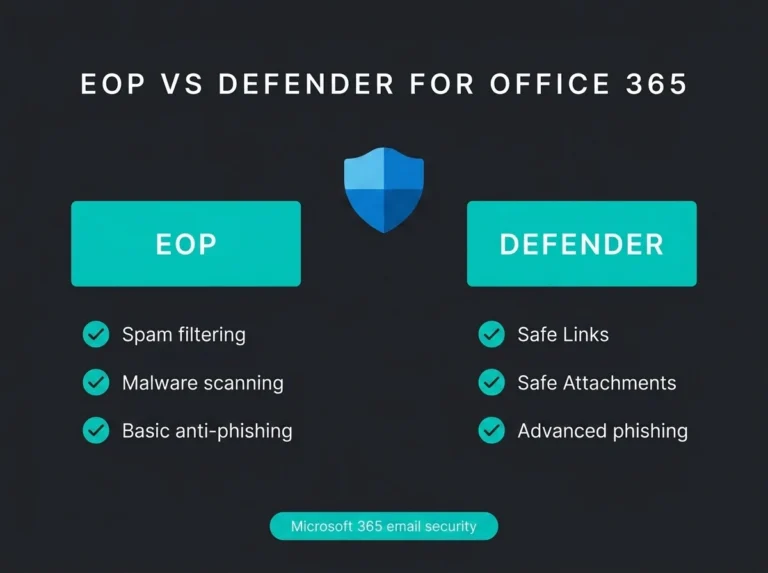
The first mistake is assuming a license equals a baseline. It doesn’t. Microsoft explains that all cloud mailboxes get built-in protection, while Defender for Office 365 Plan 1 and Plan 2 add stronger protection for phishing, malware, business email compromise, investigation, and response. Buying the right plan matters, but so does assigning the controls properly.
The second mistake is relying on scattered custom policies without checking whether they overlap, conflict, or leave users outside the intended scope. I see this a lot in smaller tenants that grew by acquisition or by well-meaning admin tweaks over time. Nobody meant to build a mess. They just inherited one.
The third mistake is treating email security as an Exchange-only problem. Defender for Office 365 covers email and collaboration workloads. Safe Links protection, for example, also applies across Microsoft Teams and supported Office apps when configured correctly, as Microsoft details in its Safe Links overview.
Short version: A good Defender for Office 365 baseline is not a giant spreadsheet of every available toggle. It is a small set of high-impact controls, assigned consistently, tested regularly, and tied to a clear incident workflow.
Our recommended Defender for Office 365 baseline
For most SMB tenants, this is the baseline we want in place before we start debating advanced tuning.
- Use Microsoft preset security policies as the foundation.
- Confirm anti-phishing protection covers impersonation and mailbox intelligence for the right users.
- Turn on Safe Links and review click handling behavior.
- Turn on Safe Attachments with the right action policy.
- Enable user reporting in Outlook and make sure reported messages are reviewed.
- Restrict quarantine self-release where it creates unnecessary risk.
- Review who is excluded from protection, because exclusions tend to grow quietly.
That sounds simple. In practice, each of those bullets contains the mistakes that weaken the whole stack.
Start with preset security policies, not a blank page
Microsoft’s preset security policies are the cleanest starting point for SMBs. They give you built-in, Standard, and Strict protection models without forcing you to assemble every anti-spam, anti-phish, and anti-malware setting manually on day one.
Too many tenants skip this and jump straight into custom policy sprawl. Then six months later nobody remembers why one group got stricter link handling, why another group is excluded, or why the CEO mailbox is using an older policy set. Presets reduce that drift.
For most small and midsize organizations, Standard is the right default baseline. Strict is useful for higher-risk users, shared mailboxes tied to finance workflows, or executives who get targeted more often. That split is usually enough. You do not need twenty policy variants to look sophisticated.
Anti-phishing needs real impersonation coverage
The biggest gap we see is weak anti-phishing configuration. Admins enable a policy, but they never tune the users and domains that matter. Microsoft documents anti-phishing controls, including spoof protection, mailbox intelligence, and impersonation settings, in its anti-phishing policy guidance.
A baseline worth trusting should protect the people attackers actually imitate: leadership, finance, payroll, HR, procurement, and anyone who approves invoices or bank detail changes. If those users are not explicitly covered, the tenant has a gap where it hurts most.
There is also a basic operational truth here: business email compromise does not need malware to be expensive. The FBI’s 2024 IC3 Annual Report says reported cybercrime losses reached $16.6 billion, and BEC remained one of the costliest categories. That’s exactly why impersonation controls deserve more attention than they usually get.
Safe Links should be active, and users should know what it changes
Safe Links is one of the features admins talk about most and validate least. They assume it is on everywhere because the license includes it. Then you check scope, exceptions, or workload coverage and find a patchwork.
What matters in a baseline is not just flipping Safe Links on. You need to verify who receives it, which workloads are covered, and how the user experience behaves when a link is blocked. If users hit blocking pages with no context and no reporting process, they start working around the control. That’s not a product failure. That’s an operating model failure.
We usually pair Safe Links rollout with user guidance and a quick review of spoofing vs phishing examples so teams know what suspicious messages look like before they click.
Safe Attachments is strong, but action settings still matter
Microsoft describes Safe Attachments as protection against malicious files using detonation and analysis. That protection is useful, but you still need to check how the policy handles suspect content and whether Dynamic Delivery fits the business.
Some SMBs disable or soften attachment handling because a single executive complained about delay. That’s usually a short-term convenience decision that becomes a long-term exposure. A better fix is to tune expectations and test business-critical workflows, not gut the control.
One of the less glamorous jobs in email security is separating true friction from imagined friction. In many environments, the people objecting to tighter handling have not actually been blocked. They just know tighter security exists and assume it will be painful.
User reporting has to be enabled and reviewed
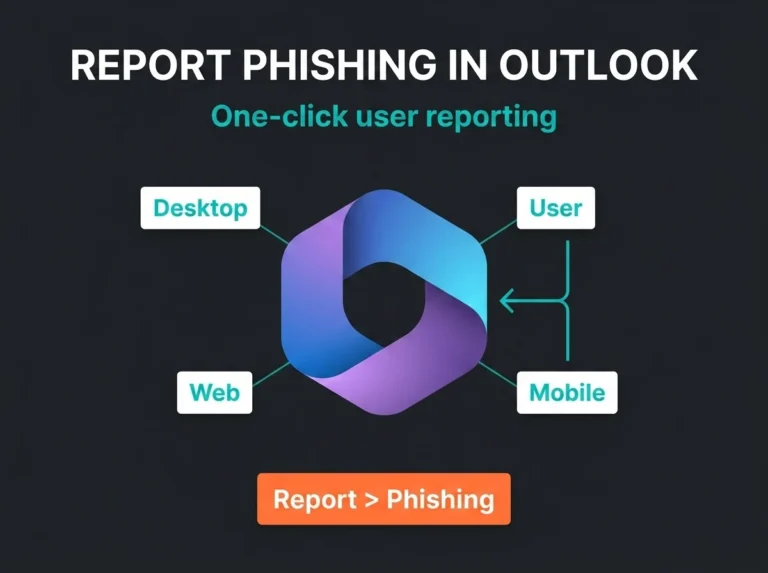
Defender for Office 365 works better when users can report suspicious mail directly from Outlook. Microsoft documents the built-in Report button and admin review flow. Yet a surprising number of tenants either never enable it or never assign ownership for reviewing the submissions.
That leaves security teams blind to what users are seeing. It also trains staff to forward screenshots to IT instead of using a clean reporting path. Once that habit sets in, incident triage slows down fast.
If you’re already working through a broader Microsoft 365 security checklist, user reporting should be treated as core hygiene, not a nice extra.
Quarantine policy is where good intentions turn into bad releases
Microsoft lets admins control quarantine behavior through quarantine policies. The question is not whether quarantine exists. The question is who can release what, under which circumstances, and how often users are allowed to override the control.
We lean against broad self-release for higher-risk message types. That choice annoys some users at first, especially in sales-heavy organizations, but it also prevents exactly the kind of “I thought it looked fine” release mistake that turns a near miss into an incident.
There is no heroic security insight hiding here. If the tenant lets too many people release risky mail on their own, the baseline is weak. Keep it simple.
What Microsoft says, and where SMBs still drift off baseline
Microsoft’s recommended settings page is actually solid. It covers built-in protections, Defender for Office 365 policies, and collaboration threat settings in one place. The problem is not missing documentation. The problem is drift after initial setup.
| Baseline area | What Microsoft recommends | What often goes wrong in SMB tenants |
|---|---|---|
| Preset policies | Use built-in, Standard, or Strict presets based on risk | Admins build overlapping custom policies and forget scope |
| Anti-phishing | Protect impersonation targets and spoofed senders | Leadership and finance users are not explicitly covered |
| Safe Links | Apply link protection across supported workloads | Coverage is partial or exceptions pile up |
| Safe Attachments | Scan suspicious files and use the right action model | Controls are softened after complaints instead of tested properly |
| User reporting | Enable the Report button and review submissions | Users forward mail manually and nobody owns the queue |
| Quarantine | Control release behavior with policy | Self-release is too broad for risky message types |
This is why we treat baseline reviews as an operational discipline, not a one-time setup task. A tenant can look compliant in screenshots and still behave badly under pressure.
How to review your Defender for Office 365 baseline without overcomplicating it
Start with the high-risk identities and the high-risk workflows. Finance approvals. Vendor payment changes. Shared mailboxes that process invoices. Executive mailboxes. Recruitment mailboxes. Those are the places where phishing controls earn their keep.
Then check whether your baseline aligns with the rest of the tenant. If your email protections are tighter than your identity controls, attackers just route around them. That’s why this review should sit next to your broader Microsoft 365 security defaults risk review and your Microsoft 365 security and compliance setup.
One more thing that gets overlooked: the portal names and product boundaries have changed a lot in the last few years. Microsoft now centers this work in the Defender portal and related Microsoft 365 admin experiences, not the old naming many admins still use from memory. If your runbooks still talk like it’s 2022, the team will waste time hunting for settings.
Practical baseline test: Pick three real user personas, an executive, a finance approver, and a general employee. Verify which preset policies, anti-phishing protections, reporting options, and quarantine actions apply to each one. Gaps show up quickly when you test the baseline that way.
Why tightening the baseline is worth it
Microsoft says Defender for Office 365 is designed to protect against phishing, zero-day malware, and business email compromise across email and collaboration. Microsoft’s Digital Defense Report 2025 also notes that phishing and social engineering remain a major breach path. None of that is theoretical for SMBs. These attacks keep working because the attack surface is familiar, fast, and hard for users to judge in the moment.
A clean baseline cuts down both risk and admin noise. It reduces the random policy exceptions that pile up over time. It makes investigations easier because you know what should have happened. And when something still gets through, which will happen, your team spends less time arguing with the platform and more time responding.
If the tenant already has Defender for Office 365, leaving it half-configured is a waste. If it does not have the right licenses, that is a separate conversation. But either way, the baseline review is where the value becomes real.
For organizations that want a second pair of eyes, Falconer Security’s Microsoft 365 security assessment and email security assessment are built for exactly this kind of cleanup: checking what is licensed, what is configured, what drifted, and what needs fixing first.
FAQ
What is the best baseline for Defender for Office 365 in an SMB?
For most SMBs, the best starting point is Microsoft’s preset security policies with Standard applied broadly and Strict reserved for higher-risk users such as executives and finance staff. Then verify anti-phishing scope, Safe Links, Safe Attachments, user reporting, and quarantine handling.
Is Microsoft Defender for Office 365 enough on its own?
It is a strong email and collaboration protection layer, but it is not the whole tenant security program. It works best when paired with solid identity controls, user reporting, incident review, and broader Microsoft 365 hardening.
What do SMBs most often misconfigure in Defender for Office 365?
The most common problems are partial preset policy assignment, weak impersonation coverage, too many exceptions, broad quarantine self-release, and user reporting that is either disabled or ignored.
Do you need Defender for Office 365 Plan 2 for a secure baseline?
No. Many SMBs can build a strong baseline with built-in protections plus Defender for Office 365 Plan 1, depending on licensing and risk. Plan 2 adds deeper investigation, hunting, simulation, automation, and response capabilities. The right choice depends on how much in-house security capacity you have.
How does this relate to NIS2 or other compliance work?
NIS2 does not tell you to enable a specific Defender for Office 365 toggle, but it does raise the bar for practical security controls, governance, and incident readiness. A consistent email security baseline supports that work because phishing and account compromise remain common entry points.