





Exchange Online Protection vs Defender for Office 365: Which Do You Need?

Most Microsoft 365 tenants already have Exchange Online Protection. That leads to a common buying mistake: assuming the inbox is fully covered because spam filtering is already there. It isn’t. For Swedish SMBs, EOP is the baseline. Microsoft Defender for Office 365 is the layer you add when phishing, malicious links, and post-delivery investigation start to matter.
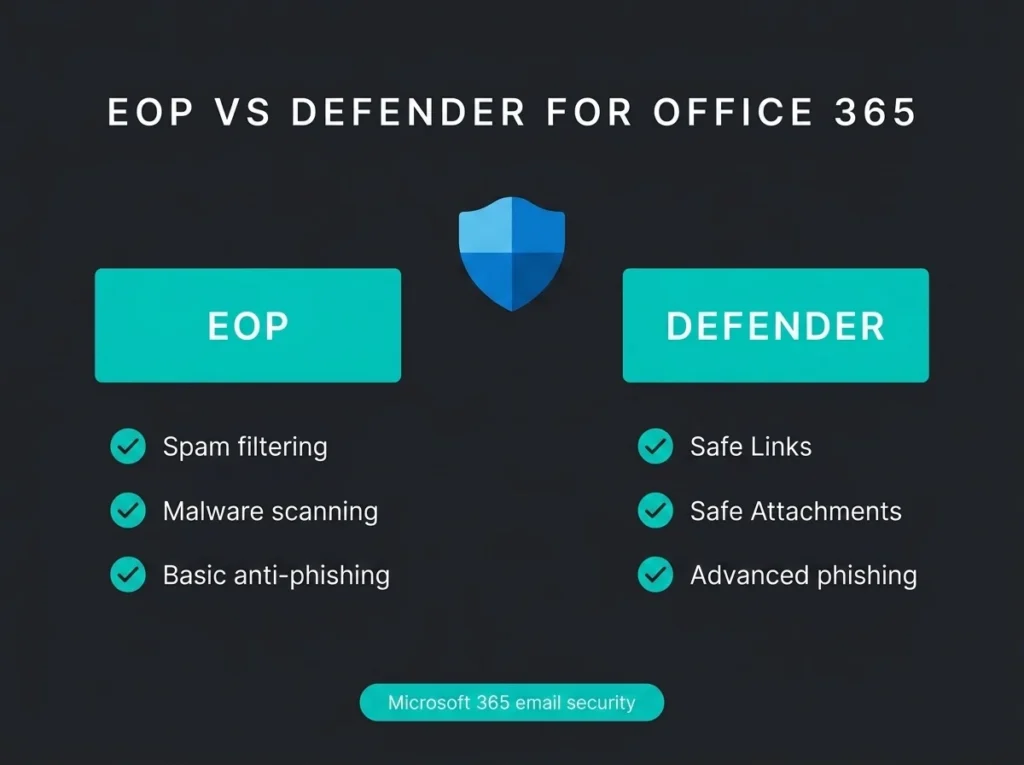
If you’re comparing Exchange Online Protection vs Defender for Office 365, the short answer is simple. EOP blocks common spam and malware for every Exchange Online mailbox. Defender for Office 365 adds Safe Links, Safe Attachments, stronger anti-phishing controls, and better investigation tools. Which one you need depends less on company size and more on exposure, licensing, and whether your team can live with basic filtering alone.
I see this on assessments more often than people admit: the tenant technically has protection, but nobody has checked what is included by default, what requires extra licensing, or which policies were never tuned after rollout. That’s where the gap usually sits.
- EOP is baseline, not full coverage. Every Exchange Online mailbox gets anti-spam, anti-malware, and basic anti-phishing, but no time-of-click URL checks or attachment detonation.
- Safe Links and Safe Attachments require Defender. Safe Links verifies URLs at click time and Safe Attachments detonates files in a virtual environment before delivery, typically within 15 minutes.
- Plan 1 is the SMB sweet spot. It adds impersonation protection, Safe Links, Safe Attachments, and Real-time detections without forcing a small team into SOC workflows.
- Plan 2 buys investigation depth. Threat Explorer adds more views, filters, saved queries, and actions, which matters for higher-exposure tenants and MSP workflows.
- The threat data backs the upgrade. Verizon ties 16 percent of breaches to phishing and the FBI logged 191,561 phishing and spoofing complaints, so baseline filtering alone is a thin answer for targeted users.
Exchange Online Protection vs Defender for Office 365 at a glance
| Area | Exchange Online Protection | Defender for Office 365 Plan 1 | Defender for Office 365 Plan 2 |
|---|---|---|---|
| Included with | Exchange Online cloud mailboxes | Some Microsoft 365 plans such as Business Premium, or as add-on | Some enterprise plans such as Microsoft 365 E5, or as add-on |
| Core email filtering | Anti-spam, anti-malware, basic anti-phishing | Includes EOP features | Includes Plan 1 features |
| Safe Links | No | Yes | Yes |
| Safe Attachments | No | Yes | Yes |
| Advanced impersonation protection | Limited baseline protection | Yes | Yes |
| Investigation experience | Basic reports and policy management | Real-time detections | Threat Explorer with more views, filters, and actions |
| Best fit | Low-complexity tenants that only need baseline filtering | SMBs that want stronger protection without building a SOC | Teams that need deeper investigation, response, and SecOps workflows |
What Exchange Online Protection actually gives you
Microsoft describes EOP as the built-in security layer for cloud mailboxes. According to Microsoft’s service description, it is included with every Exchange Online cloud mailbox and focuses on spam filtering plus blocking common malware attacks in email traffic. The default threat policies cover anti-malware, anti-spam, and anti-phishing controls, and they apply to all recipients unless you override them with preset or custom policies.
In practice, EOP is the gatekeeper. Connection filtering checks sender reputation first. Malware scanning quarantines malicious attachments. Content filtering then evaluates spam, phishing, and spoofing verdicts before mail lands in the inbox. Microsoft documents that flow in its built-in cloud mailbox security guidance, and it is good baseline protection for obvious junk and known bad content.
What EOP does not give you is the part buyers usually assume is there already: time-of-click URL protection, attachment detonation in a virtual environment, richer impersonation controls, and stronger investigation tooling. That’s the gap between baseline hygiene and real email security operations.
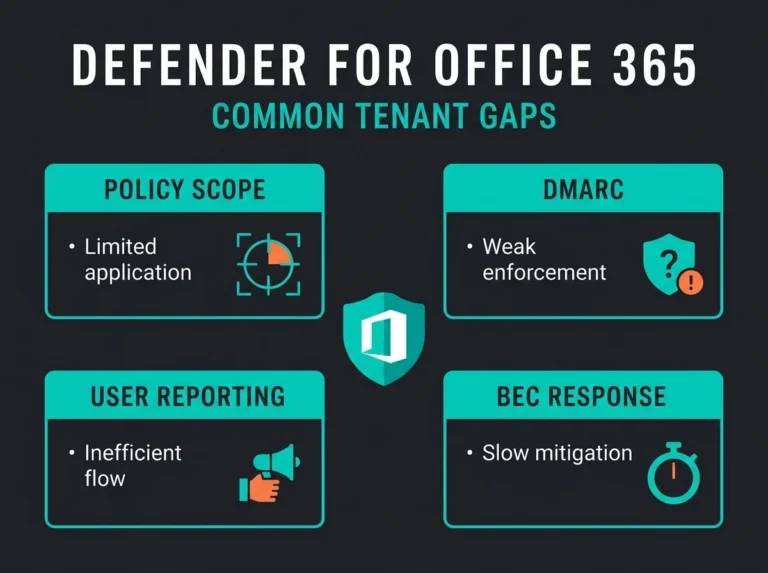
Ru Campbell’s competitor write-up makes a fair point here: most mistakes happen around exclusions, over-broad bypasses, and default settings that nobody revisits. Microsolve reaches the same conclusion from a different angle: many organizations assume Microsoft 365 means “fully covered” when the tenant is only using base filtering. Both are useful observations, but the product boundary itself comes from Microsoft’s own documentation, not competitor summaries.
What Defender for Office 365 adds on top of EOP
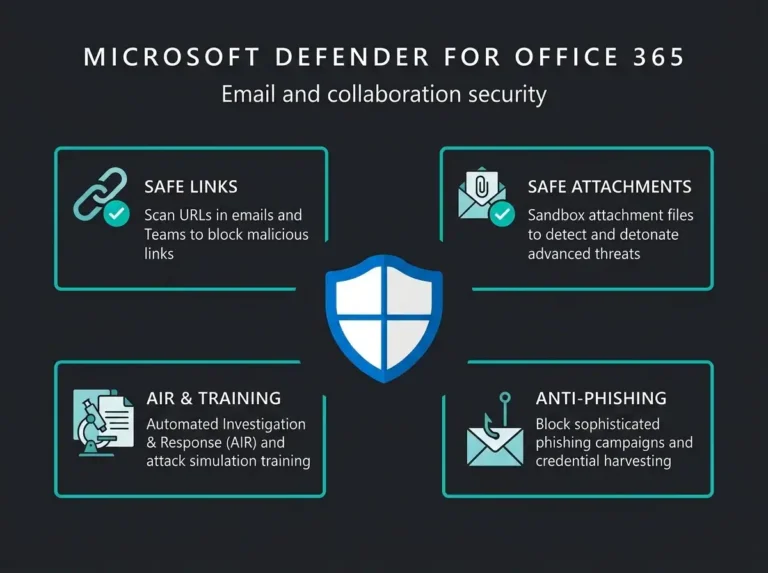
Defender for Office 365 sits above the built-in protections. Microsoft’s overview calls it the primary email and collaboration security solution for Microsoft 365. Plan 1 adds protection against advanced and zero-day phishing, malware, and other email-based threats. Plan 2 keeps those controls and adds more investigation, hunting, and response capability.
Safe Links changes the phishing equation
Safe Links is one of the biggest practical differences. Microsoft says Safe Links scans and rewrites URLs during mail flow, then performs time-of-click verification in email, Teams, and supported Office apps. That matters because a message can look harmless when delivered and become malicious later. EOP alone does not give you that second check when the user clicks.
For finance teams, this is where a lot of ugly incidents start: a user receives a clean-looking message in the morning, clicks the link after lunch, and the destination is no longer the same. EOP can block plenty of bad mail, but it does not own that click-time decision.
Safe Attachments tests files before users open them
Microsoft’s Safe Attachments documentation says attachments are checked in a virtual environment before delivery. Microsoft also notes that scanning typically completes within 15 minutes, though it can take longer. That’s a real control difference, not a marketing nuance. If you’re dealing with invoice lures, zipped payloads, or malware hidden in Office files, this is one of the first reasons to move beyond EOP.
Campbell’s article also highlights a practical policy issue that many admins miss: dynamic delivery can create user confusion when forwarded messages keep the placeholder instead of the final file. That’s not a reason to avoid Defender. It is a reminder that enabling a feature is not the same thing as configuring it well.
Advanced phishing and impersonation controls
All Microsoft 365 cloud mailboxes get basic anti-phishing features such as spoof intelligence, first contact safety tip, and unauthenticated sender indicators. Microsoft reserves the more advanced Defender layer for things like user, domain, and sender impersonation protection, customizable phishing thresholds, and machine learning-based detection for harder phishing attempts.
If your leadership team gets targeted, if invoice fraud is a board-level worry, or if your users handle supplier payment changes by email, this distinction matters. Business email compromise does not always arrive with malware. Quite often it arrives as a normal-looking conversation that only looks suspicious if the platform can assess identity and message context more deeply.
Better investigation in Plan 1 and Plan 2
Plan 1 gives you Real-time detections. Plan 2 gives you Threat Explorer. Microsoft says Threat Explorer includes the same information as Real-time detections plus more views, more filtering options, saved queries, and more actions. For small IT teams, that difference decides whether an incident becomes ten minutes of triage or half a day of mailbox-by-mailbox guesswork.
The 365 Security Assessment competitor article leans heavily into feature comparison and risk profiles. Their table is useful, but it overstates a few points, including DLP inside EOP as though it were part of the baseline comparison. Microsoft’s own service description is a cleaner source: EOP is built-in mailbox security, while Defender adds the enhanced protection and investigation layer.
How to decide which one you need
You can make this choice without turning it into a licensing theology debate.
EOP is often enough when risk is genuinely low
If you run a very small tenant, store little sensitive data in email, and have no reason to expect targeted phishing, EOP may be enough for now. It blocks common spam, common malware, and baseline phishing attempts. For a low-complexity business with disciplined users and limited exposure, that can be a rational decision.
Just be honest about what “enough” means. It means baseline filtering. It does not mean you now have Microsoft’s full email security stack.
Defender for Office 365 Plan 1 is the sweet spot for many SMBs
For most Falconer-style clients using Microsoft 365 Business Premium, Plan 1 is where the conversation gets practical. You get Safe Links, Safe Attachments, stronger anti-phishing controls, and better operational visibility than EOP alone. That’s a serious jump in protection without forcing a small team into a full-blown SOC workflow.
It also fits the reality of Nordic SMBs. Many are not trying to build an internal detection team. They just want fewer malicious messages getting through, fewer bad clicks turning into incidents, and clearer answers when users ask whether a message was legitimate.
Plan 2 makes sense when you need investigation depth
Plan 2 is easier to justify when the tenant has higher exposure, stricter reporting needs, or an MSP/MSSP workflow behind it. Microsoft’s service description frames Plan 2 around investigation, automation, and SOC-style capability. If you need stronger hunting and response, or you support multiple executives and high-risk users, Plan 2 is the better fit.
One caution: buying Plan 2 does not fix weak mail flow rules, bad allow lists, or poor user habits. I still see tenants with expensive licensing and messy exceptions that punch holes straight through the policy set.
What the current threat data says
The case for stronger email protection is not theoretical. Verizon’s 2026 Data Breach Investigations Report says 16% of breaches began with phishing. Microsoft’s Digital Defense Report 2025 says 28% of breaches were initiated through phishing or social engineering. The FBI’s 2025 IC3 Annual Report lists phishing and spoofing as the most frequently reported cybercrime category, with 191,561 complaints.
Those numbers do not prove every company needs Plan 2. They do make one point very clearly: email is still where a lot of breaches start, and baseline filtering alone is a thin answer if your users, suppliers, or executives are regular targets.
Recommended setup for Microsoft 365 SMBs
If you want the blunt version, this is it.
- Use EOP as the baseline, because it’s already there.
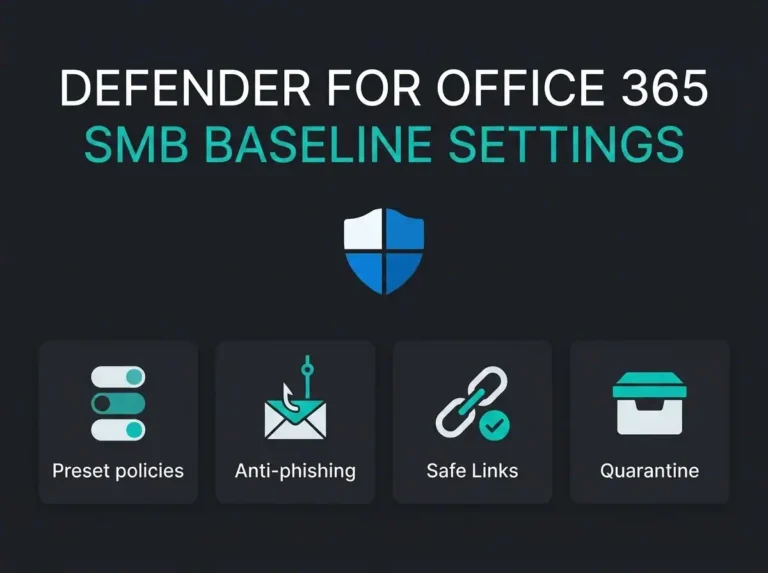
- Turn on and tune preset or custom policies instead of leaving defaults untouched.
- Add Defender for Office 365 when phishing risk, attachment risk, or investigation needs go beyond basic filtering.
- Review allow lists, mail flow rules, and junk mail bypasses before they become your real exposure.
- Map the email layer into the rest of your M365 controls, especially identity, endpoint, and reporting.
If you’re not sure where your tenant sits, start with an Microsoft 365 security assessment. Email problems rarely stay isolated. They usually connect to weak identity controls, poor alerting, or old configuration debt somewhere else in the tenant.
For organizations that already know email is the weak point, Falconer’s email security assessment service is the more direct starting point. It fits well alongside our guidance on why Office 365 email security fails, spoofing vs phishing, Microsoft 365 security audits, Microsoft 365 security checklists, and the settings issues covered in Microsoft 365 security defaults risks.
Final verdict: EOP vs Defender for Office 365
Exchange Online Protection is the baseline. Defender for Office 365 is the real upgrade.
If all you need is built-in filtering for common spam and malware, EOP does the job Microsoft designed it to do. If you need click-time link checks, attachment detonation, stronger impersonation defenses, and better incident investigation, Defender for Office 365 is the right answer. For many SMBs, Plan 1 is the sensible step up. Plan 2 is for tenants that need deeper response and SecOps support.
The mistake is not choosing EOP. The mistake is thinking EOP and Defender are the same thing.
FAQ
Is Exchange Online Protection included with Microsoft 365?
Yes. Microsoft says the built-in security features for cloud mailboxes are included with every Exchange Online cloud mailbox. That baseline includes anti-spam, anti-malware, and anti-phishing protections for cloud email.
Does EOP include Safe Links and Safe Attachments?
No. Microsoft documents Safe Links and Safe Attachments under Defender for Office 365, not under the built-in EOP layer. If you want time-of-click URL checks and attachment detonation, you need Defender for Office 365.
What is the difference between Defender for Office 365 Plan 1 and Plan 2?
Plan 1 adds advanced protection features such as Safe Links, Safe Attachments, and Real-time detections. Plan 2 adds deeper investigation and response capability, including Threat Explorer with more views, filters, saved queries, and actions.
Is Defender for Office 365 worth it for SMBs?
Usually, yes, if phishing risk is more than occasional nuisance spam. For many SMBs, Plan 1 is the practical choice because it adds the controls that EOP lacks without forcing the business into a large SOC-style tooling stack.
Does NIS2 make Defender for Office 365 mandatory?
No. NIS2 does not name Defender for Office 365 as a mandatory product. What it does require is risk-based technical and organizational security measures. If your email layer is a realistic attack path, stronger phishing protection and better investigation capability are often part of a defensible NIS2-aligned approach.