





Microsoft Defender for Office 365 for SMBs

Most Microsoft 365 tenants already have email filtering. That’s true, and it’s also where a lot of teams get lulled into a false sense of security.
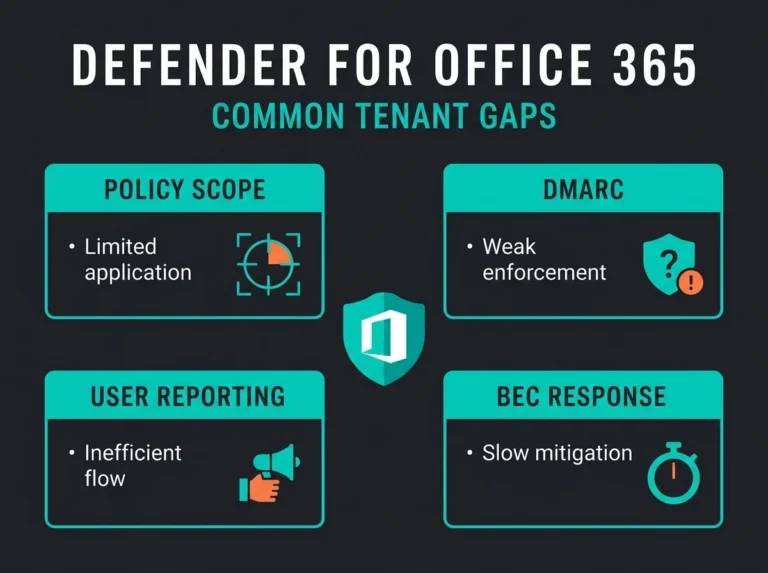
Then the finance mailbox gets a well-written supplier change request. Or a user clicks a link in Teams because it came from somebody they recognize. Or Safe Links was never tuned, Safe Attachments was left to defaults, DMARC is half-finished, and nobody notices until the incident call starts.
Microsoft Defender for Office 365 is the layer Microsoft built for those gaps. It sits above baseline Exchange Online Protection and adds protection for phishing, malicious links, suspicious attachments, and collaboration threats across Exchange Online, Teams, SharePoint, and OneDrive.
If you’re running Microsoft 365 and asking whether Defender for Office 365 is worth it, the short answer is yes for most SMBs. The more useful question is what you actually get, what Plan 1 misses, and how to deploy it without making mail flow worse.
Microsoft says Defender for Office 365 Plan 1 protects email and collaboration features from zero-day malware, phishing, and business email compromise, while Plan 2 adds post-breach investigation, hunting, response, and phishing simulations.
- Plan 1 is the floor. Most SMBs where email is business critical should run at least Plan 1 for Safe Links, Safe Attachments, impersonation controls, and Teams, SharePoint, and OneDrive protection.
- Plan 2 buys investigation, not prevention. The upgrade adds Threat Explorer, campaign views, automated investigation and response, and attack simulation training, worth it once you have a real SOC process or compliance pressure.
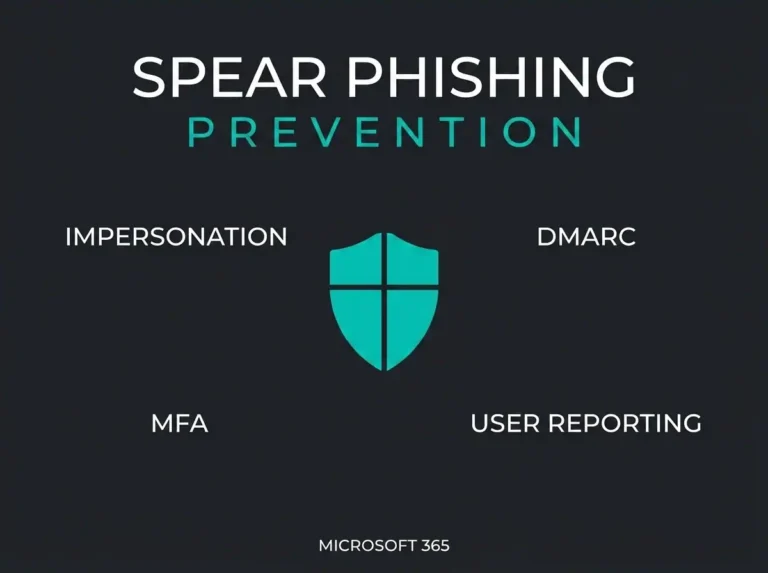
- Fix authentication first. Microsoft’s guidance is to get SPF, DKIM, and DMARC correct before tuning anti-phishing policies, then apply the Standard preset instead of hand-built rules.
- Phishing still starts 28 percent of breaches. Microsoft’s 2025 report puts phishing or social engineering behind 28 percent of breaches, and MFA blocks more than 99.2 percent of account compromise attacks.
- Check your license before buying. Microsoft 365 Business Premium commonly includes Plan 1 and E5 includes Plan 2; other subscriptions need an add-on.
What Microsoft Defender for Office 365 actually does
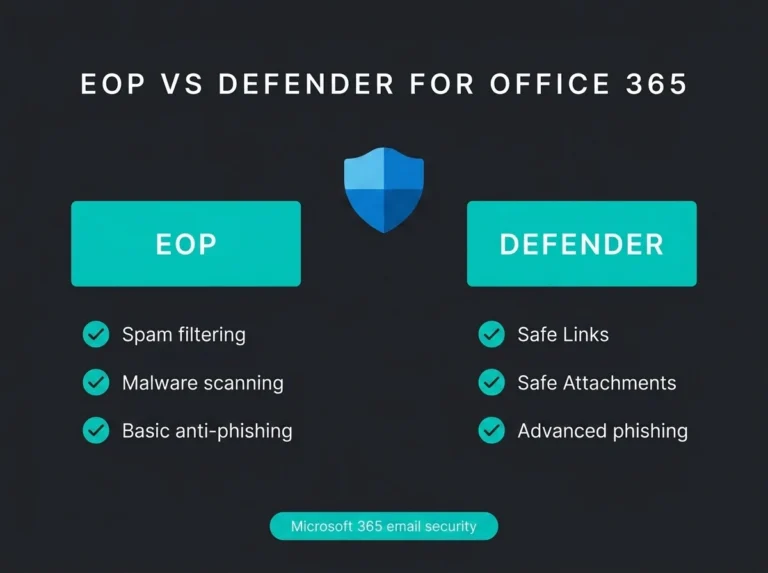
At a basic level, all Microsoft 365 cloud mailboxes already get built-in protections such as anti-spam, anti-malware, anti-phishing for spoofing, quarantine, and Zero-hour Auto Purge. Microsoft lays that out in its Defender for Office 365 overview.
Defender for Office 365 adds the controls people usually assume they already have:
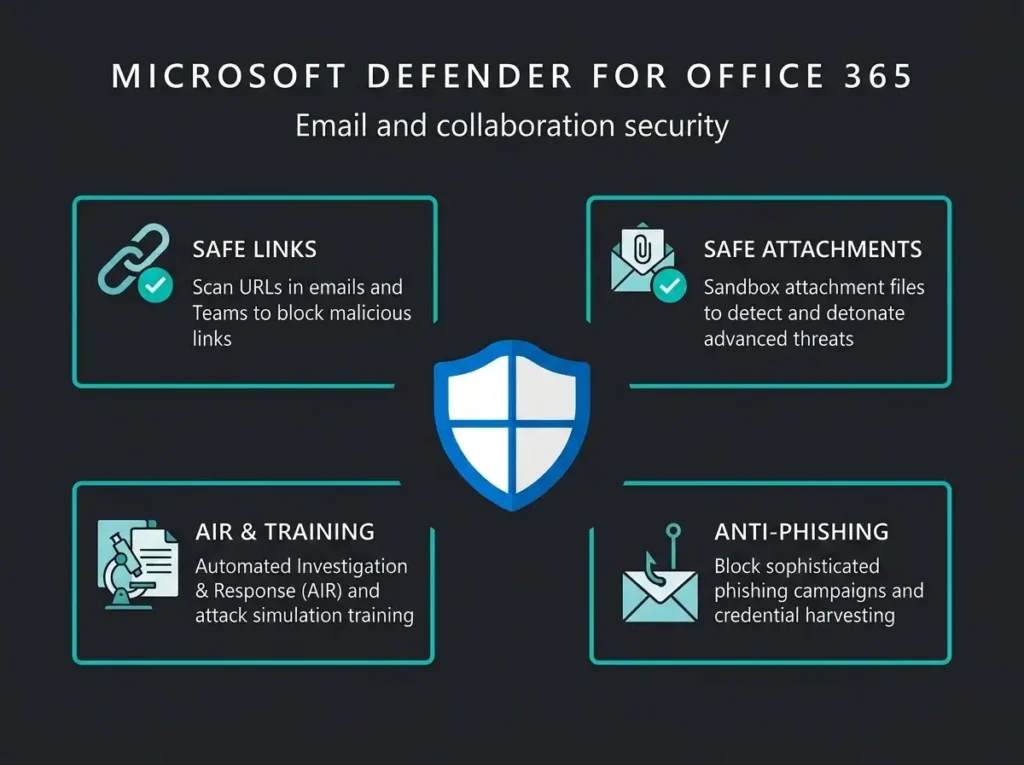
- Safe Links for URL scanning and time-of-click protection in email, Teams, and supported Office apps
- Safe Attachments for detonation and analysis of suspicious files before delivery
- Stronger anti-phishing policies, including impersonation protection and phishing thresholds
- Protection for SharePoint, OneDrive, and Teams content
- Real-time detections and reporting
- In Plan 2, automated investigation and response, Threat Explorer, campaign views, and attack simulation training
That matters because phishing still drives a huge share of compromise. Microsoft says it processes more than 100 trillion security signals and 5 billion emails a day. In the same 2025 report, Microsoft says 28 percent of breaches begin with phishing or social engineering. Email is still the front door.
Exchange Online Protection vs Defender for Office 365
Competitor posts mostly stop at “EOP is basic, Defender is advanced.” That’s not wrong, but it isn’t specific enough to help a buyer choose a plan or budget for one.
| Capability | Built-in Microsoft 365 protection / EOP | Defender for Office 365 Plan 1 | Defender for Office 365 Plan 2 |
|---|---|---|---|
| Anti-spam and anti-malware | Yes | Yes | Yes |
| Basic spoof protection | Yes | Yes | Yes |
| Safe Links | No | Yes | Yes |
| Safe Attachments | No | Yes | Yes |
| Protection for Teams, SharePoint, OneDrive | Limited baseline only | Yes | Yes |
| Impersonation controls and phishing thresholds | Limited | Yes | Yes |
| Threat Explorer and campaign views | No | Real-time detections only | Yes |
| Automated investigation and response | No | No | Yes |
| Attack simulation training | No | No | Yes |
Microsoft’s current service description and plan comparison confirm that Plan 1 includes Safe Links, Safe Attachments, anti-phishing policies, and protection for Teams, SharePoint, and OneDrive. Plan 2 adds Explorer, Campaign Views, automated investigation and response, and attack simulation training.
For most SMBs, Plan 1 is the minimum sensible starting point if email is business critical. Plan 2 becomes easier to justify when you have a real SOC process, compliance pressure, or nobody on staff who can stay on top of every alert by hand.
What Plan 1 gives you in practice
Plan matrices can feel abstract, so it helps to look at what actually changes once Plan 1 is configured properly rather than just licensed.
Safe Links checks the URL when the user clicks
Safe Links doesn’t stop at inspecting the message on arrival. Microsoft documents that it performs URL scanning and time-of-click verification for email, Teams, and supported Office apps in its Safe Links overview.
That’s a big deal for delayed weaponization. A link that looks harmless at delivery can point somewhere very different six hours later, once the sandbox has moved on. I’ve watched this trip up teams that were genuinely proud of their mail hygiene but had no click-time controls at all.
Safe Attachments detonates suspicious files
The threat here is rarely the obvious malware you hope never lands. It’s the invoice, the resume, or the password-protected archive that looks normal enough to get opened without a second thought. Safe Attachments runs those files in a virtual environment before delivery, and Microsoft notes that built-in protection can also cover users who aren’t already in Standard, Strict, or custom policies.
Competitor articles tend to say “sandboxing” once and move on. The part that actually matters is operational: somebody has to decide which users get standard protection, which get strict treatment, and how quarantine should behave when a file is held.
Anti-phishing gets more specific
What justifies the license for many SMBs is targeted fraud. When your finance team, your directors, or a shared mailbox gets hit with a supplier-change scam or executive impersonation, baseline spoof intelligence often isn’t enough on its own. The Microsoft anti-phishing documentation calls out user impersonation, domain impersonation, mailbox intelligence, and phishing thresholds as Defender for Office 365 capabilities, which is where you get the finer control that generic mailbox protection can’t offer.
Where SMBs still get it wrong
Buying Defender for Office 365 and deploying it well are two different projects, and the gap between them is where most of the value leaks out. Three mistakes come up again and again.
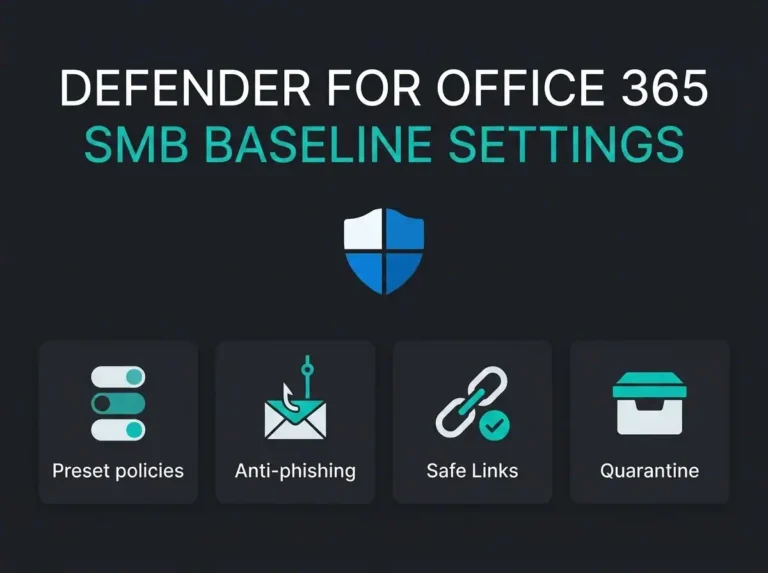
The first is relying on defaults and never touching preset policies. Microsoft’s preset security policies exist precisely so you don’t have to hand-build a stack of custom rules on day one. Standard and Strict are Microsoft’s own opinionated baselines, and for a smaller team they usually beat a homemade policy set that nobody fully understands a year later.
The second is tuning filtering before fixing authentication. Microsoft is explicit in its recommended security settings that SPF, DKIM, and DMARC should be correct before you start refining anti-phishing or other threat policies. Get that order wrong and you manufacture noise, false positives, and a queue of annoyed users who only care that a legitimate message vanished.
The third is the quiet visibility gap. A team enables Defender, leaves quarantine at defaults, never reviews the release workflow, and never teaches users to report suspicious mail. Microsoft’s quarantine policy guidance shows that admins control what users can do with quarantined messages and whether they get notified at all. Give people too much self-release freedom and you’ve reopened the risk. Give them too little and your IT team turns into a full-time message-release helpdesk.
When Plan 2 is worth the extra cost
The step up to Plan 2 is mostly about investigation and response, not a second wall of prevention. Microsoft says Automated Investigation and Response can work through high-volume alerts and queue remediation actions for approval, which takes real load off a stretched SecOps team. Those actions still need a human to approve them, a guardrail worth stating plainly because some write-ups make AIR sound more autonomous than it is.
Plan 2 also bundles attack simulation training. If you already know user behavior is the weak point, this gives you a native way to run simulations and assign follow-up training without paying for a separate phishing platform.
Where does the line fall? For a 50-person business with one part-time IT lead, Plan 2 can be overkill unless a partner is actively watching the environment. For a larger SMB, an MSP with a security practice, or anyone handling sensitive financial or customer data, the case gets strong fast, especially the first time the board asks how you investigate a suspicious click and whether you can prove the full scope of a phishing event.
How Defender for Office 365 fits into a real Microsoft security stack
Email security does its best work wired into everything around it, not run as an island. A good deployment connects it to identity controls, endpoint telemetry, and central monitoring so the signals line up during an incident.
When a user clicks a malicious link, you want that event to meet identity security controls like MFA and Conditional Access. Microsoft says MFA blocks more than 99.2 percent of account compromise attacks in its current Entra guidance. That doesn’t make phishing harmless, but it does shrink the blast radius when credentials get stolen.
If the click becomes payload execution, you need endpoint visibility too, which is where EDR versus antivirus stops being an abstract comparison and turns into part of the same incident chain. And once you want a proper timeline across email, identity, and endpoint activity, you usually end up feeding the signal into a SIEM such as Microsoft Sentinel. For teams without the people to triage that data around the clock, managed security services are often the practical answer.
What we recommend for Swedish SMBs using Microsoft 365
Start with the boring stuff, because that’s where most mail security projects quietly fail:
- Verify SPF, DKIM, and DMARC for every sending domain
- Apply Microsoft’s Standard preset security policy before building lots of custom rules
- Enable Safe Links and Safe Attachments with clear recipient scope
- Set anti-phishing protections around executives, finance, payroll, and shared mailboxes
- Review quarantine permissions and notification behavior
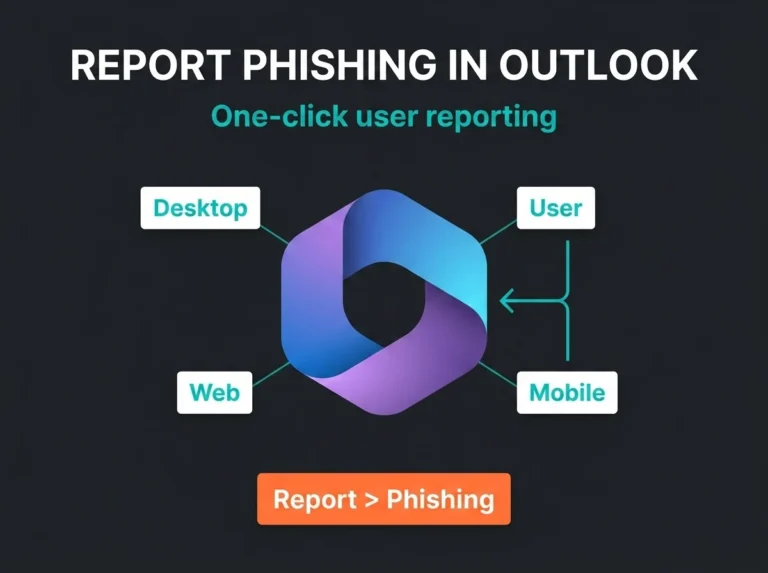
- Make sure suspicious mail reporting is simple for users
Once that groundwork holds, decide whether Plan 2 is a nice-to-have or a genuine requirement. NIS2 pressure, regulated data, or a need for stronger auditability around investigations all push it toward requirement. The directive does not mandate Defender for Office 365 by name, obviously, but it does push organizations toward proportionate technical and organizational measures, and for a Microsoft-heavy SMB, better email and collaboration protection is an easy part of that argument to defend.
One caution if your tenant has grown organically over years: don’t assume your current policies reflect Microsoft’s current portal structure or naming. A lot of the competitor guides I read while researching this were full of outdated references. Microsoft has moved heavily toward the Defender portal at security.microsoft.com and keeps refining where these controls live.
Should you buy Defender for Office 365?
If you rely on Microsoft 365 for daily operations and you don’t already run a mature third-party email security stack, yes.
Plan 1 is the sensible floor for most SMBs that want better phishing and malware protection without buying another email gateway. Plan 2 is for organizations that also need investigation depth, simulation training, and a more mature response process.
What ties it together is design. Defender for Office 365 works best as one part of a joined-up Microsoft security setup. On its own, email security catches a lot. Tied to a Microsoft 365 security assessment, hardened email security settings, identity controls, and monitoring, it catches a lot more.
If you want a clear answer for your own tenant, start with the gaps: which licenses you own, whether preset policies are in place, whether DMARC is enforced, and whether somebody would actually know what to do after a suspicious click. That’s usually where the real decision gets made.
FAQ: Microsoft Defender for Office 365
Is Microsoft Defender for Office 365 included in every Microsoft 365 license?
No. Microsoft says all Microsoft 365 subscriptions include built-in mailbox protections, but Defender for Office 365 Plan 1 and Plan 2 are only included in certain subscriptions or sold as add-ons. Microsoft 365 Business Premium commonly includes Plan 1, while enterprise plans such as Microsoft 365 E5 include Plan 2.
What is the difference between Defender for Office 365 Plan 1 and Plan 2?
Plan 1 focuses on prevention and detection: Safe Links, Safe Attachments, stronger anti-phishing, and collaboration protection. Plan 2 includes those features and adds Threat Explorer, campaign views, automated investigation and response, and attack simulation training.
Do I still need Defender for Office 365 if I already have Exchange Online Protection?
Usually yes. EOP gives you baseline filtering for spam, malware, and spoofing, but it does not give you the same link protection, attachment detonation, impersonation controls, or investigation tooling that Defender for Office 365 provides.
Does Defender for Office 365 help with NIS2?
Indirectly, yes. NIS2 does not prescribe this product, but it does expect organizations to take proportionate security measures. Stronger phishing controls, better response workflows, and clearer visibility into email threats all support that broader requirement.
Is Defender for Office 365 enough on its own?
No. It is a strong email and collaboration security layer, but it should sit alongside MFA, Conditional Access, endpoint protection, logging, and incident response. Attackers do not care which control category you bought. They care about the gap between them.