





Is Microsoft 365 HIPAA Compliant? Complete Guide for Healthcare

Your healthcare organization runs on Microsoft 365. Email. File sharing. Teams calls with patients. Scheduling. Clinical documentation. And the same question keeps turning up in every compliance meeting: is Microsoft 365 actually HIPAA compliant?
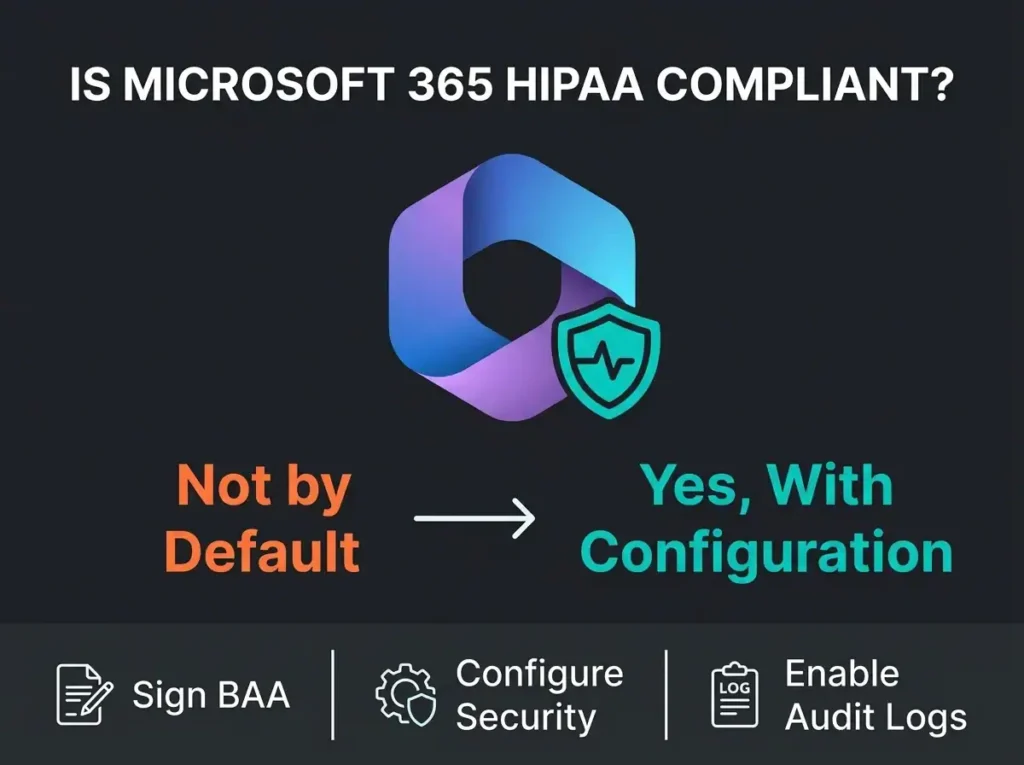
Short answer, no, not out of the box. Microsoft 365 can support HIPAA compliance, but only if you picked a qualifying plan, you signed a Business Associate Agreement (BAA), and you configured dozens of security controls the way the Security Rule expects them. In practice, we regularly walk into healthcare tenants where protected health information (PHI) is sitting in M365 with serious compliance gaps the IT team doesn’t know exist.
Below: which M365 plans qualify, the configuration work you actually need to do, and the mistakes that wind up getting reported to OCR.
- Not compliant by default. Microsoft 365 supports HIPAA only with an eligible plan, a signed BAA, and a tenant configured to Security Rule requirements.
- Plan choice is gating. Business Premium, E3, E5, and GCC qualify; Business Basic and Standard lack the DLP and Purview tools needed to protect PHI.
- The BAA signs itself. Microsoft’s Business Associate Agreement is built into the Data Protection Addendum that takes effect with your service agreement.
- Default logging falls short. Audit (Standard) keeps logs for 180 days, so export to a SIEM or add Premium retention to support breach investigations.
- External sharing is the top gap. Anonymous “Anyone” links on PHI-bearing SharePoint sites show up in over 80% of the assessments we run.
Why Microsoft 365 is not HIPAA compliant out of the box
No software ships “HIPAA compliant.” Compliance is the combination of technical safeguards, administrative policy, physical controls, and organizational procedure. Microsoft gives you the technical foundation. Configuration and enforcement sit with you.
This is written into Microsoft’s shared responsibility model. Microsoft secures the infrastructure: data center physical security, encryption at rest, encryption in transit. Identity, access controls, data classification, audit logging, and workforce training are your job.
Key Point: According to HHS Office for Civil Rights enforcement data, the most commonly reported HIPAA compliance issues are impermissible uses and disclosures of PHI, lack of safeguards, and lack of administrative safeguards for ePHI. All three map directly to how you configure Microsoft 365.
Before M365 supports your HIPAA posture at all, three things have to be true:
- You use an eligible Microsoft 365 plan (not every plan qualifies)
- You have a Business Associate Agreement in place with Microsoft
- Your tenant configuration meets HIPAA Security Rule requirements
Which Microsoft 365 plans are HIPAA compliant?
Subscription choice is gating. The plan you bought determines whether Microsoft will sign a BAA, and whether you have the compliance tools required to actually protect PHI once you do.
| Microsoft 365 Plan | BAA Coverage (via DPA) | DLP Included | Purview Compliance Tools | Practical for HIPAA |
|---|---|---|---|---|
| Microsoft 365 Personal/Family | Noconsumer | No | No | No |
| Microsoft 365 Business Basic | Yes | No | Limited | No: lacks DLP and compliance tools required to protect PHI |
| Microsoft 365 Business Standard | Yes | No | Limited | No: lacks DLP and compliance tools required to protect PHI |
| Microsoft 365 Business Premium | Yes | Yes | Yes | Yes: recommended for healthcare SMBs under 300 users |
| Microsoft 365 E3 | Yes | Yes | Yes | Yes: adds advanced compliance features |
| Microsoft 365 E5 | Yes | Yes | YesAdvanced | Yes: adds 10-year audit retention, advanced eDiscovery |
| Microsoft 365 GCC/GCC High | Yes | Yes | Yes | Yes: designed for government and regulated industries |
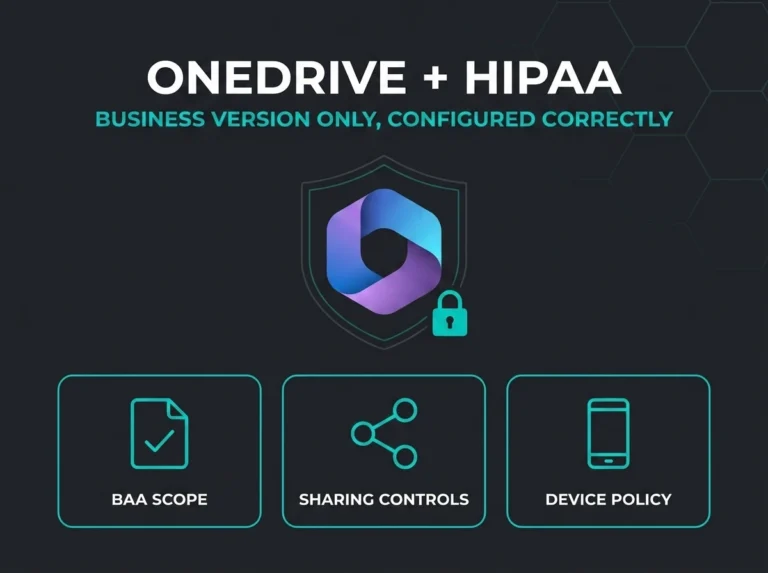
Something important most buyers miss: Microsoft’s BAA covers all commercial M365 plans through the Data Protection Addendum (DPA). Business Basic and Business Standard technically carry BAA coverage, but they don’t ship the DLP, sensitivity labels, or advanced audit controls you’d need to enforce HIPAA protections in practice. BAA coverage without the technical controls to back it up is a paper shield. As for free Outlook.com and personal OneDrive, those are consumer services. The DPA doesn’t cover them. PHI should never touch them. We’ve unpacked that consumer-versus-business divide product by product in our OneDrive HIPAA guide and Outlook HIPAA guide.
Recommendation: For most healthcare SMBs, Microsoft 365 Business Premium provides the compliance features needed at a reasonable cost. E3 or E5 plans become necessary for organizations with more than 300 users or those requiring advanced eDiscovery, extended audit retention, or information barriers.
Step 1: Sign the Microsoft Business Associate Agreement
HIPAA requires covered entities to sign a BAA with every business associate that touches PHI. Any time your organization stores or transmits PHI through Microsoft 365, Microsoft meets the definition of a business associate.
How Microsoft’s BAA works:
There isn’t a separate “sign this BAA” step. The HIPAA Business Associate Agreement is baked directly into the Microsoft Products and Services Data Protection Addendum (DPA), which becomes effective when you accept your Microsoft service agreement. You can verify coverage and pull down the documentation from the Microsoft Service Trust Portal.
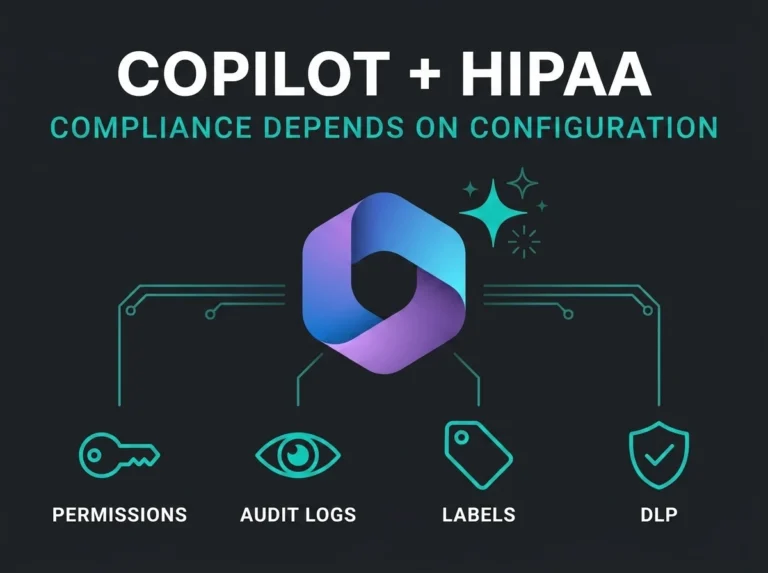
In-scope services under the BAA include Exchange Online, SharePoint Online, OneDrive for Business, Microsoft Teams, Azure, Intune, and Dynamics 365. Consumer services (Outlook.com, personal OneDrive, Skype consumer) are out of scope. See the full list of HIPAA-eligible Microsoft services. Microsoft 365 Copilot is on that in-scope list too; our Copilot HIPAA guide covers what to configure before anyone points AI at patient data.
BAA coverage is necessary. It isn’t sufficient. All it says is that Microsoft agrees to handle PHI in line with HIPAA at the infrastructure layer. Every configuration choice north of that sits on you.
Step 2: Configure access controls
The HIPAA Security Rule (§164.312) requires technical access controls that restrict PHI access to authorized personnel. Inside Microsoft 365, that means identity and access management configured in layers.
Multi-factor authentication (MFA)
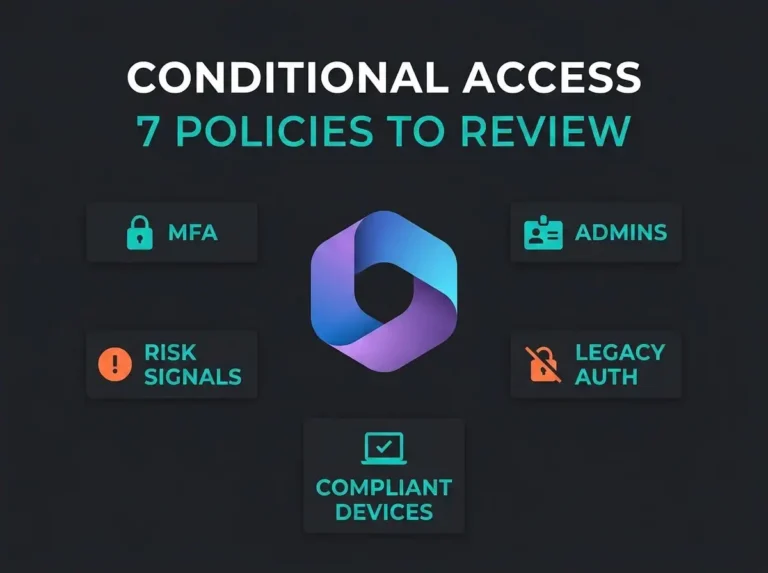
MFA is non-negotiable for HIPAA. Per the CISA M365 Security Baseline, MFA enforcement has to cover every user, not just admins. Configure it through Microsoft Entra Conditional Access rather than legacy per-user MFA toggles.
Least-privilege access
Apply role-based access control (RBAC) across the tenant:
- Limit Global Administrator accounts to 2-4 dedicated accounts with MFA enforced
- Use administrative units to scope admin access to specific user groups
- Assign the minimum Exchange, SharePoint, and Teams roles needed for each admin function
- Conduct quarterly access reviews to remove stale permissions
Conditional Access policies
Move past simple authentication by enforcing context-aware access:
- Block access from non-compliant or unmanaged devices
- Require managed devices for downloading PHI documents
- Restrict access by location (block access from countries where your organization does not operate)
- Set session timeouts for applications handling PHI
A fuller treatment of the control set lives in our M365 security best practices guide.
Step 3: Enable encryption and data protection
HIPAA expects PHI encrypted at rest and in transit. Microsoft 365 ships baseline encryption out of the box, but you need to verify it, and in places you need to extend it.
Built-in encryption (enabled by default):
- Encryption at rest: BitLocker volume-level encryption plus per-file AES 256-bit keys
- Encryption in transit: TLS 1.2 minimum for all connections (TLS 1.3 support is rolling out across Microsoft 365)
Additional encryption you must configure:
- Microsoft Purview Message Encryption: Encrypt outbound emails containing PHI so recipients outside your organization can read them securely
- Sensitivity labels: Apply encryption and access restrictions automatically when documents are classified as PHI
- S/MIME or Azure Rights Management: For organizations that need end-to-end email encryption beyond TLS
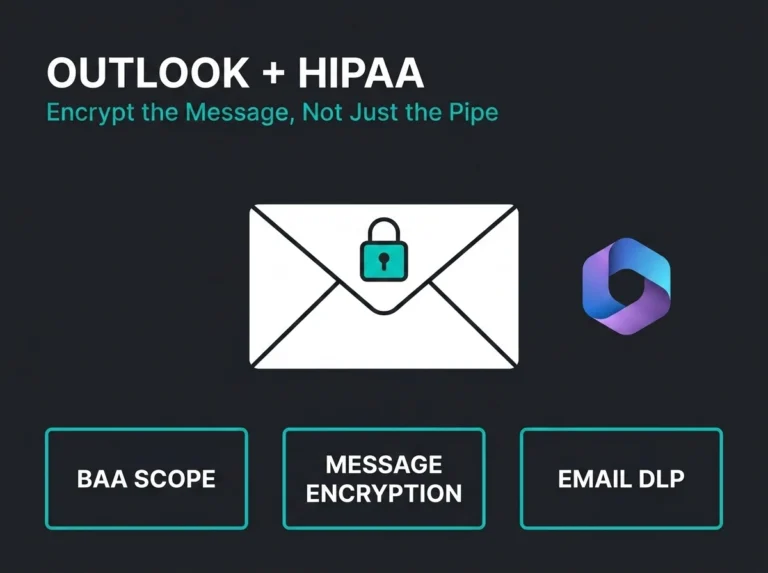
Email encryption deserves a closer look. Default TLS protects email in transit only when the recipient’s server also negotiates TLS. When it doesn’t, your message goes unencrypted. For PHI-bearing emails you want a transport rule that forces Microsoft Purview Message Encryption on the message regardless of what the recipient’s server will do. We walk through the common failure cases in our why Office 365 email security fails piece.
Step 4: Implement Data Loss Prevention
DLP is the backstop. Without it, a single employee forwarding an email or enabling external sharing on a SharePoint site can put you into reportable-breach territory on Monday morning.
Microsoft Purview DLP ships healthcare-specific sensitive information types out of the box:
- U.S. Social Security Numbers
- Health Insurance Claim Numbers
- ICD-9 and ICD-10 codes
- DEA Numbers
- Medical terms and condition names
Build DLP policies that detect PHI across Exchange Online, SharePoint, OneDrive, and Teams at the same time. Policies should block external sharing by default, surface warning notices to users, and feed incident reports to your compliance team.
For SharePoint-specific DLP (sensitivity labels, per-site sharing restrictions), our detailed Microsoft 365 HIPAA compliance checklist covers the configuration path.
Step 5: Configure audit logging
Audit controls that record and examine activity in systems holding PHI are a direct HIPAA requirement. Microsoft 365 has the tools. The default settings fall short.
Critical gap: HIPAA requires covered entities to retain compliance documentation (policies, procedures, risk assessments, training records) for six years (§164.316(b)(2)(i)). The regulation doesn’t name an exact retention period for raw system audit logs, but you need to hold them long enough to support breach investigations and demonstrate compliance when OCR comes asking. For healthcare, typical retention is 1 to 6 years depending on your risk assessment. Microsoft 365 Audit (Standard) retains logs for 180 days. Audit (Premium), which comes with E5 or bolts on as an add-on, supports up to 1 year by default and up to 10 years with the retention add-on license.
Solutions for audit log retention:
- Export logs to Azure Storage or a SIEM solution for long-term retention
- Use Microsoft Sentinel for centralized log collection, alerting, and retention
- Configure audit log retention policies in Microsoft Purview for extended retention (available with E5 or compliance add-on)
At minimum, monitor the high-risk event types: external sharing of files containing PHI, permission changes on PHI-designated sites, bulk file downloads, sensitivity label changes, and mailbox access by non-owners.
Step 6: Conduct regular risk assessments
Periodic risk assessments are required by the HIPAA Security Rule (§164.308). Not optional, and not a one-time thing either. Your assessment needs to look at:
- Where PHI is stored across your Microsoft 365 tenant (email, SharePoint, OneDrive, Teams)
- Who has access to PHI and whether that access is still appropriate
- Whether current technical safeguards adequately address identified threats
- Configuration drift from your baseline security settings
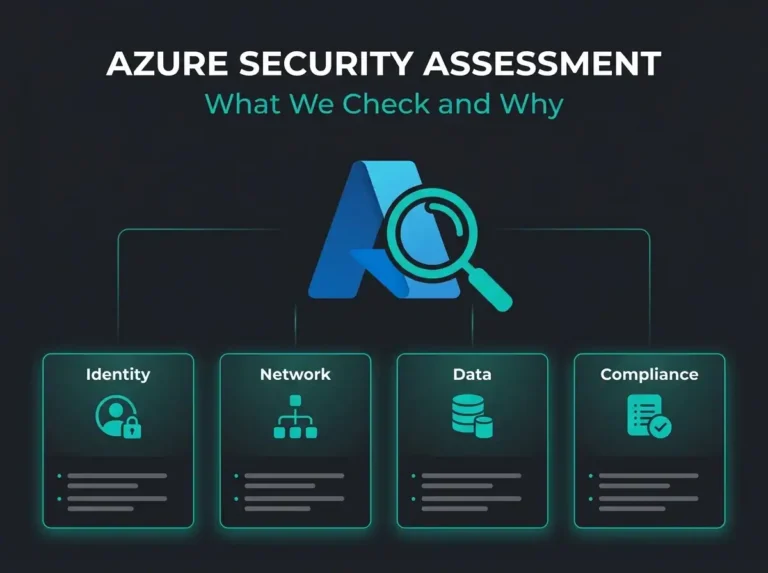
Our Microsoft 365 security assessment bundles in a HIPAA-focused configuration review that covers every item above. The tenant gets checked against both the Security Rule and the 30 critical M365 security controls that most healthcare organizations miss.
Common HIPAA compliance mistakes in Microsoft 365
From what we see across healthcare security assessments, these are the recurring compliance failures.
- No BAA signed: Organizations use M365 for PHI without accepting Microsoft’s Business Associate Agreement. This alone constitutes a HIPAA violation.
- Wrong plan: Using Business Basic or Standard plans that don’t support BAA or DLP. Common when organizations grow without reassessing their licensing.
- External sharing too permissive: Anonymous “Anyone” links enabled on SharePoint sites storing PHI. We find this in over 80% of assessments.
- No DLP policies: Zero automated detection or blocking of PHI being shared externally via email or file sharing.
- MFA not enforced: MFA enabled for admins only, or using legacy per-user MFA instead of Conditional Access policies.
- Insufficient audit retention: Default 180-day log retention instead of the required 6 years.
- No workforce training: Staff unaware of PHI handling procedures in email and document sharing.
- No risk assessment: Organizations assume that using Microsoft 365 means they’re compliant without ever evaluating their actual configuration.
Frequently Asked Questions
Is Microsoft 365 HIPAA compliant?
Microsoft 365 is not HIPAA compliant by default. It can support HIPAA compliance if the tenant is on an eligible plan (Business Premium, E3, E5, or Government), a Business Associate Agreement is in place with Microsoft, and access controls, encryption, DLP, and audit logging are configured to meet the Security Rule.
Which Microsoft 365 plans support HIPAA compliance?
Business Premium, E3, E5, and Government (GCC/GCC High) are the HIPAA-eligible plans. Microsoft will sign a BAA for them. Personal, Family, Business Basic, and Business Standard plans are not eligible and should never be used for PHI.
Does Microsoft sign a HIPAA Business Associate Agreement?
Yes. The HIPAA BAA is automatically incorporated into the Data Protection Addendum (DPA) that takes effect when you accept your Microsoft service agreement. In-scope services include Exchange Online, SharePoint Online, OneDrive for Business, Microsoft Teams, Azure, and Dynamics 365. BAA documentation is available through the Microsoft Service Trust Portal.
What is the biggest HIPAA risk in Microsoft 365?
Assuming that subscribing to Microsoft 365 makes you HIPAA compliant. Without proper configuration of access controls, DLP policies, encryption settings, and audit logging, the tenant stays non-compliant regardless of which plan you buy. HHS enforcement data points to impermissible uses and disclosures of PHI and lack of safeguards as the top reported compliance issues.
Do I need HIPAA compliance if I use Microsoft 365 in healthcare?
Yes. Any covered entity or business associate storing, processing, or transmitting PHI through Microsoft 365 has to comply with HIPAA. That applies to healthcare providers, health plans, healthcare clearinghouses, and their business associates, regardless of how small the organization is.