





Is Microsoft Teams HIPAA Compliant? Configuration Guide

Teams is where healthcare actually lives now. Telehealth consults, care coordination handoffs, shift-change messages, a quick “send me the file” in a channel chat. If any of that carries protected health information (PHI), your Teams tenant is a HIPAA surface whether you treat it like one or not. Whether Microsoft Teams is HIPAA compliant comes down to configuration, not licensing, and on every M365 assessment we run for a healthcare org the compliance gaps are wide.
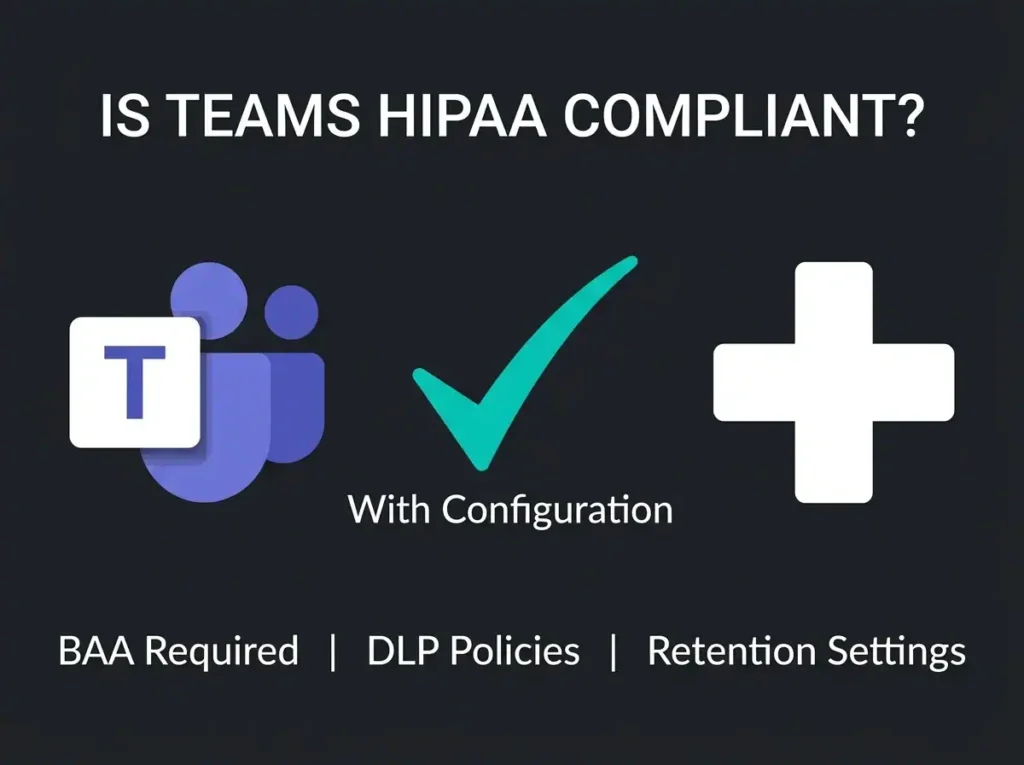
Microsoft Teams is not HIPAA compliant out of the box. It can support HIPAA when three things are true: your license is eligible, Microsoft’s Business Associate Agreement (BAA) is accepted, and the controls underneath are configured to satisfy the HIPAA Security Rule. Skip any one, and you don’t have compliance. You have a shared document library with extra steps.
- Capable, not compliant. Teams supports HIPAA only when an eligible plan, Microsoft’s BAA, and Security Rule configuration are all in place; out of the box it is none of those.
- The BAA is automatic. It is folded into the Data Protection Addendum on every eligible commercial plan, with no separate signing and non-negotiable terms; free and personal Teams accounts are never covered.
- Pick the right plan. Business Premium is the minimum practical tier for organizations under 300 users; E5 adds advanced eDiscovery and 10-year audit retention.
- Configure the core four. MFA with Conditional Access, DLP covering chat, channels, and files, six-year retention, and audit logs exported to a SIEM satisfy the main Security Rule safeguards.
- Guest access fails audits. Default settings let guests read files and chat history; disable it by default, expire access after 30 days, and review lists quarterly.
Is Microsoft Teams HIPAA Compliant?
Teams can be HIPAA-compliant. It isn’t, not as installed.
HIPAA compliance isn’t a product feature. It’s the output of configuration, policy, and training stacked on top of a platform that supports the required safeguards. Microsoft classifies Teams as a Tier D-compliant service, which covers HIPAA, ISO 27001, ISO 27018, and SOC 1/SOC 2. At that level, Microsoft has built the infrastructure controls: encryption at rest, encryption in transit, physical data center security. Under Microsoft’s shared responsibility model, everything above the infrastructure sits with you. Identity management, access controls, DLP, retention, audit logging, user training. That list is where most organizations run aground.
Key Point: Microsoft Teams supports HIPAA compliance. It does not produce HIPAA compliance. Healthcare organizations that deploy Teams without the configuration underneath expose PHI to unauthorized access. That’s a HIPAA violation regardless of what the platform is technically capable of.
Which Microsoft 365 Plans Support HIPAA-Compliant Teams?
Not every Microsoft 365 plan ships with the controls you need to protect PHI in Teams. Technically, the BAA (folded into the Data Protection Addendum) covers all commercial plans. In practice, several of those plans are missing the DLP and retention tooling that HIPAA expects you to have.
| Microsoft 365 Plan | Teams Included | BAA Coverage | DLP Policies | Retention Policies | HIPAA Practical |
|---|---|---|---|---|---|
| Business Basic | Yes | Yes | No | Limited | No |
| Business Standard | Yes | Yes | No | Limited | No |
| Business Premium | Yes | Yes | Yes | Yes | Yes |
| Microsoft 365 E3 | Yes | Yes | Yes | Yes | Yes |
| Microsoft 365 E5 | Yes | Yes | YesAdvanced | Yes10-year | Yes |
| Office 365 E1 | Yes | Yes | No | Basic | No |
| Frontline F1/F3 | Yes | Yes | Add-on | Add-on | With add-ons |
Recommendation: For healthcare organizations under 300 users, Microsoft 365 Business Premium is the minimum plan that gets you to HIPAA-capable Teams. DLP, sensitivity labels, Conditional Access, and Intune are all included at that tier. For larger orgs, or any org that needs advanced eDiscovery and 10-year audit retention, E5 is the plan you actually want.
For a plan eligibility breakdown across every Microsoft 365 service, see our guide on whether Microsoft 365 is HIPAA compliant.
Step 1: Verify Your Business Associate Agreement
HIPAA requires a BAA with every business associate that touches PHI. When your organization uses Teams to communicate, store, or transmit PHI, Microsoft qualifies.
Microsoft does not sign individual BAAs. The HIPAA Business Associate Agreement is automatically incorporated into the Data Protection Addendum (DPA), which applies to every eligible commercial and government plan. The clauses, the acceptance workflow, and the list of covered services all live on the Microsoft Service Trust Portal. Have your compliance lead read the actual language before you assume it covers what you think it covers.
Coverage extends to Teams, Exchange Online, SharePoint Online, OneDrive for Business, and Azure. Outlook.com, consumer OneDrive, free Teams: none of those fall under the DPA, and none of them can carry PHI. Ever.
Important: Microsoft’s BAA terms are non-negotiable. If your compliance team wants redlines, Microsoft will not accept them. Your choice is the standard terms or a different platform. I’ve seen legal teams burn a quarter trying to negotiate this. It doesn’t move.
Step 2: Configure Teams Access Controls
The HIPAA Security Rule (45 CFR 164.312) mandates technical safeguards for access control, audit controls, integrity, and transmission security. In Teams, those map to specific settings in Entra ID, the Teams admin center, and Microsoft Purview.
Multi-Factor Authentication (MFA)
MFA is non-negotiable. Every user who touches Teams needs it enabled, including clinical staff and executives.
- Deploy Microsoft Authenticator as the primary method. Push notifications, not SMS.
- Disable SMS-based MFA. It’s vulnerable to SIM swapping, and the extra user confusion you’ll get from switching methods is a one-time cost.
- Require MFA on every sign-in, not just “risky” ones. Risk-based prompts miss too much.
- Register backup auth methods for every user. The day a phone gets lost is not the day you want to discover the backup isn’t configured.
Conditional Access Policies
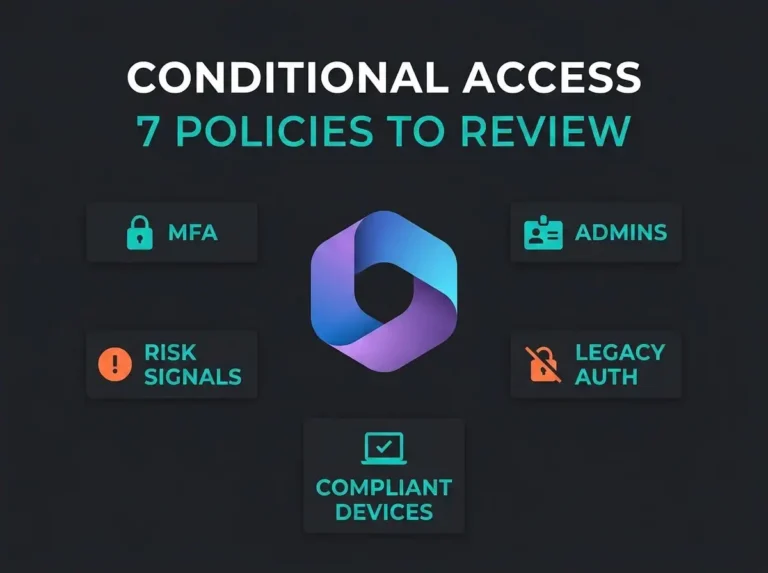
Conditional Access is how you enforce who gets in, from what device, under what conditions. Four policies cover most of the HIPAA exposure surface:
- Require compliant devices: Teams access blocked from unmanaged personal laptops and phones.
- Block legacy authentication: legacy protocols ignore MFA entirely. Kill them.
- Location-based restrictions: if your clinical operation is regional, limit access to the countries or IP ranges it actually serves.
- Session controls: sign-in frequency and limits on persistent browser sessions. A clinician leaving Teams open on a shared workstation is an incident waiting to happen.
Guest Access Restrictions
Teams guest access is where I’ve watched tenants quietly fail their HIPAA assessments. Guests invited to a channel or meeting inherit access to files, chat history, and PHI if the configuration doesn’t stop them.
- Disable guest access by default. Turn it on only for the specific teams that genuinely need external collaboration.
- Strip guest permissions down: no file uploads, no screen sharing, no meeting recording.
- Set guest access to expire automatically after 30 days.
- Review guest lists quarterly. Former vendors who still have access two years after the engagement ended are a finding on every audit.
Step 3: Enable Data Loss Prevention for Teams
Without DLP, a nurse pastes a patient’s date of birth and diagnosis into a channel chat and nothing stops it. DLP is the backstop.
Configure it in Microsoft Purview with four decisions made up front:
- Sensitive information types: turn on detection for U.S. Social Security Numbers, medical record numbers, DEA numbers, health insurance claim numbers. The built-in types cover most of what appears in clinical chats.
- Policy scope: apply to Teams chat messages, channel messages, and shared files. Do not scope to files only and assume chat is safe.
- Policy actions: block external sharing of anything containing PHI. Show policy tips to internal users so they understand the block and don’t route around it.
- Override permissions: give compliance officers the ability to override with a business justification, and log every override for review.
Telehealth consideration: DLP policies apply to guest participants in meetings. If a provider shares clinical information with a patient guest, the DLP rule may flag or block the message. Test every DLP rule against a real telehealth workflow before you roll out. Otherwise you’ll disrupt patient consults on go-live day, and your clinicians will remember.
Step 4: Configure Retention and Audit Policies
HIPAA requires records of PHI access and documentation retention of at least six years (45 CFR 164.316). In Teams, that means retention policies and audit logging, both configured deliberately.
Retention Policies
- Create a Microsoft Purview retention policy covering Teams channel messages, chat messages, and shared files.
- Set the retention period to six years, matching HIPAA’s documentation floor. Ten if you’re on E5 and your risk team says so.
- Apply the policy tenant-wide, not just to clinical staff. PHI turns up in channels you didn’t expect, usually HR or billing.
- Disable the ability for users to permanently delete Teams messages. If a clinician can nuke a message that was part of a care decision, your audit trail is gone.
Audit Logging
- Verify Microsoft Purview Audit is enabled. It defaults to on for eligible plans, but I’ve walked into tenants where someone turned it off once and nobody turned it back on.
- On E5, turn on Audit (Premium). Extended retention and extra event types are worth the licensing cost in healthcare.
- Monitor the Teams-specific events that matter: message access, file downloads, guest additions, meeting recordings accessed, policy changes.
- Export logs to a SIEM for long-term retention past Microsoft’s defaults. Otherwise you’ll hit year two and realize you don’t have year one.
Organizations running Microsoft Sentinel can ingest Teams audit logs directly, which gets you real-time monitoring and automated alerting on suspicious PHI access.
Step 5: Secure Teams Meetings for Telehealth
Telehealth is where Teams HIPAA risk compounds. The conversation itself is PHI. Providers have to guarantee confidentiality during a virtual encounter the same way they would in a physical exam room.
Meeting Configuration
- Lobby controls: every external participant waits in the lobby until the provider admits them.
- Meeting recording: off by default. If recording is clinically required, the recording storage has to live in a HIPAA-compliant location with access controls and retention.
- Meeting chat: post-meeting chat retention has to match your PHI retention policy. Easy to miss, because meeting chat is a separate retention scope from channel chat.
- Screen sharing: presenters only. Patients and guests can’t share screens.
- Transcription and captions: off for telehealth unless your transcription storage itself meets HIPAA retention. Most don’t by default.
Patient Identity Verification
HIPAA requires reasonable verification of patient identity before disclosing PHI. In a telehealth session, that translates to three practical steps:
- Verify identity at the start of every session. Date of birth, last four of SSN, or whatever your policy specifies.
- Confirm the patient is in a private setting where the conversation can’t be overheard. “Are you alone right now?” on the record.
- Document the identity verification in the patient record. If it isn’t documented, it didn’t happen.
EHR Integration
Teams integrates with Epic and Cerner. The Teams EHR connector lets providers launch consults directly from the EHR, and patients join from the healthcare portal. If you’re using the connector, confirm its configuration matches your HIPAA policies for PHI handling and session logging. The default settings are not automatically compliant.
Step 6: Train Your Workforce
Controls don’t matter if nobody follows them.
HIPAA requires workforce training on the policies and procedures around PHI, and Teams introduces specific user behaviors that have to be named in training:
- What counts as PHI in Teams: patient names, diagnoses, medications, appointment times, billing data, shared in chats, channels, or files. Not just the obvious medical record.
- Approved and prohibited uses: which Teams and channels are allowed for PHI. Personal accounts and consumer Teams are not, under any circumstance.
- Guest interaction rules: what a clinician can share with a patient guest in a meeting versus a referral provider.
- Incident reporting: the exact path to report a PHI exposure in Teams, whether it’s a message sent to the wrong recipient or an unexpected guest in a meeting.
- Mobile device policies: rules for Teams on personal phones. Screen lock requirements, restrictions on copying PHI out of the app.
Common HIPAA Compliance Mistakes in Microsoft Teams
Six recurring findings on Microsoft 365 security assessments of healthcare organizations:
- No DLP policies for Teams. DLP is configured for email and nobody extended the scope to Teams chat and channel messages.
- Guest access left wide open. Default Teams settings let guests read files, chat history, and meeting content without restriction.
- Personal devices unmanaged. Clinicians accessing Teams with PHI on personal phones that never went through Intune enrollment or app protection.
- Recording storage not controlled. Meeting recordings landing in personal OneDrive locations with no access controls or retention.
- No retention policies. Teams messages auto-deleted or left to individual user discretion. This one always fails audit.
- Consumer Teams accounts in use. Staff using free Microsoft accounts to talk to patients, bypassing every organizational control you have.
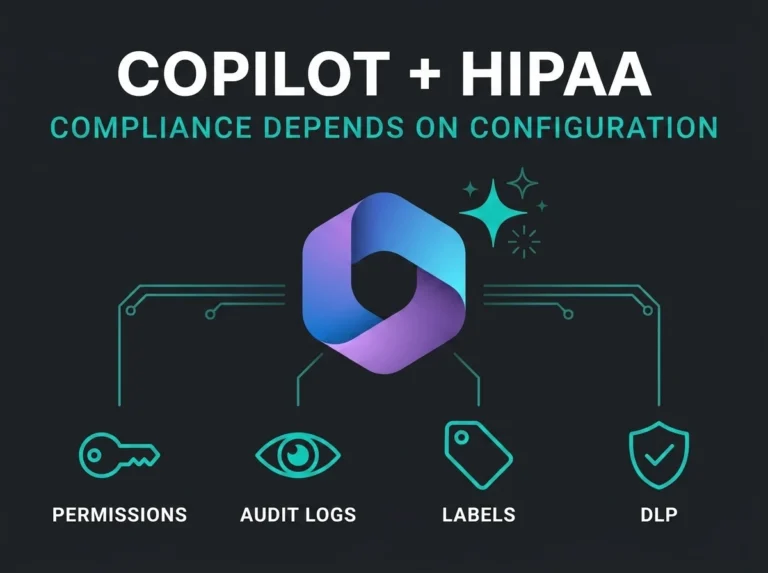
For the HIPAA story across the rest of Microsoft 365, see our SharePoint HIPAA checklist, which covers OneDrive and Exchange alongside Teams. And if you’re rolling out Microsoft 365 Copilot, which can summarize Teams chats and meetings on demand, read our Copilot HIPAA guide before clinical staff get licenses.
Microsoft Teams HIPAA Compliance Checklist
Run this list before your next audit:
- Eligible Microsoft 365 plan in use (Business Premium, E3, E5, or Government)
- BAA confirmed through the Data Protection Addendum
- MFA enabled for every user, Microsoft Authenticator, not SMS
- Conditional Access policies configured (compliant devices, legacy auth blocked)
- Guest access restricted, expired on a schedule, reviewed quarterly
- DLP policies covering Teams chat, channels, and files
- Retention policies set to six years minimum for all Teams message types
- Audit logging enabled and piped to a SIEM for long-term storage
- Telehealth meeting settings configured (lobby, recording, transcription)
- Workforce trained on Teams-specific HIPAA handling
- Incident response procedures that name Teams PHI exposure scenarios specifically
- Teams configuration review included in your scheduled compliance audits
Organizations working from the CISA M365 security baseline will find most of these controls overlap with CISA’s Teams hardening recommendations.
Frequently Asked Questions
Is Microsoft Teams HIPAA compliant?
Not by default. Teams supports HIPAA compliance once you have an eligible plan (Business Premium, E3, E5, or Government), a BAA in place through Microsoft’s Data Protection Addendum, and access controls, DLP, retention, and audit logging configured to meet the HIPAA Security Rule. Without that configuration layer, Teams is HIPAA-capable, not HIPAA-compliant.
Can I use Microsoft Teams for telehealth?
Yes, when it’s configured for it. Lobby controls on every meeting, recording and transcription disabled unless the storage is compliant, patient identity verified at session start, and meeting chat retention aligned with your PHI policy. Teams also integrates with EHR systems like Epic for virtual appointments launched directly from the record. That integration has its own configuration requirements.
Does Microsoft sign a HIPAA Business Associate Agreement for Teams?
Yes. Microsoft’s HIPAA BAA is automatically incorporated into the Data Protection Addendum for every eligible commercial and government Microsoft 365 plan. There is no separate signing step. Coverage includes Teams, Exchange Online, SharePoint, OneDrive, and Azure. The terms are standard and non-negotiable.
Which Microsoft 365 plan is best for HIPAA-compliant Teams?
For healthcare organizations under 300 users, Business Premium is the minimum that makes HIPAA realistic. It includes DLP, Conditional Access, sensitivity labels, and Intune. For larger organizations, or any organization that needs advanced eDiscovery, 10-year audit retention, or information barriers, E5 is the better plan.
What happens if I use a free Teams account for patient communication?
Free and personal Microsoft Teams accounts are consumer services. They’re not covered by the Data Protection Addendum or the HIPAA BAA. Using one to communicate PHI with a patient is a HIPAA violation by definition, because no BAA exists and no organizational controls apply. Every member of healthcare staff has to use a licensed organizational account. No exceptions.