





7 Conditional Access Policies Every M365 Tenant Should Review

Most Microsoft 365 tenants don’t get breached because Entra ID lacks security controls. They get breached because the right Conditional Access policies were never actually turned on. The basics are sitting there, half-configured, while users keep signing in from unmanaged laptops, old protocols, and admin sessions that deserve much tighter guardrails.
Conditional Access is where that changes. Microsoft describes it as the Zero Trust policy engine in Entra ID: it weighs signals such as user, device, app, location, and risk, then decides whether to block the session or demand more proof before it continues. For a Swedish SMB or MSP, that is the difference between “we have MFA somewhere” and “access to M365 is actually governed.”
I see this on security assessments all the time: tenants with decent licensing, decent intentions, and a grab bag of exceptions that slowly turned the policy set into mush.
This article covers the seven Conditional Access policies most Microsoft 365 tenants should review first, why they matter, and where teams usually trip over the rollout.
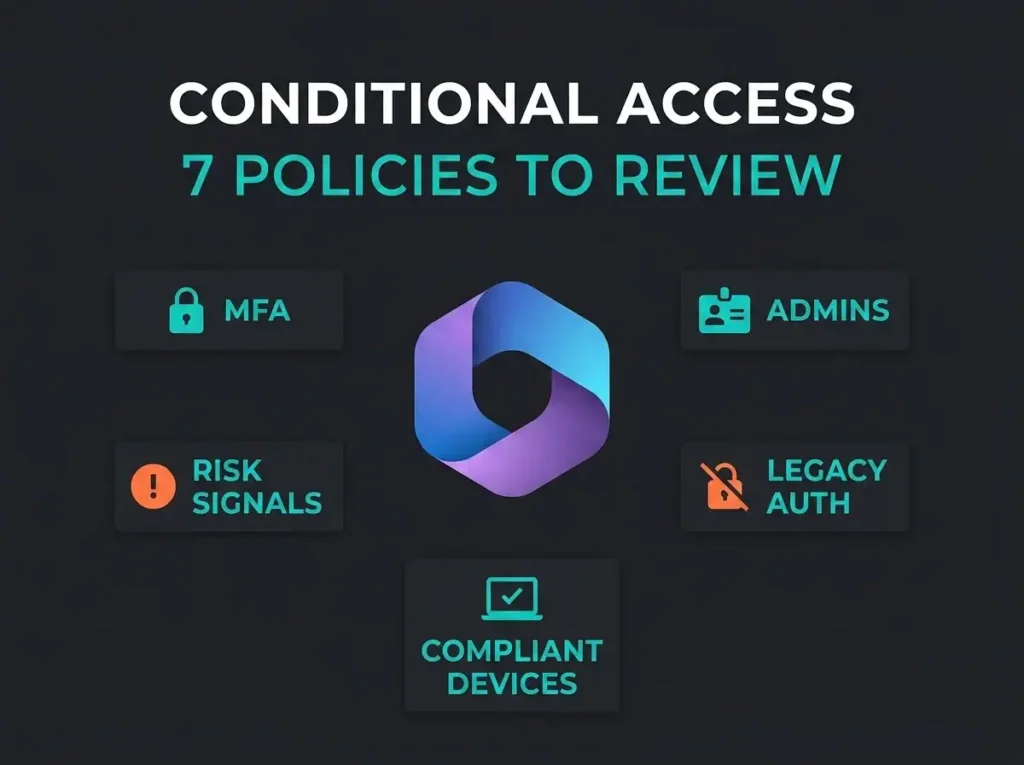
- Seven policies cover the baseline. Tenant-wide MFA, stronger admin MFA, blocking legacy authentication, secured security info registration, compliant devices for sensitive apps, blocked device code flow, and risk-based policies.
- Know the licensing line. Conditional Access needs Entra ID P1 for general use, and risk-based policies require P2.
- Break-glass first. Microsoft advises two or more cloud-only emergency access accounts excluded from blanket policies, plus report-only testing before enforcement.
- Block device code flow. Microsoft now calls it a high-risk authentication method and recommends blocking it everywhere a narrow use case does not require it.
- Exceptions are where policies rot. Every exclusion needs a name, a justification, and a review schedule, or the policy set slowly turns into mush.
Why Conditional Access deserves board-level attention
Identity is still the shortest path into a cloud tenant. Microsoft’s 2025 Digital Defense Report says it processes 100 trillion security signals per day, including 38 million identity risk detections on an average day. Verizon’s 2026 DBIR keeps hammering the same theme, with stolen credentials and the human element still driving a large share of breaches, and IBM’s Cost of a Data Breach Report 2025 keeps the average breach in the millions even after the 2025 decline.
All of that lands on one control point, because Conditional Access is enforced after first-factor authentication. Password-only sign-ins are not a strategy. You need policy decisions that demand stronger authentication, compliant devices, trusted context, or an outright block when the session looks wrong. One licensing note before you plan: Conditional Access requires Entra ID P1 for general use, and risk-based policies need P2.
If you are still leaning on broad defaults, read our guide to Microsoft 365 security defaults. For most growing tenants, that starting point stops being enough pretty quickly.
What Microsoft recommends before you switch policies on
Competitor articles tend to jump straight to the policy list. Microsoft is more cautious, and for good reason. Its deployment guidance calls for a staged rollout with test users, report-only mode, user communication, and emergency access exclusions. Skip that part and you can lock out your own admins faster than any attacker will.
Break-glass planning is the detail teams keep underestimating. Microsoft advises maintaining two or more emergency access accounts, keeping them cloud-only, and excluding them from blanket Conditional Access policies. That is not paranoia. It is basic operational hygiene.
Before you build anything new, make sure you have:
- At least one test group and one non-admin test user
- Two emergency access accounts excluded from global policies
- A naming standard for policies and exceptions
- A short list of service accounts, guest scenarios, and legacy workflows that still exist for a reason
- Sign-in log review built into the rollout
If your tenant still has basic hygiene gaps, start with our Microsoft 365 security checklist or book a Microsoft 365 security assessment before piling on more policy logic.
7 Conditional Access policies every M365 tenant should review
1. Require MFA for all users
Yes, this is the obvious one, and it is still the policy too many tenants dilute with broad exclusions and half-trusted locations. Microsoft puts Require multifactor authentication for all users at the top of its common policy templates for a reason.
Don’t read that as “turn on MFA somewhere.” Build a tenant-wide Conditional Access policy that requires MFA for user sign-ins, document the exclusions, and revisit them on a schedule. Old vendor integrations, shared mailboxes used like user accounts, and convenience exceptions are where this policy quietly rots.
The better pattern is narrow exclusions, each named and justified. Handle guest access separately. Retire or replace legacy tools. And if a workflow genuinely needs a permanent bypass, it earns scrutiny rather than a shrug.
2. Require stronger MFA for admin access
Admin sessions deserve a different bar. Microsoft recommends dedicated admin-focused policies in its template set, including MFA for admins and tighter controls on the admin portals, and that is the right call, because tenant-wide MFA is not the same thing as protecting privileged access.
For admin roles, tighten the scope:
- Target administrative roles and Microsoft admin portals
- Use phishing-resistant methods where licensing and hardware allow it
- Keep emergency accounts excluded, but monitored
- Consider compliant-device requirements for high-trust admin work
Finance teams rarely notice this nuance. Attackers do. An admin session from a random browser on a home PC should never read as normal traffic. If identity security is a live concern for your business, our identity security review is built around exactly these gaps.
3. Block legacy authentication
This one should be close to non-negotiable. Microsoft lists Block legacy authentication among its baseline recommendations, and Red Canary makes the same point in its Conditional Access guidance. Leave older protocols that bypass modern authentication in place and you have handed attackers a clean path around the rest of your policy design.
The practical obstacle is rarely technical. It’s political. Someone has an old copier, an old line-of-business app, or an old habit. Those edge cases need a migration plan, not a permanent exemption. I’ve watched organizations spend months defending a legacy workflow that should have been replaced in a week.
Start in report-only mode, read the sign-in logs, find what still uses legacy auth, then shut it down deliberately.
4. Secure security info registration
When users can register or reset MFA methods from anywhere with weak assurance, everything built on top of those methods gets shaky. Microsoft includes securing security info registration in its recommended templates precisely because the registration event itself is sensitive.
SMB tenants forget this one constantly. Teams pour attention into sign-in protection and skip the moment where users enroll the very factors that protection depends on. Restrict registration to trusted conditions, require MFA during the process, and check how guests and newly onboarded users complete setup.
This is also where NIS2 stops feeling theoretical. The directive never names Conditional Access, but it does push affected organizations toward stronger access control, governance, and documented security measures, and identity proofing and enrollment flows sit right in that conversation.
5. Require compliant or managed devices for sensitive apps
Not every app needs the same access conditions. Microsoft recommends requiring compliant or hybrid-joined devices for specific cases, especially where sensitive data is involved.
This is where a lot of Microsoft 365 tenants gain real control. Exchange Online, SharePoint Online, Teams, and the admin surfaces do not need to be equally reachable from any browser on any laptop. You can demand stronger device posture for the sensitive workloads without turning the whole tenant into a usability complaint forum. Good candidates include:
- Admin portals
- SharePoint and OneDrive holding sensitive company data
- Exchange Online for higher-risk groups
- Line-of-business apps that expose customer or regulated information
Read this alongside our Microsoft 365 security best practices article. Conditional Access works far better when device management, policy, and monitoring all pull in the same direction.
6. Block device code flow unless you truly need it
This one gets less attention than it should. Microsoft’s current documentation calls device code flow a high-risk authentication method that can be abused in phishing or used to reach corporate resources from unmanaged devices, and it recommends blocking the flow wherever possible.
That is current guidance, not old forum folklore, which is why it is worth acting on. Microsoft also notes that authentication-flow policies can affect later sessions through protocol tracking, and that organizations using all-resources policies need to think carefully about exclusions such as the Device Registration Service. Plenty of competitor posts skip that detail entirely.
If you run conference-room devices, digital signage, or another narrow use case, carve out the exception with care. Everyone else should not be using device code flow by default.
7. Add risk-based policies if you have P2
If your licensing includes Entra ID P2, bring user risk and sign-in risk into scope. Microsoft’s template library calls out requiring MFA for risky sign-ins and a password change for high-risk users as recommended options.
This is the point where Conditional Access shifts from static gatekeeping to adaptive control. The sign-in that looked normal last month may not look normal tonight. A new location, unusual session traits, impossible travel, leaked credentials, an odd device state: that is where risk signals earn their keep.
Not every tenant needs P2 on day one, but plenty need a clean decision about whether identity risk reduction is worth the added cost. If that discussion is still fuzzy, our Microsoft 365 security audit guide will help you frame the gap before you buy more licenses.
What competitors usually miss
Reviewing the current competitor coverage, a few patterns stood out.
- Most lists are tenant-agnostic. They rarely explain what a Nordic SMB should prioritize when Microsoft 365 is the operational core.
- Many recommend broad policy sets without spending enough time on rollout risk, emergency access accounts, and report-only testing.
- Several mention device code flow or compliant devices only in passing, even though those controls can materially change exposure in real tenants.
- Very few connect Conditional Access to buying decisions: what the business gets, what P1 versus P2 changes, and where managed help saves time.
That last gap is the real buyer question. Not “what are the seven coolest policies?” but which ones cut measurable tenant risk first, and which ones will create support pain if they are deployed sloppily.
When to handle this internally and when to bring in help
A mature internal Microsoft team can design and maintain Conditional Access well. Plenty of SMBs and MSPs do not have that luxury. They have one overstretched admin, partial Intune adoption, scattered exceptions, and no time to review sign-in logs properly.
If that sounds familiar, don’t force a DIY rollout just to save face. Get the policy design reviewed, clean up the exceptions, and validate the result against Secure Score, sign-in telemetry, and real business workflows. Our Microsoft Secure Score guide explains why a rising score matters less than whether the right controls went in cleanly.
Conditional Access can genuinely reduce risk. It can also manufacture a false sense of safety when the policy set is messy, over-excluded, or never revisited. That is usually where the real exposure hides.
FAQ
What is the most important Conditional Access policy in Microsoft 365?
For most tenants, requiring MFA for all users is the first policy to verify. In practice, though, it works best as part of a small baseline that also covers admin access, legacy authentication, and emergency account exclusions.
Do I need Entra ID P2 for Conditional Access?
No. Microsoft says standard Conditional Access use requires Entra ID P1. P2 is needed for risk-based policies such as risky sign-in remediation and high-risk user password change requirements.
Should emergency access accounts be excluded from Conditional Access?
Yes. Microsoft recommends maintaining two or more emergency access accounts and excluding them from broad Conditional Access policies to prevent tenant lockout. Those accounts still need strong authentication, monitoring, and regular validation.
Can Conditional Access help with NIS2 readiness?
Indirectly, yes. NIS2 is not a Microsoft control checklist, but Conditional Access supports stronger access governance, MFA enforcement, and managed device requirements. Those are all useful building blocks when tightening identity controls for NIS2-aligned programs.
What’s the biggest mistake when deploying Conditional Access?
Rolling policies straight into production without report-only testing, break-glass planning, and exception cleanup. The technical controls are rarely the hard part. The hard part is understanding how the tenant is really used before you lock it down.