





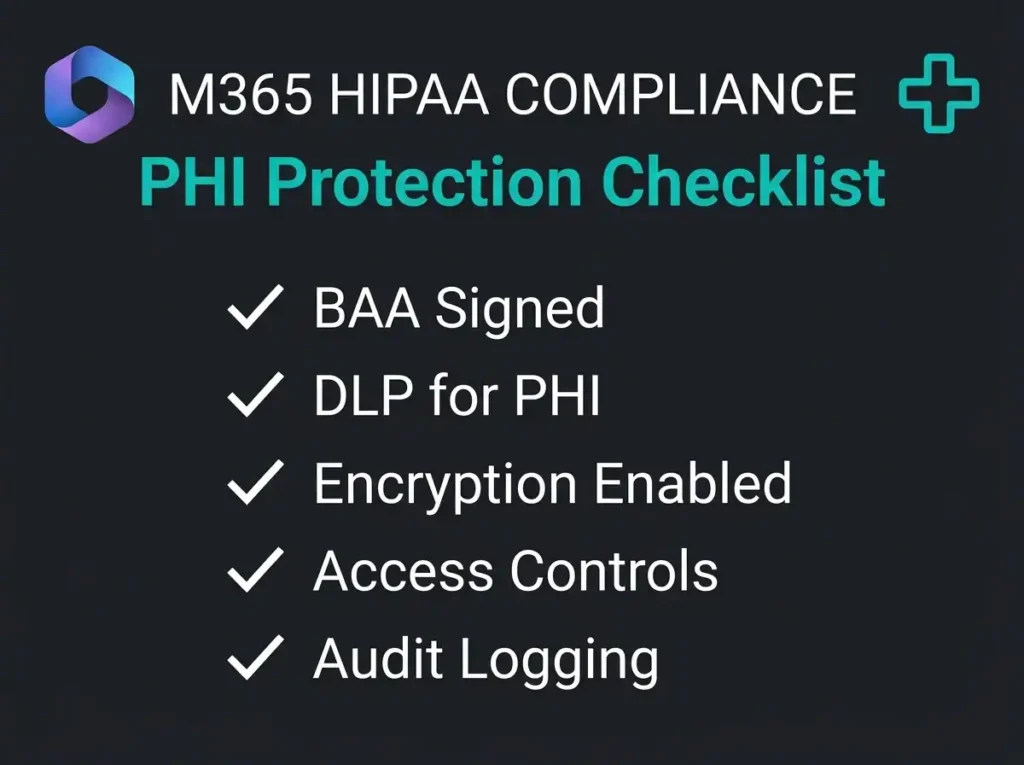
Microsoft 365 HIPAA Compliance: PHI Protection Checklist

A finance manager drags a folder of patient billing spreadsheets into a SharePoint site her team shares with a billing vendor. The vendor has “Anyone” link access enabled. Forty-three PHI records just left the building, and nobody will know until the quarterly audit. Is SharePoint HIPAA compliant out of the box? It isn’t. Microsoft provides the plumbing. The rest is on you.
What follows is a practical configuration walkthrough. Specific settings to flip, gaps I keep finding on M365 assessments, and a checklist for your next review.
- SharePoint is HIPAA-capable, not compliant. It only supports HIPAA on an eligible plan with the Microsoft BAA accepted and access controls, DLP, and audit logging configured.
- Plan eligibility is strict. The BAA covers Business Premium, E3, E5, and Government plans; Business Basic and Standard cannot hold PHI.
- Kill anonymous links first. Over 80% of tenants we assess have external sharing set more permissively than their own HIPAA policy, and the fix takes fifteen minutes.
- Six-year log retention is on you. E3 keeps audit logs 180 days and E5 keeps 365, so export to long-term storage or Microsoft Sentinel to cover the gap.
- Scope DLP across the whole surface. One Purview policy with the built-in healthcare types should cover SharePoint, OneDrive, and Teams together.
Is SharePoint HIPAA Compliant?
SharePoint Online is HIPAA-capable when it lives inside a Microsoft 365 Enterprise plan (E3/E5 or Business Premium) and you configure it properly. Microsoft will sign a Business Associate Agreement (BAA) that covers SharePoint Online, Exchange Online, Teams, and OneDrive for Business.
Signing it is step one, not the finish line.
Microsoft handles the infrastructure: encryption at rest, encryption in transit, physical data center controls. Under the shared responsibility model, everything above that sits on your side of the line. Data classification, access management, audit monitoring, user training. If a clinician emails a diagnosis to the wrong person through a SharePoint sharing link, Microsoft’s BAA doesn’t save you. The configuration does.
Key Point: No product on the market is HIPAA compliant on its own. HIPAA compliance is technical safeguards plus administrative policies plus physical controls, stitched together by a real person inside your organization. SharePoint gives you the technical capability. You still have to switch it on.
Step 1: Sign the Microsoft Business Associate Agreement
Until the BAA is in place, storing PHI in SharePoint is a HIPAA violation, full stop. The controls on top don’t matter yet.
How to sign the BAA:
- Confirm your organization has an active Microsoft service agreement. Microsoft’s HIPAA BAA is automatically folded into the Data Protection Addendum (DPA).
- Pull the current BAA documentation from the Microsoft Service Trust Portal and read the clauses that matter to your compliance officer, or the virtual CISO services many SMBs rely on for this exact review.
- Archive the BAA/DPA version and the acceptance date. Your auditor will ask for it.
The BAA applies to SharePoint Online, Exchange Online, Microsoft Teams, OneDrive for Business, Azure, and Dynamics 365. It does not apply to consumer Microsoft services. Outlook.com, personal OneDrive, and Microsoft 365 Family/Personal sit outside the agreement.
Important: The BAA only covers Microsoft 365 Business Premium, E3, E5, and equivalent Government plans. Microsoft 365 Basic and Standard are ineligible. If that’s what you’re licensed on, you’re looking at a licensing project before anything else.
Step 2: Configure SharePoint Access Controls
The HIPAA Security Rule says covered entities must limit PHI access to authorized personnel. In SharePoint, that breaks down into three layers: external sharing, site-level permissions, and Conditional Access.
External Sharing Settings
SharePoint permits external sharing by default, and on most tenants I look at, nobody has ever touched those defaults.
Go to SharePoint admin center > Policies > Sharing. Set organization-wide sharing to “Only people in your organization” or at minimum “Existing guests” for any site holding PHI. Anonymous “Anyone” links have no place on a PHI site. Turn them off at the tenant level if you can, and at the site level if you can’t. Per-site sharing controls let you make PHI sites more restrictive than the rest of the tenant. Use them.
Site-Level Permissions
Least privilege is the whole game here.
- Create dedicated SharePoint sites for PHI. Don’t mix patient records into the same site as marketing collateral, because permission creep is inevitable and you’ll lose the ability to say who sees what.
- Use Microsoft 365 Groups or security groups for access management. Never assign individual permissions at the document level. You’ll never clean them up, and a leaver will keep access for years.
- Review site membership every quarter and remove people who shouldn’t still be there. Put it on the calendar.
- Disable “Everyone” and “Everyone except external users” on any PHI site. On assessments, this single setting is the difference between a site that’s locked down and one that’s wide open.
Conditional Access Policies
Microsoft Entra Conditional Access is the enforcement layer. Four policies cover the bulk of PHI exposure scenarios:
- Multi-factor authentication (MFA) required for any session touching SharePoint.
- Non-compliant or unmanaged devices blocked outright.
- PHI site access gated to managed devices through app protection policies.
- Session controls that block downloads on unmanaged devices, so a nurse on a personal laptop can read a chart but can’t save a copy to Downloads.
Step 3: Enable Audit Logging and Monitoring
HIPAA requires you to record and examine activity in information systems holding PHI. Microsoft 365 ships the tools. Most tenants ship with them half-configured.
Unified Audit Log
The Microsoft 365 Unified Audit Log captures SharePoint activity: file access, downloads, sharing changes, permission modifications. In Microsoft Purview > Audit, verify auditing is turned on. It usually is, but I’ve walked into enough tenants where a previous admin disabled it “for performance” that the check is worth doing. For context on where Microsoft moved the tooling, see our guide on the compliance portal rename.
Retention is where most organizations stumble. Default audit log retention is 180 days on E3, 365 days on E5. HIPAA requires six years. You will have to export logs to long-term storage or hand them off to Microsoft Sentinel for centralized retention. Default retention plus six-year HIPAA retention is a math problem that never works in your favor.
Once retention is sorted, build alert policies for mass downloads, external sharing events, and permission changes on PHI sites. Otherwise the logs exist and nobody ever looks at them.
SharePoint events that matter
Seven events I flag on every assessment:
- File accessed by an external user
- Sharing invitation created or accepted
- Site permissions changed
- Bulk file downloads
- Sensitivity label changed or removed
- Anonymous link created (this one should fire an alert even if the policy disables the feature, because somebody just tried)
- Privileged role assignment on a PHI site
Step 4: Implement Data Loss Prevention (DLP)
DLP is what stops the finance manager in the opening paragraph. Of all HIPAA safeguards, this one has the biggest day-to-day impact in SharePoint, and it’s the one that catches the most real incidents.
Configure DLP Policies for PHI
Microsoft Purview DLP already ships with the healthcare sensitive information types you need. U.S. Social Security Numbers. U.S. Health Insurance Claim Numbers. ICD-9 and ICD-10 codes. DEA Numbers. Medical terms and condition names. Turn them on before you try writing custom ones.
A working DLP policy for PHI should:
- Detect PHI in SharePoint documents using the built-in sensitive information types.
- Block external sharing of anything that matches.
- Display policy tips. Users need to understand why their share was blocked, otherwise they’ll find a workaround through Gmail.
- Log incidents for your compliance reviewer.
- Extend to SharePoint Online, OneDrive, and Teams. Teams files live in SharePoint, so the policy covers them automatically, but only if the policy scope includes Teams explicitly.
Sensitivity Labels
Sensitivity labels are the layer above DLP. Create a “PHI” or “HIPAA Confidential” label that applies encryption, blocks external sharing at the file level, and stamps a visible marking on the header. Configure auto-labeling so the label applies itself when sensitive health data is detected, because nobody will do it manually. Require a label before saving to PHI sites, so users are forced to classify rather than skip the field.
Step 5: Configure Encryption and Data Protection
Microsoft 365 encrypts at rest and in transit by default. HIPAA doesn’t require customer-managed keys. What it does require is that you verify the defaults are still the defaults, because misconfigurations creep in.
Default Encryption
SharePoint Online gives you BitLocker at the volume level plus per-file encryption using unique AES 256-bit keys for data at rest. TLS 1.2 covers data in transit. E5 offers Customer Key for customer-managed encryption, which is not a HIPAA mandate but can matter if your board has data sovereignty concerns. Don’t enable it without a reason. The operational overhead is real.
Information Rights Management (IRM)
IRM adds protection that travels with the document, even when a user downloads it to a laptop. On PHI document libraries, turn IRM on. It prevents printing, forwarding, and copying outside the policy, and the protection persists off-network. Configure it through SharePoint library settings > Information Rights Management. The initial rollout will generate support tickets from users who “can’t print the file”. Have a response ready.
Step 6: Address Teams and OneDrive Integration
SharePoint doesn’t sit alone. Teams channels back onto SharePoint sites. OneDrive is built on SharePoint technology. Your HIPAA configuration has to cover the whole surface, not just the SharePoint admin center. Our OneDrive HIPAA guide goes deep on that side of it: sharing links, sync restrictions, and device controls.
Microsoft Teams
Every Teams channel has a SharePoint site behind it, and files shared in Teams channels live in that site. That means your DLP policies scoped to SharePoint already cover Teams files. It also means external sharing restrictions on SharePoint hit Teams file sharing, whether you intended it or not. Create dedicated Teams for PHI conversations and apply the same access controls you’d apply to the equivalent SharePoint site. Disable guest access in those Teams unless a specific business associate legitimately needs it, and put an expiration on the access when you do.
OneDrive for Business
OneDrive inherits its plumbing from SharePoint, so apply the same rules. Restrict OneDrive sharing to “Only people in your organization” for users who handle PHI. Extend DLP policies to OneDrive alongside SharePoint. Block sync to unmanaged devices through the OneDrive admin center. A clinician syncing a folder of patient letters to a personal Mac is a HIPAA incident waiting to be reported.
Common SharePoint HIPAA compliance mistakes
Eight issues we find on most Microsoft 365 security assessments of healthcare tenants:
- No BAA signed. PHI is in SharePoint, but nobody ever accepted the Microsoft BAA. This is more common than you’d expect.
- External sharing enabled globally. Anonymous “Anyone” links active on PHI sites. Often because the tenant was spun up for marketing first and healthcare was bolted on later.
- “Everyone” group permissions. PHI visible to all authenticated tenant users, not just the authorized team.
- No DLP policies. Nothing stops a user from emailing out a file of patient records.
- Audit log retention too short. Default 180-day retention will never satisfy HIPAA’s six-year requirement. That never holds up in an audit.
- No sensitivity labels. PHI documents look exactly like meeting notes to the system.
- Unmanaged device access. Users reading patient charts on personal iPads with no Conditional Access guardrails.
- Stale permissions. Ex-employees, former contractors, and old consulting partners still sitting on PHI sites two years later.
Assessment Finding: More than 80% of Microsoft 365 tenants we assess have SharePoint external sharing set more permissively than the organization’s own HIPAA policy allows. The fix is fifteen minutes in the SharePoint admin center. Most teams don’t know the setting exists.
SharePoint HIPAA compliance checklist
Run through this before your next audit.
Administrative Safeguards
- BAA signed with Microsoft through the Purview compliance portal
- Eligible Microsoft 365 plan in use (Business Premium, E3, E5, or Government)
- HIPAA security policies documented, communicated, and dated
- Workforce trained on SharePoint PHI handling, with records to prove it
- Quarterly access reviews on PHI sites, on the calendar
Technical Safeguards
Pair this section with Microsoft Secure Score to keep score on your overall tenant posture.
- External sharing locked down on PHI sites (no anonymous links)
- Conditional Access enforcing MFA and device compliance
- DLP detecting and blocking PHI across SharePoint, OneDrive, and Teams
- Sensitivity labels configured for PHI classification
- Audit logging enabled with six-year retention (or export to Microsoft Sentinel)
- IRM on PHI document libraries
- Encryption at rest and in transit verified (default, but verify)
Organizational Controls
- Dedicated SharePoint sites for PHI, separated from general business content
- Incident response plan that names SharePoint-specific PHI scenarios
- Breach notification procedures that meet HIPAA’s 60-day window
- A scheduled cadence of security audits on the SharePoint configuration
Frequently Asked Questions
Can I use SharePoint Online for HIPAA compliance?
Yes, with caveats. SharePoint Online can support HIPAA when you run it on an eligible Microsoft 365 plan (Business Premium, E3, E5, or Government), the Microsoft BAA is in place, and you’ve configured access controls, DLP, audit logging with six-year retention, and encryption correctly. Miss any of those pieces and the platform stops being a compliance story.
Does Microsoft sign a BAA for SharePoint?
Yes. Microsoft’s HIPAA Business Associate Agreement covers SharePoint Online, Exchange Online, Microsoft Teams, OneDrive for Business, Azure, and Dynamics 365. You accept it through the Microsoft Purview portal. Consumer services (Outlook.com, personal OneDrive, free Microsoft 365) sit outside the BAA and cannot be used for PHI under any circumstances.
What Microsoft 365 plan do I need for HIPAA compliance?
Microsoft 365 Business Premium, E3, E5, or a Government plan. That’s the eligibility list for the BAA. Business Basic and Standard are off the table for PHI storage or processing. For the full plan comparison and walkthrough, see our M365 HIPAA compliance guide.
How long must I retain SharePoint audit logs for HIPAA?
Six years. Microsoft 365 E3 keeps unified audit logs for 180 days out of the box. E5 keeps them for 365. Either way you’ll need to export to long-term storage or pipe them into Microsoft Sentinel to cover the gap. The default retention never satisfies the requirement.
Is SharePoint HIPAA compliant by default?
No. SharePoint has the technical ingredients for HIPAA compliance but ships with almost none of them enforced. To get to compliant, you have to configure access controls, DLP, external sharing restrictions, audit logging with proper retention, and a signed BAA with Microsoft. The product can support HIPAA. It does not produce HIPAA compliance on its own.