





Endpoint Hardening: Complete Guide for Microsoft Environments

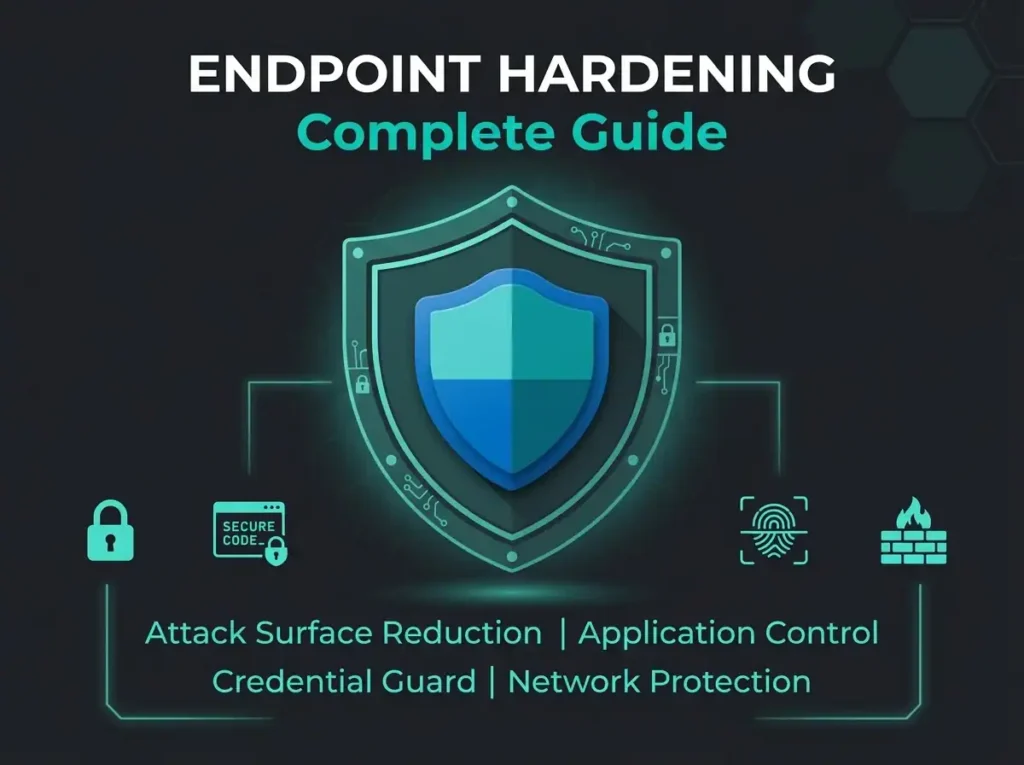
Your company runs Microsoft 365, Entra ID, and Windows endpoints. How many of those endpoints still have default configurations? In our experience, most SMBs leave 60-70% of the available hardening controls untouched. The result is a fleet of devices wide open to credential theft, ransomware, and whatever lateral movement an attacker wants to attempt once they land.
Endpoint hardening is about shrinking the attack surface of laptops, desktops, servers, and mobile devices. You strip out software nobody uses, tighten configurations, apply security policies. For Microsoft shops, the tooling already exists in Intune, Defender for Endpoint, and Entra ID. Knowing which of the hundreds of available controls actually matter, and deploying them without breaking production, is the bit that trips teams up.
What follows is the endpoint hardening playbook we apply for SMBs, with specific implementation steps using the Microsoft security stack.
- Most controls sit unused. SMBs typically leave 60-70% of available hardening controls untouched even though the tooling ships with Intune, Defender for Endpoint, and Entra ID.
- You have 29 minutes. Average attacker breakout time has dropped to 29 minutes, so hardening (prevention) and EDR (detection) are both mandatory, not either-or.
- Four controls first. MFA via Conditional Access, Intune security baselines, BitLocker, and Windows LAPS are the highest-impact, lowest-effort moves and deploy in days.
- Audit mode is not hardening. ASR rules cost nothing extra with Defender for Endpoint, but teams that never flip from audit to block are producing paperwork, not protection.
- NIS2 makes it mandatory. Article 21 requires basic cyber hygiene including patching, encryption, and access control, with penalties up to 2% of global annual turnover for essential entities.
What is endpoint hardening?
Endpoint hardening is the systematic process of securing devices by shrinking their attack surface. Detection alone (catching attacks after they happen) is not enough, so hardening stops attacks from succeeding in the first place by closing off the pathways attackers rely on.
Every Windows device ships with features, services, protocols, and default configurations that most organisations never use but attackers routinely abuse. Remote Desktop enabled by default. PowerShell unrestricted. Legacy authentication protocols active. Local admin accounts with weak passwords. Each one is a potential entry point that nobody asked for.
Hardening eliminates those entry points before attackers go looking for them. It covers patching. It covers disk encryption. It covers restricted administrative privileges, firewall rules, and the security baselines that lock down operating system settings to known-good defaults.
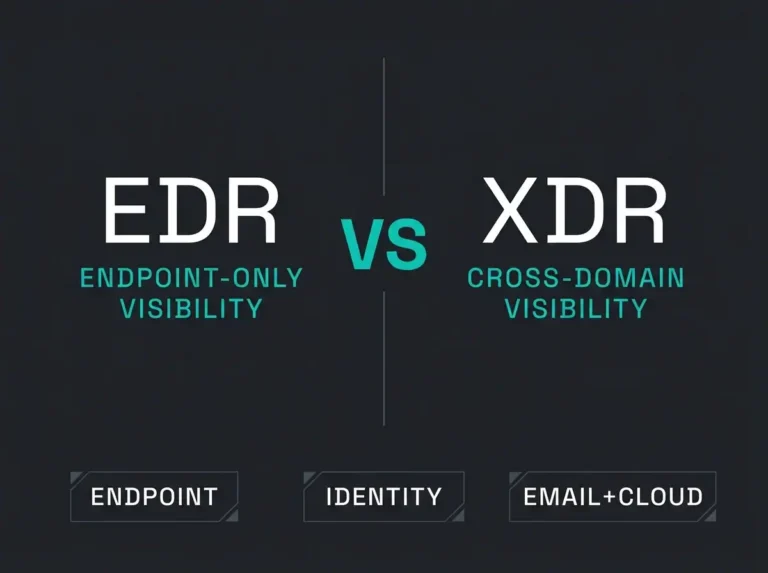
Key distinction: Endpoint hardening reduces the attack surface (prevention). EDR monitors for threats that slip past hardening (detection). You need both. Skip the monitoring and you end up with blind spots. Skip the hardening and your SOC drowns in alerts that should never have been generated.
Why endpoint hardening matters for SMBs
Small and mid-sized businesses are disproportionately targeted, and cyber insurers now require specific endpoint controls like EDR, MFA, and patch management as conditions for coverage. The CrowdStrike 2026 Global Threat Report found average breakout time (how fast attackers move from initial access to lateral movement) dropped to just 29 minutes. Once an attacker lands on a poorly hardened endpoint, you have less than half an hour before the whole network is at risk.
The financial stakes are equally blunt. According to the IBM 2025 Cost of a Data Breach Report, the global average breach cost sits at $4.44 million. Organisations with strong security postures (hardening being one slice of that) see significantly lower breach costs than those shipping weak configurations.
NIS2 compliance requirements
If you operate in the EU, endpoint hardening is not optional. The NIS2 Directive Article 21 mandates cybersecurity risk management measures including “policies on risk analysis and information system security” and “basic cyber hygiene practices.” Endpoint hardening (patch management, access control, encryption, secure configuration) sits squarely inside those requirements. Non-compliance carries penalties up to 2% of global annual turnover for essential entities, which is usually enough to get a board’s attention.
10 endpoint hardening best practices for Microsoft environments
1. Deploy Microsoft Intune security baselines
Microsoft Intune ships with pre-configured security baselines for Windows 11, Defender for Endpoint, and Microsoft Edge. Each baseline applies hundreds of recommended security settings in a single policy, covering password requirements, firewall rules, audit logging, and quite a bit more.
Start with the Windows MDM security baseline and the Defender for Endpoint baseline. Roll them out in audit mode first, watch for a week or two to catch conflicts with line-of-business applications, then enforce. This way you harden endpoints without blowing up someone’s accounting software on a Friday afternoon.
2. Enable Attack Surface Reduction (ASR) rules
Attack Surface Reduction rules in Microsoft Defender for Endpoint block the specific techniques attackers use most: Office applications launching child processes, scripts downloading executables, credential theft from LSASS memory, ransomware-style mass file encryption.
ASR rules are one of the highest-impact hardening controls available and they cost you nothing extra if you already have Defender for Endpoint. They do require Defender Antivirus as the primary AV, with real-time protection and cloud-delivered protection enabled. Deploy through Intune endpoint security policies, start in audit mode, identify any false positives, and only then flip to block.
The ASR rules to prioritise first:
- Block credential stealing from Windows LSASS
- Block executable content from email client and webmail
- Block Office applications from creating child processes
- Block JavaScript or VBScript from launching downloaded executable content
- Block persistence through WMI event subscription
3. Enforce BitLocker full-disk encryption
An unencrypted laptop is a data breach waiting to happen. BitLocker encrypts the entire drive so if a device disappears out of the back of a taxi, the data remains inaccessible without the encryption key. Deploy BitLocker through Intune with silent encryption enabled (no user interaction required), and escrow the recovery keys to Entra ID so they are actually recoverable when needed.
For NIS2 compliance, encryption at rest is a baseline expectation. BitLocker satisfies this for Windows endpoints with no additional licensing costs.
4. Require MFA via Conditional Access
Multi-factor authentication is the single most effective account protection measure available. Per Microsoft’s own data, MFA blocks more than 99.2% of account compromise attacks.
MFA alone is not enough, though. Enforce it through Conditional Access policies in Entra ID so access decisions also consider device compliance, location, sign-in risk level, and application sensitivity. A properly written Conditional Access policy requires MFA, blocks legacy authentication (which bypasses MFA entirely, rendering the whole exercise pointless), and requires device compliance before granting access to corporate resources.
5. Restrict local administrator privileges
Users running as local administrators can install software, disable security tools, and make system changes that undermine every other hardening control you have. Windows LAPS (Local Administrator Password Solution) assigns unique, rotating passwords to the built-in local admin account on each device, which eliminates the single shared admin password that every pentester dreams of finding.
Deploy LAPS through Intune, disable the default Administrator account, and get daily users operating with standard accounts. Pair it with Privileged Access Management for any scenario that actually requires temporary elevation.
6. Enforce automated patch management
Unpatched vulnerabilities remain the top exploitation vector. Windows Update for Business, managed through Intune, handles OS and driver updates with configurable deferral periods, compliance deadlines, and automatic restarts. Configure quality update deferrals of 3-7 days (enough to catch the occasional bad patch without leaving weeks of exposure) and feature update deferrals of 30-60 days.
Do not neglect third-party applications. Adobe Reader, Chrome, Java, and friends are frequent targets. Use Intune’s application management or a dedicated patch management tool to cover the non-Microsoft software on your fleet.
7. Configure Windows Firewall with Advanced Security
The built-in Windows Firewall is genuinely capable, just frequently left at defaults. Proper hardening blocks all inbound connections except those you actually need, restricts outbound traffic to known-good destinations, and enables logging for blocked connections.
Deploy firewall rules through Intune endpoint security policies. At minimum, block inbound SMB (port 445), RDP (port 3389), and WinRM (port 5985/5986) from non-management networks. Those are the protocols attackers abuse most often for lateral movement.
8. Deploy Endpoint Detection and Response
Hardening reduces the attack surface, but no configuration is perfect. Endpoint Detection and Response (EDR) catches threats that bypass preventive controls, flags suspicious behaviour in real time, and gives you the telemetry needed for fast response.
Microsoft Defender for Endpoint provides EDR capabilities integrated with the same Intune management plane you use for hardening. That integration gives you a single console for both prevention (hardening policies) and detection (EDR alerts), which matters when your SOC team is three people deep and needs to move fast. Defender for Endpoint also feeds Microsoft Sentinel for centralised SIEM correlation across the rest of your environment.
9. Disable unnecessary services and protocols
Every running service is a potential attack vector. Disable the services your organisation does not use: Remote Desktop (if you use a VPN or zero-trust alternative), Windows Remote Management, Print Spooler (on non-print servers), LLMNR, NetBIOS over TCP/IP, and SMBv1.
SMBv1 deserves special emphasis. It is the protocol WannaCry and NotPetya exploited, Microsoft has deprecated it since 2018, and we still regularly find it enabled during security audits. Disable it through Group Policy or Intune configuration profiles. If anyone objects, ask them to name the 2018-or-newer system that requires it.
10. Implement application control
Application control restricts which software can run on endpoints, preventing unauthorised applications (including malware) from executing at all. Windows Defender Application Control (WDAC) or AppLocker can enforce allow-lists that restrict execution to approved publishers and paths.
Start with a baseline policy that allows Microsoft-signed binaries and your managed applications, then blocks everything else. WDAC is the recommended approach for new deployments; Microsoft is investing in it over AppLocker. Deploy in audit mode first to identify any legitimate applications you missed before anything gets blocked in anger.
Endpoint hardening checklist
This table is a quick reference for prioritising endpoint hardening controls by impact and implementation effort.
| Control | Impact | Effort | Microsoft Tool |
|---|---|---|---|
| MFA via Conditional Access | Critical | Low | Entra ID + Intune |
| Security baselines | High | Medium | Intune |
| ASR rules | High | Medium | Defender for Endpoint |
| BitLocker encryption | High | Low | Intune |
| Automated patching | High | Low | Windows Update for Business |
| Local admin restriction (LAPS) | High | Low | Intune + Windows LAPS |
| EDR deployment | High | Medium | Defender for Endpoint |
| Firewall hardening | Medium | Medium | Intune + Windows Firewall |
| Disable unnecessary services | Medium | Low | Intune / Group Policy |
| Application control (WDAC) | High | High | Intune + WDAC |
How to measure endpoint hardening effectiveness
Microsoft Secure Score gives you a quantified view of your security posture across the Microsoft 365 environment, hardening controls included. Each action (enabling BitLocker, deploying ASR rules, requiring MFA) earns points that push your score up.
Track Secure Score trends monthly. A rising score means hardening posture is improving. A plateau or decline usually signals one of a few things: configuration drift, new devices joining without baselines applied, or fresh attack surface from recently deployed applications that nobody told the security team about.
Back Secure Score up with regular security audits that check hardening controls are actually enforced (not just configured) and flag any endpoints that fell through the cracks.
Where most SMBs get stuck
The technical controls are well documented. The operational side is what catches teams out. SMBs get stuck for a handful of recurring reasons.
- No dedicated security staff: IT teams handle hardening alongside helpdesk, infrastructure, and application support. Security tasks get deprioritised the moment something breaks, which is most days.
- Fear of breaking things: ASR rules and application control can block legitimate applications if deployed incorrectly. Teams enable audit mode, see some noisy alerts, and never move to enforce. Audit mode indefinitely is not hardening; it is paperwork.
- Configuration drift: Hardening is not a one-time project. New devices, new applications, new employees, Windows updates, all of it introduces changes that erode hardening posture over time.
- No visibility: Without centralised monitoring, you cannot tell which devices are compliant and which are running with stale baselines or (more common than you would hope) disabled security controls.
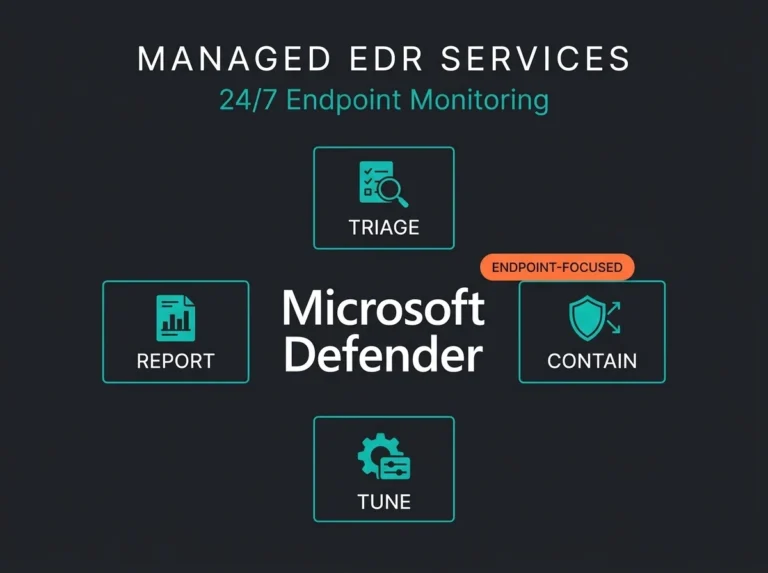
A managed security service earns its keep on exactly this kind of ongoing hygiene: maintaining hardening baselines, watching for configuration drift, tuning ASR rules so the false positives do not drown the signal, and keeping endpoint posture aligned with evolving threats and compliance obligations like NIS2.
Falconer Security’s approach: We deploy and maintain endpoint hardening as part of our managed security services for Microsoft environments. That includes Intune security baselines, ASR rule tuning, Defender for Endpoint management, and continuous compliance monitoring, all managed from one console.
Frequently Asked Questions
What is endpoint hardening?
Endpoint hardening is the process of reducing the attack surface of devices (laptops, desktops, servers, mobile devices) by removing unnecessary software, disabling unused services, enforcing security configurations, and applying patches. The goal is to eliminate the pathways attackers exploit before they can be used.
What is the difference between endpoint hardening and EDR?
Endpoint hardening is preventive: it reduces the attack surface so attacks are less likely to succeed in the first place. EDR (Endpoint Detection and Response) is detective: it monitors endpoint behaviour to catch threats that bypass preventive controls. Organisations need both. Skip hardening and EDR drowns you in alerts. Skip EDR and you have no visibility into the attacks that slip past hardening anyway.
Which endpoint hardening controls should I prioritise?
Start with the highest-impact, lowest-effort controls: enforce MFA through Conditional Access, deploy Intune security baselines, enable BitLocker encryption, and restrict local admin privileges with Windows LAPS. These four controls address the most common attack vectors and can be rolled out in days, not months.
Does endpoint hardening help with NIS2 compliance?
Yes. NIS2 Article 21 requires organisations to implement cybersecurity risk management measures including “basic cyber hygiene practices” and access control policies. Endpoint hardening directly satisfies several NIS2 requirements: patch management, encryption, access control, and secure configuration management. Documenting your hardening baselines and ongoing compliance monitoring gives NIS2 auditors the evidence they expect.
How often should endpoint hardening configurations be reviewed?
Review endpoint hardening configurations quarterly at minimum, and after any major change: new operating system releases, new applications deployed, changes to remote work policies, or new threat intelligence indicating attackers are targeting specific protocols or services. Microsoft Secure Score provides continuous visibility into hardening posture between formal reviews.