





5 Default Sentinel Rules That Generate Nothing But Noise (And What We Replace Them With)

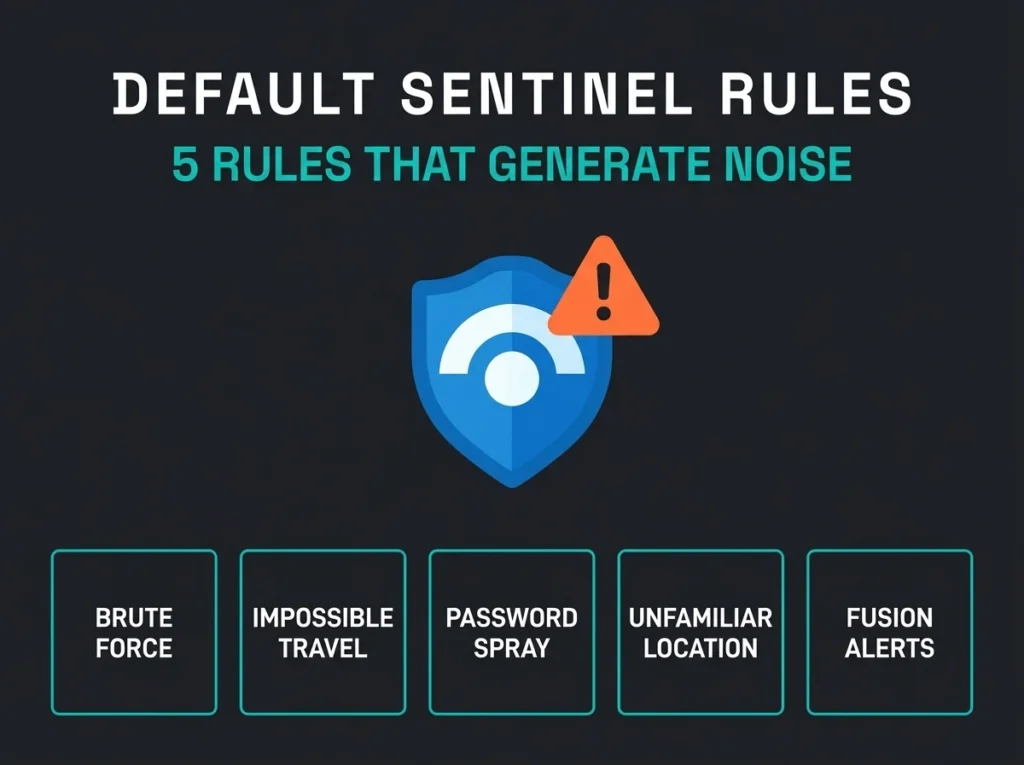
You deployed Microsoft Sentinel, enabled the recommended analytics rule templates, and expected clean, actionable alerts. Instead, the incident queue exploded. Hundreds of alerts a week, most of them false positives, and a SOC that now flinches every time the board refreshes. Falconer Security sees this pattern in nearly every Sentinel environment we inherit. Default rules generating noise that buries real threats.
Below are the five default Sentinel analytics rules that consistently produce the most noise, what makes them fire on legitimate activity, and what we substitute. I will be honest about the trade-offs, because every tuning decision is also a detection decision, and there is no universally correct threshold.
- Defaults are built for breadth. Microsoft’s rule templates favour broad coverage over precision, and most organisations see 70 to 80% false positive rates before any tuning.
- Expect to rewrite half. Falconer Security typically disables or rewrites 40 to 60% of default templates within the first month of a managed Sentinel engagement.
- Error-code exclusions pay first. Adding codes 50074, 50207, 50133, and 50158 to the brute force rule’s exclusion list alone cuts its noise by roughly 60%.
- Never disable Fusion. Its multistage detections inherit noise from upstream rules, so tune the feeding signals and auto-close validated benign combinations instead.
- Tuning is a process, not a purge. Baseline for 7 to 14 days, classify every alert, fix the top five offenders, use watchlists over hardcoded exclusions, and review monthly.
Why default Sentinel rules generate so much noise
Microsoft ships hundreds of analytics rule templates through Sentinel’s Content Hub, covering identity threats, network anomalies, data exfiltration, and a lot more. The templates themselves are not the problem. The default configuration is.
Default rules have to work for the widest possible audience. A template that ships for a 50,000-employee enterprise with a dedicated SOC also needs to “work” for a 200-person company with one IT admin. What that means in practice is low thresholds, broad filters, and minimal exclusions. Most organisations that enable default templates see 70 to 80% false positive rates before any tuning happens.
Microsoft processes over 100 trillion security signals daily according to the Microsoft Digital Defense Report 2025, and the analytics templates are drawn from that global intelligence. Your environment is not global. Your VPN IP ranges, your service accounts, your Conditional Access policies, the sales team who travel to Copenhagen on Tuesdays, a finance manager who signs in from the coffee place across from the office: none of that is in the template. So the template alerts on all of it.
The rules below are the ones we reach for on day one of every managed Sentinel engagement.
Rule 1: brute force attack against Azure Portal
The template watches SigninLogs and AADNonInteractiveUserSignInLogs for failed login attempts to the Azure Portal and fires when a user exceeds a threshold inside a 7-day window. The defaults are 5 failures from multiple IPs or 20 failures from a single IP.
Where it falls apart is the exclusion list. The template filters out only five error codes (0 for success, 50125, 50140, 70043, 70044) and misses dozens of operational errors that look like failures but are nothing of the sort. Error code 50074 means MFA was required and the user went through the prompt normally. 50207 is first-time OAuth consent. 50133 is a token refresh after a session expired, user logs back in fine. 50158 is an external security challenge: Conditional Access doing exactly what it was configured to do.
The template also unions interactive and non-interactive sign-in logs into one query. Non-interactive sign-ins (service principals, managed identities, token refreshes on the background thread) are not portal brute force attempts in any meaningful sense. Including them inflates alert volume without improving detection quality.
Our tuned version makes four changes. We expand the exclusion list to include 50074, 50207, 50133, and 50158, which on its own drops noise by roughly 60%. We remove the non-interactive log union and let non-interactive get its own dedicated rule. We tighten the success verification by adding a 60-minute window, so a failure quickly followed by a success (the classic “user mistyped their password twice”) gets filtered out. Then we raise the thresholds: IP count from 2 to somewhere between 5 and 10, single-IP threshold from 20 up to 50 or 100 depending on the environment.
Volume drops from hundreds per week into single digits, and every remaining alert is worth looking at. This is usually the first demonstrable win we can show a client.
Rule 2: impossible travel (Entra ID Protection)
Impossible travel flags when the same user authenticates from two locations too far apart to physically bridge in the time between sign-ins. A login from Stockholm at 10:00 AM followed by a login from São Paulo at 10:15 AM is the textbook example.
The chronic false positive sources are three, and they are not subtle. VPN and proxy servers: a user in Stockholm routing through a VPN exit node in Frankfurt generates an “impossible travel” alert every time the VPN reconnects through a different node, which on some clients is several times a day. Mobile networks, where cellular carriers route traffic through various gateway IPs; a user sitting at their desk can trigger impossible travel when their phone’s carrier rotates gateways. And cloud applications that proxy authentication through regional data centres, so the user authenticates in Stockholm but the token validation appears to come from Amsterdam.
The default anomaly rule cannot distinguish these scenarios from credential theft without extra context. It will happily alert on both.
Our replacement adds named location exclusions for corporate offices, VPN exit nodes, and known proxy IPs using Entra ID named locations, and excludes them from the detection scope. Device compliance filtering: if the device is Intune-managed and compliant, the risk drops substantially, so we add a compliance check that suppresses alerts from trusted devices. Correlation with other risk signals, because impossible travel alone is noisy but impossible travel plus an unfamiliar device plus access to Azure Portal is high-priority. And watchlist-based tuning for users who travel often or use VPNs, adjusting thresholds for those users rather than suppressing their alerts entirely and losing visibility.
Rule 3: multiple failed sign-in attempts (password spray pattern)
The template looks for a single IP address attempting to sign in to multiple accounts with failures. The pattern suggests password spraying, where an attacker tries one password against many accounts rather than many passwords against one account.
In the wild, the default fires on a handful of legitimate patterns that are not password spraying. Shared workstations: the reception desk or a conference-room PC where multiple users sign in through the day and occasionally mistype a password. Legacy authentication clients: older mail clients, printers, or line-of-business applications that cycle through service accounts and occasionally fail. Conditional Access blocking a legitimate path: a new policy that blocks a particular network segment will generate clustered failures from that network’s NAT IP every time someone on it tries to connect. And B2B guests: external collaborators whose home-tenant policies conflict with your Conditional Access, producing repeated failures from the same originating IP.
To fix it, we exclude known NAT and proxy IPs via a watchlist of corporate NAT addresses, trusted partner IPs, and known network ranges, so legitimate multi-user traffic gets filtered out of the spray detection. We narrow the result-type filter to focus on actual credential failures (error code 50126, invalid username or password) and ignore MFA failures, Conditional Access blocks, and consent failures, which are not password spray indicators. We add success correlation, because a real spray that lands is critical: a separate high-severity rule fires on “multiple failed accounts from one IP followed by a successful authentication to any account from the same IP within 2 hours.” And we raise the account threshold from the default 5-10 to 15-25 for shops with shared IPs, which cuts noise without missing actual spray campaigns (real ones target 50+ accounts at a minimum).
Rule 4: suspicious sign-in from an unfamiliar location
This detection uses UEBA (User and Entity Behavior Analytics) baselines to flag sign-ins from locations a user has never authenticated from before. A user who usually signs in from Stockholm suddenly authenticating from a city they have never been in generates an alert.
For any organisation whose people travel, attend conferences, work remotely from various locations, or use mobile data, the “unfamiliar location” baseline produces constant alerts. Remote workers with dynamic IPs: ISPs rotate addresses, and geolocation databases map those addresses to different cities; a user working from a home desk can appear to sign in from three different cities in a week without moving a metre. Business travel where every first trip to a new city generates an alert; for consultants and sales teams that compounds into multiple alerts a week. And new employees, because UEBA wants 14 to 21 days to build a behaviour baseline, so during onboarding every sign-in is “unfamiliar” by definition.
The tuning we apply shifts the rule from city-level to country-level. For most Nordic SMBs, city-level geolocation is too granular and too noisy. A Stockholm-based user signing in from Sweden, Norway, or Denmark is expected; the same user signing in from Nigeria or Russia is worth a ticket. We suppress unfamiliar-location alerts during the first 21 days of any new account, since UEBA cannot produce meaningful anomaly scores without a baseline period. We replace the one-size-fits-all medium severity with dynamic severity: unfamiliar country plus unmanaged device plus access to a sensitive app is high; unfamiliar city plus managed device plus access to email is informational (logged, not escalated). And for clients with travel booking integration, we cross-reference sign-in locations against approved travel destinations, which is advanced work but kills business-travel false positives entirely.
Rule 5: anomalous sign-in activity (Fusion multistage detection)
The Fusion engine correlates signals across multiple data sources to detect multistage attacks, combining identity risk (impossible travel, unfamiliar location) with post-authentication activity (mailbox rule creation, SharePoint mass download, Azure resource deployment) to spot attack chains that individual rules miss.
Fusion is one of Sentinel’s most useful features, and it inherits the noise of its upstream signals. If your impossible-travel detection generates 50 false positives a week and your mailbox-rule detection generates 20, Fusion will correlate some of those false positives into “multistage attack” incidents that look terrifying and are meaningless. The patterns we see most often are VPN impossible-travel combined with a normal mailbox rule (user connects via VPN, creates a legitimate Outlook rule to forward invoices to their assistant, Fusion reports a “compromised account performing data exfiltration”), new-user onboarding plus bulk file access (a new employee signing in for the first time and downloading their team’s shared SharePoint documents looks to Fusion like “anomalous sign-in followed by mass data access”), and password reset plus admin activity (IT admin resets their password, then performs normal administrative tasks, Fusion correlates the risk signal with the elevated privilege activity).
You do not disable Fusion. It catches real multistage attacks that individual rules miss and that nobody would spot by eye in the queue. The fix is to clean the inputs. Tuning rules 1 through 4 above reduces Fusion false positives automatically, because Fusion is only as good as the signals feeding it. For patterns that persist, automation rules can auto-close specific Fusion combinations you have validated as false positives (example: “If the Fusion incident contains impossible travel plus mailbox rule creation AND the user is on the executive-assistant watchlist, auto-close as benign”). And the Fusion scenario list is updated by Microsoft on a regular cadence, so review the Fusion scenario reference each quarter to make sure your automation rules still apply and that you are not quietly suppressing newly added legitimate detections.
The tuning process: how to approach it systematically
Disabling noisy rules without a methodology creates blind spots, which is worse than the noise itself. Falconer Security runs the same structured process across every managed Sentinel environment, and the five steps below are exactly how we tune Sentinel rules across multiple client tenants without losing consistency.
- Baseline the noise. Run all default rules for 7 to 14 days. Measure alert volume per rule, false positive rate, and analyst time per incident. That data drives tuning priorities, not gut feel.
- Classify every alert. Tag each incident as True Positive, Benign Positive, or False Positive. Benign positives (real activity, not a threat) want different handling than false positives (rule logic error).
- Fix the top five offenders first. Sort rules by false positive volume. The five rules in this article are almost always in the top ten. Tuning these first delivers the biggest reduction in analyst workload, which buys you the time to do the rest of the job properly.
- Use watchlists, not hardcoded exclusions. Watchlists (Microsoft Learn: Sentinel watchlists) centralise exceptions. When a new VPN range comes online or a service account is created, you update the watchlist and every rule referencing it picks up the change automatically.
- Review monthly. Threats evolve. What was a false positive last month (a specific IP pattern) might become a true positive this month if an attacker starts abusing it. Scheduled review keeps your tuning from becoming a permanent blind spot.
Falconer Security’s approach: During the first month of a managed Sentinel engagement, we review every enabled analytics rule, disable or rewrite 40 to 60% of default templates, and build 10 to 20 custom detections tailored to the client’s environment. The process is documented in more depth in our detection engineering guide.
What you lose by not tuning
Alert fatigue is a security risk, not an inconvenience. When analysts face hundreds of false positive incidents every day, they start closing alerts without investigating, and eventually without reading them. The IBM Cost of a Data Breach Report 2025 puts the global average breach cost at USD 4.44 million, and organisations with security automation (including properly tuned detection rules) report lower breach costs and faster containment.
The real danger is the attack that hides inside the noise. A genuine brute force campaign buried under 200 false positive brute-force alerts will not get investigated until after the credentials have already been abused somewhere else. At that point, whatever the SIEM catches is a post-mortem exhibit, not a detection.
For organisations subject to NIS2 requirements, untuned rules are also a compliance gap. NIS2 Article 21 wants “appropriate and proportionate” technical measures for incident handling, including detection and response. A Sentinel deployment producing hundreds of uninvestigated alerts does not meet the proportionate standard, regardless of how many rules are enabled. Auditors have started asking pointed questions about this.
Frequently Asked Questions
Should I disable default Sentinel rules entirely?
No. Disable the specific rules that produce excessive false positives in your environment, then tune or replace them with custom versions. The goal is precision, not fewer rules. A well-tuned workspace often has more analytics rules than a default deployment, not fewer.
How long does Sentinel rule tuning take?
Initial tuning runs 2 to 4 weeks: a week to baseline alert volume, one to two weeks to classify and tune the top offenders, and a final week to validate. Ongoing maintenance wants 2 to 4 hours a month to review new false positive patterns and adjust watchlists. Falconer Security handles this as part of every managed Sentinel service.
Can I use automation rules instead of rewriting KQL?
Automation rules are good for temporary exceptions and specific entity exclusions (a particular user, a particular IP). For structural problems with the rule logic itself (wrong error-code filters, missing data-source joins), the KQL query wants to be modified directly. Microsoft’s documentation recommends using both approaches together.
How do I know if a tuned rule is missing real threats?
Run the original (untuned) rule in parallel as a disabled rule in “query only” mode for 30 days, and compare the results against the tuned rule. Any incident the original catches but the tuned version misses wants investigation. If the missed incident is a true positive, the tuning went too far and needs to come back.
Does NIS2 require specific Sentinel analytics rules?
NIS2 does not prescribe specific tools or rules. It requires organisations in essential and important sectors to implement appropriate measures for threat detection and incident handling. The word “appropriate” is doing real work: detection rules must be tuned, monitored, and actively maintained. Having 500 unreviewed rules enabled is not NIS2 compliant. Having 50 well-tuned rules with a documented review process is.